
“Kimi usage limit reached” does not refer to one universal limit. In Kimi Chat, it may mean a temporary conversation-frequency cap. In membership features, it can mean the shared monthly credit pool is empty. In Kimi Code, it may be the rolling five-hour window, the seven-day quota, or the shared monthly membership limit. In the Kimi API, a 429 response can indicate server overload, concurrency, RPM, TPM, TPD, or insufficient balance. Copy the exact message, identify the Kimi product you were using, check its usage page, and follow the matching fix below.
Kimi’s limits, plan benefits, reset rules, API tiers, and Extra Usage availability can change. Treat the reset time and usage information displayed in your signed-in account as the final reference.
Immediate rule: retrying can help when Kimi is temporarily overloaded. It does not restore an exhausted monthly balance, weekly Kimi Code quota, five-hour window, daily API token limit, or insufficient API balance. Read the complete error before deciding to wait, upgrade, top up, reduce request volume, or shorten the conversation.
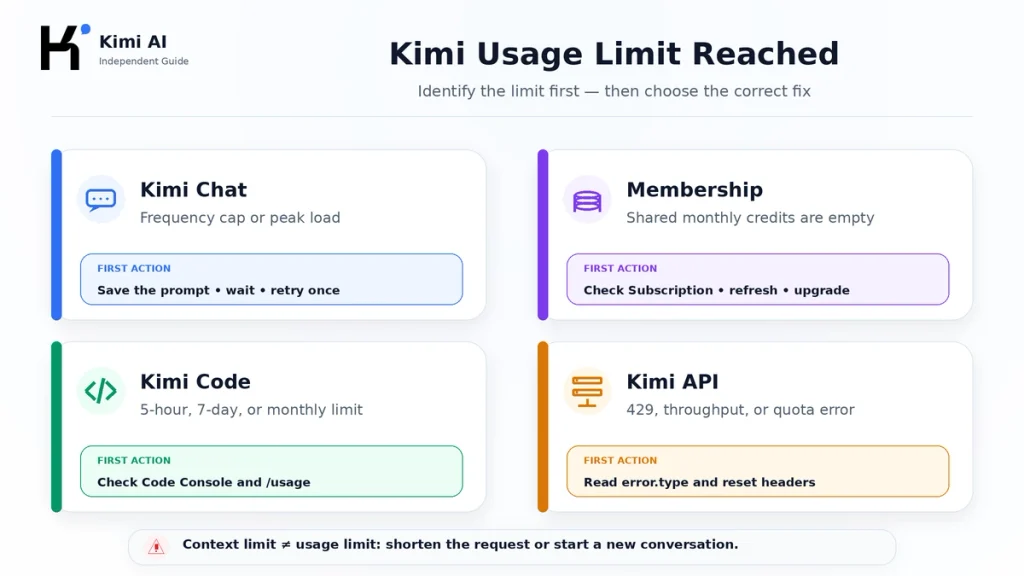
Kimi Usage Limit: Quick Diagnosis Table
| Where the error appears | Message or symptom | Likely meaning | Correct first action |
|---|---|---|---|
| Kimi Chat | Message will not send or a red circle appears | Conversation-frequency cap or network problem | Save the prompt, test a short message, and wait two to three hours if the frequency cap was triggered |
| Kimi Chat | “Kimi is a bit tired” | Temporary peak-load pressure | Wait one to two minutes and retry once |
| Kimi membership feature | Insufficient credits | Shared monthly membership credits are exhausted | Check Settings → Subscription; wait for refresh, upgrade, or use Extra Usage where available |
| Kimi Code | “Usage limit for this period” | Rolling five-hour Kimi Code window reached | Open the Kimi Code Console and wait until the displayed reset time |
| Kimi Code | “Usage limit for this billing cycle” | Seven-day Kimi Code quota exhausted | Check the Console; wait for the next seven-day cycle, upgrade, or use eligible Extra Usage |
| Kimi Code | Kimi monthly usage limit | Shared monthly membership credits are empty | Check the main Kimi Subscription page rather than only the Code Console |
| Kimi API | engine_overloaded_error | Temporary server-capacity pressure | Respect Retry-After and retry with bounded exponential backoff |
| Kimi API | rate_limit_reached_error | Concurrency, RPM, TPM, or TPD limit reached | Reduce load, inspect rate-limit headers, wait for reset, or raise the API tier |
| Kimi API | exceeded_current_quota_error | Insufficient balance, disabled account, or token quota | Stop automatic retries and check billing, balance, and account status |
| Chat, Code, or API | Token or context limit error | The request is too large, not a time-based usage limit | Shorten the prompt, trim history, split files, or start a new conversation |
What Does “Kimi Usage Limit Reached” Mean?
Kimi applies several independent types of limits. Two users can see similar wording but require completely different solutions.
- Conversation-frequency limit: too many chat messages were sent within a time window.
- Membership-credit limit: a paid or free feature used the account’s shared monthly credit pool.
- Kimi Code rolling limit: intensive coding activity filled the current five-hour window.
- Kimi Code weekly limit: the seven-day Code allowance was fully consumed.
- API throughput limit: the application reached concurrency, requests-per-minute, tokens-per-minute, or tokens-per-day capacity.
- API balance limit: the developer account lacks sufficient balance or token quota.
- Server overload: Kimi’s infrastructure is temporarily under pressure and the account itself is not exhausted.
- Context limit: the prompt, history, files, tools, and requested output no longer fit within the model’s context window.
The wording alone is not always enough. Record the product surface, HTTP status where applicable, complete error body, reset time, plan, and displayed balance before changing anything.
What to Do in the First Five Minutes
- Save your work. Copy an unsent prompt, export generated files, and preserve any code changes before refreshing or closing the application.
- Copy the exact message. Do not reduce every error to “Kimi is down” or “429.”
- Identify the product. Was the failure in Kimi Chat, Agent, Kimi Work, Kimi Code, Kimi Claw, or the Open Platform API?
- Check the relevant usage screen. Membership, Code, and API usage are displayed in different places.
- Look for a reset timestamp. A rolling five-hour limit, weekly quota, monthly credit cycle, and API rate window reset differently.
- Avoid repeated rapid retries. They do not refill credits and can continue consuming rate capacity when a request is admitted.
- Change only one variable. Do not simultaneously change account, browser, model, network, conversation, and file.
A screenshot should include the message and visible usage percentages, but it should not expose an API key, password, authorization header, verification code, private document, or payment-card information.
Kimi Chat Usage Limits
Messages will not send or a red circle appears
Kimi’s official Chat troubleshooting page says a failed send or red circle can be caused by a conversation cap within a time window or by poor network conditions. If the rate cap is involved, its current guidance is to wait two to three hours before trying again.
Use this sequence:
- Copy and save the unsent message.
- Check whether the official Website or Model service is reporting an incident.
- Test one short, harmless message in a fresh conversation.
- If it succeeds, the original conversation or request is more likely involved.
- If it fails, test another approved network without repeatedly resending the same prompt.
- If the interface indicates a frequency cap, wait for the official recommended period.
Do not assume that buying API balance will change a consumer Chat frequency limit. Kimi Chat and the Kimi Open Platform use separate billing and limit systems.
“Kimi is a bit tired”
This message indicates peak-load pressure rather than proof that your monthly credits are empty. Kimi’s current Chat guide recommends waiting one to two minutes and trying again.
A membership may provide higher-priority access, but upgrading is not an instant technical repair for every server-capacity incident. Save the task and avoid opening multiple duplicate requests while the service is busy.
A long conversation stops accepting content
This can be a context-window problem rather than a usage quota. Ask Kimi to create a compact handoff before the conversation becomes unusable:
“Create a concise handoff for a new conversation. Include the objective, verified facts, decisions, constraints, relevant files, unfinished work, and the exact next action. Do not add new facts.”
Copy the handoff into a new conversation. Deleting earlier messages inside the same conversation does not restore its context capacity.
Kimi Membership Credits Reached
Kimi membership features use a shared credit pool. Agent tasks, Deep Research, Slides, Docs, Sheets, websites, Kimi Work, Kimi Code, Kimi Claw, K3 features, and other membership tools can draw from the same monthly allowance.
This means one demanding feature can reduce what remains for another. A long research report, multi-step coding task, presentation, website deployment, or large file workflow can consume more than a short chat because credits are based primarily on token usage.
K2.6 in the ordinary Chat entry point is currently documented as free for users and does not consume membership credits. However, K2.6 used as an Agent inside Kimi Work can consume credits, and ordinary Chat can still have conversation-frequency and context limits.
What happens when membership credits run out?
- A task already in progress can normally finish.
- New credit-consuming tasks display an insufficient-credit notice.
- Other features can also be affected because they use the same pool.
- Kimi Code can become frozen even when its separate five-hour or weekly display appears to have room.
Your available choices are:
- Wait for the monthly membership refresh.
- Upgrade to a plan with more credits.
- Enable Extra Usage where the option is available to your account.
- Use a feature that does not consume membership credits when it fits the task.
- Join an eligible official campaign that provides bonus credits.
When do Kimi membership credits reset?
Membership credits refresh monthly according to the subscription cycle, not necessarily on the first day of the calendar month. Annual subscribers also receive their allowance through monthly refreshes.
Unused membership credits expire at the end of the cycle. They do not roll over or convert to cash.
To see the current reset time on the web:
- Open Kimi while signed in.
- Click your avatar or Me in the lower-left corner.
- Open Settings → Subscription.
- Review the remaining percentage, next refresh, and usage details.
On mobile, open Settings → Membership Plan → My Subscriptions.
Can Extra Usage continue after a limit?
Where Extra Usage is offered in the signed-in account, subscribed users can add a pay-as-you-go balance. After it is enabled, Kimi can use that balance when the subscription allowance or eligible rate limit is reached.
Important conditions include:
- Only subscribed members can enable or add Extra Usage under the currently documented rules.
- The balance is shared between Kimi’s supported consumer surfaces and Kimi Code.
- Time-limited subscription or bonus credits are used before Extra Usage.
- The Extra Usage balance does not expire under the current rules.
- A monthly spending cap is optional; without one, no monthly cap is applied to the Extra Usage wallet.
- Server overload is an infrastructure problem and is not repaired by purchasing more balance.
The current official help page describes RMB-denominated balances and top-up conditions. Confirm availability, currency, price, and spending controls in your own account before purchasing.
For a full comparison of the subscription tiers, see our Kimi AI free vs paid plans guide.
Kimi Code Usage Limits
Kimi Code has three relevant usage layers:
- A rolling five-hour rate window.
- A quota that refreshes every seven days from the subscription date.
- The shared monthly Kimi membership credit pool.
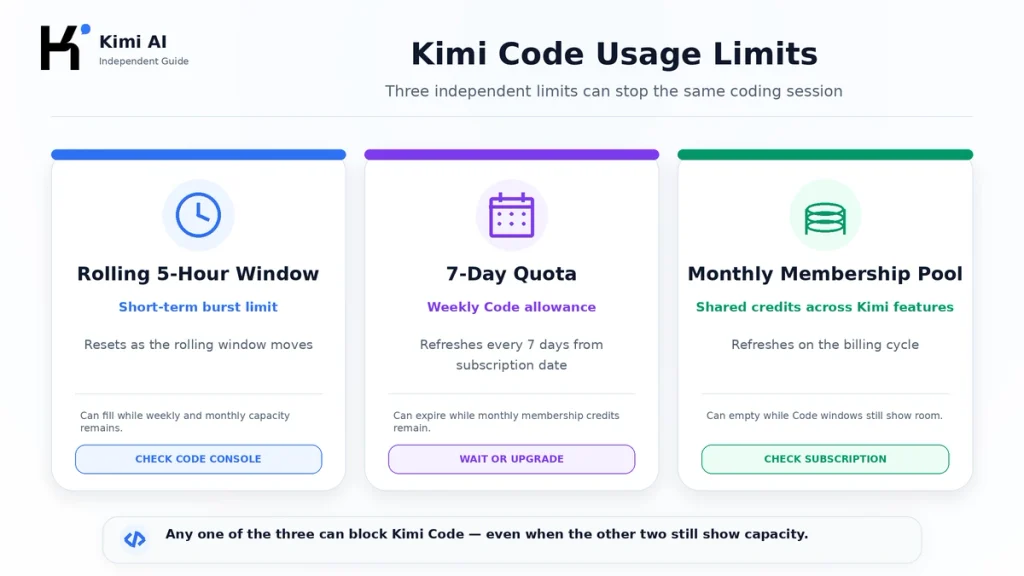
Reaching any one of these can stop Code even when the other two still show available capacity.
1. Rolling five-hour Kimi Code limit
If Kimi Code reports that the usage limit for the current period has been reached, the official error reference maps that message to the rolling five-hour window.
This is a short-term burst limit. You may still have:
- Weekly Kimi Code quota remaining.
- Monthly membership credits remaining.
- An active paid subscription.
Open the Kimi Code Console and check the reset timestamp. The limit recovers as the rolling window moves forward. Repeated requests do not make it reset sooner.
2. Seven-day Kimi Code quota
Kimi Code’s weekly allowance refreshes every seven days from the subscription date. The documented cycles run from the subscription day through day seven, then days eight through fourteen, and so on.
Unused weekly quota does not roll over. If it is exhausted, wait for the next seven-day cycle, upgrade to a plan with more capacity, or use eligible Extra Usage.
The official error reference currently labels the corresponding 403 message as a billing-cycle quota error, even though its explanation identifies the exhausted allowance as the weekly quota. Use the reset date shown in the Console rather than interpreting the word “billing” as automatically meaning the monthly membership cycle.
3. Shared monthly membership limit
Kimi Code also draws from the shared Kimi membership allowance. If the account’s monthly membership total reaches its limit, Code is frozen until the monthly allowance resets, the plan is upgraded, or eligible Extra Usage takes over.
This explains two apparently contradictory situations:
- Monthly credits remain, but Code is blocked: the five-hour or seven-day Code limit was probably reached.
- Code quota remains, but Code is blocked: the shared monthly membership pool may be empty.
All devices and Kimi Code keys share the quota
Kimi Code requests from the CLI, VS Code, supported third-party tools, logged-in devices, and Kimi Code API keys count against the same signed-in account. Opening several agents or devices does not create separate allowances.
Parallel coding agents, subagents, repeated retries, long repository contexts, and large tool outputs can consume the available window more quickly than a simple one-turn request.
How to check Kimi Code usage
- Kimi Code Console: view weekly usage, rolling-window status, reset times, keys, and signed-in devices.
- Kimi Code CLI: enter
/usageto inspect the currently available information. - Main Kimi Subscription page: check the shared monthly membership allowance.
Checking only one screen can produce the wrong diagnosis. Review the five-hour window, seven-day quota, and monthly membership balance together.
For model-specific information, see our Kimi K2.7 Code guide.
Kimi API Rate Limits and 429 Errors
A Kimi API 429 response is not always an instruction to retry. Read the JSON response and classify the failure by error.type.
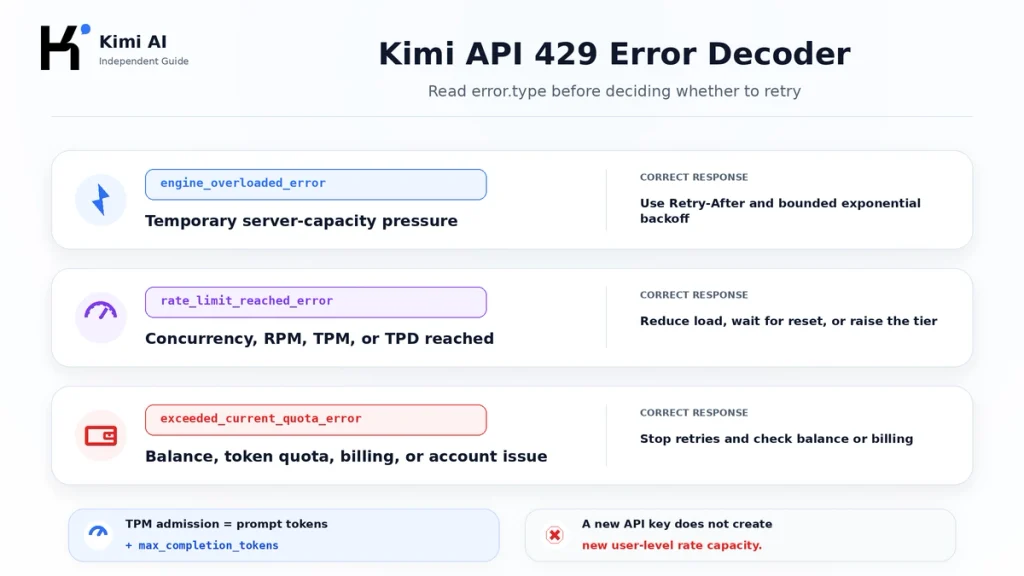
engine_overloaded_error
This is a server-capacity condition. It is not evidence that your balance or personal quota is empty.
Use the following response:
- Respect a valid
Retry-Aftervalue. - Reduce concurrency.
- Retry with exponential backoff and random jitter.
- Use a maximum attempt count and maximum total delay.
- Do not top up or upgrade only to fix server overload.
Before repeating a request that can call a tool or change external data, determine whether the first attempt may already have produced a side effect.
rate_limit_reached_error
This means the account or organization reached one of four throughput controls:
| Limit | What it measures | Typical fix |
|---|---|---|
| Concurrency | Requests processed simultaneously | Use a queue or semaphore and reduce parallel calls |
| RPM | Requests per minute | Wait for the minute window, batch small requests, or raise the tier |
| TPM | Tokens admitted per minute | Reduce prompt and output budgets, lower frequency, or raise the tier |
| TPD | Tokens admitted per day | Wait until the next day or obtain a higher API tier |
Whichever category is reached first blocks the request. A workload can therefore hit RPM while using relatively few tokens, or hit TPM with only a small number of large requests.
exceeded_current_quota_error
This error type can indicate:
- Insufficient API balance.
- Insufficient token quota.
- A disabled account or billing problem.
Stop automatic retries. Check the Open Platform balance, billing status, organization, project budget, and account access first.
Depending on the API route and exact response, an insufficient-balance condition may be exposed as a 403 or as a 429 quota error. The JSON error type and message are therefore more useful than the status number alone.
Why can one API request hit a token rate limit?
Kimi’s gateway calculates rate-limit admission using:
Prompt tokens + the requested
max_completion_tokensallowance
It does this even when the model ultimately generates fewer output tokens. Billing, by contrast, uses the actual generated output.
For example, a short prompt with an unnecessarily large completion allowance can reserve far more TPM capacity than the final response consumes. Set a realistic max_completion_tokens value instead of relying on a large model default.
Creating another API key does not reset the limit
Kimi currently applies Open Platform rate limits at the user level rather than independently for each key, and the limits are shared across models. Creating several keys under the same user does not create separate RPM, TPM, TPD, or concurrency capacity.
How to check Kimi API rate limits
- Open the Kimi Open Platform Console and view the account’s current rate-limit tier.
- Check the fee-detail page for balance, daily usage, per-model costs, and historical spending.
- Inspect
X-RateLimit-Limit,X-RateLimit-Remaining, andX-RateLimit-Resetresponse headers. - Preserve the sanitized response body and
request_idwhen requesting support.
API limits are based on the Open Platform account and its cumulative top-up tier. A Kimi consumer membership such as Moderato or Allegretto does not increase API concurrency or add Open Platform balance.
Context Limit vs Usage Limit
A context error means the request is too large. Waiting for a rate window will not make the same oversized request valid.
| Problem | Typical status | Correct solution |
|---|---|---|
| Conversation or request exceeds the model’s token window | 400 | Shorten input, trim history, lower the output allowance, or divide the task |
| Kimi Code message body exceeds the accepted payload size | 400 | Remove unnecessary messages and large tool results |
| Request frequency or account throughput exceeds a limit | 429 | Wait, reduce concurrency, lower token admission, or raise the API tier |
| Weekly Kimi Code allowance is exhausted | 403 in the documented Code error | Wait for the seven-day cycle, upgrade, or use eligible Extra Usage |
For a long Kimi Chat conversation:
- Ask for a concise handoff.
- Save important generated files and conclusions.
- Start a new conversation.
- Paste the handoff and only the files needed for the next stage.
For a large API or Code request:
- Remove irrelevant history.
- Summarize completed work.
- Split files or repository analysis into stages.
- Reduce tool-result verbosity.
- Set a realistic completion limit.
- Use retrieval to select relevant files instead of inserting the entire corpus.
How to Check Your Kimi Usage and Reset Time
| Product | Where to check | What to record |
|---|---|---|
| Kimi web | Avatar or Me → Settings → Subscription | Plan, remaining credits, next monthly refresh, usage records |
| Kimi mobile app | Settings → Membership Plan → My Subscriptions | Plan details and credit usage |
| Kimi Code | Kimi Code Console | Five-hour window, seven-day quota, reset times, keys, devices |
| Kimi Code CLI | Run /usage | Available quota and Extra Usage information exposed by the client |
| Kimi API | Open Platform Console | Balance, usage, project budget, rate tier, model costs |
| Kimi API response | Headers and JSON body | Status, error.type, reset information, request_id |
Usage-detail records can have a short delay. If a detailed log and the current balance display disagree, preserve both and use the current account display as the immediate reference.
Should You Wait, Upgrade, Top Up, or Use Extra Usage?
| Situation | Best first choice | Why |
|---|---|---|
| Rare Chat frequency limit | Wait | A subscription decision is difficult to justify for an occasional short cap |
| Temporary server overload | Wait and retry with backoff | More credits do not create immediate server capacity |
| Five-hour Code limit reached occasionally | Wait for the rolling reset | You may still have weekly and monthly capacity |
| Code limits repeatedly interrupt normal work | Measure and consider upgrading | A higher tier may change the recurring account bottleneck |
| Monthly shared credits exhausted | Wait, upgrade, or use Extra Usage | The correct choice depends on urgency and expected recurring demand |
| API balance empty | Top up the API account | Membership credits do not fund Open Platform calls |
| API RPM, TPM, TPD, or concurrency is regularly insufficient | Optimize and raise the API tier | Retries alone do not create sustained throughput |
| Context window exceeded | Shorten or split the request | No plan refresh can make an oversized request fit unchanged |
Upgrade only when the higher plan changes the limit you are actually reaching. More monthly credits do not necessarily prevent a short Kimi Code rolling limit, and a consumer membership does not raise API throughput.
How to Avoid Reaching Kimi Limits Again
For Kimi Chat and membership features
- Use ordinary K2.6 Chat for suitable simple tasks that do not require a credit-consuming Agent workflow.
- Start a new conversation with a handoff instead of keeping unlimited history.
- Upload only files relevant to the current step.
- Ask for concise outputs when a long answer is unnecessary.
- Use Standard thinking strength for routine work when the interface provides that option.
- Check the subscription page before starting a large research, presentation, coding, or website task.
- Record how much a repeatable task consumes rather than relying on a fixed number of “tasks.”
For Kimi Code
- Check the five-hour, seven-day, and monthly displays before a long coding session.
- Avoid running unnecessary parallel agents across several devices.
- Stop loops that repeatedly read the same files, rerun failing tools, or regenerate unchanged output.
- Use repository search to select relevant files before loading large context.
- Compact or restart long sessions after creating a clear engineering handoff.
- Run
/usageperiodically instead of waiting for a hard block. - Set an Extra Usage spending cap if you choose pay-as-you-go overflow.
For the Kimi API
- Set realistic
max_completion_tokensvalues. - Use a queue or semaphore to control concurrency.
- Batch compatible small operations.
- Implement bounded exponential backoff with jitter.
- Respect
Retry-Afterand rate-limit reset headers. - Use automatic context caching for stable repeated prefixes.
- Estimate tokens before unusually large requests.
- Set project daily spending budgets and balance alerts.
- Monitor retry loops in coding tools and agents.
- Log model, input size, output size, cache hits, latency, status, error type, and
request_id.
What Not to Do
- Do not retry quota errors indefinitely. Exhausted balance and weekly limits do not recover because a client sends the same request again.
- Do not upgrade to fix engine overload. Temporary server pressure is not an account-tier problem.
- Do not buy a consumer membership to fund API requests. The billing systems are separate.
- Do not create multiple API keys to bypass a user-level limit. Keys under the same user share the current API capacity.
- Do not assume remaining monthly credits guarantee Kimi Code access. Check its five-hour and seven-day limits.
- Do not delete messages expecting the same Chat conversation to regain context. Create a handoff and start a new conversation.
- Do not expose credentials in screenshots. Redact keys, cookies, one-time codes, private prompts, and payment data.
- Do not switch several conditions at once. You may restore access without identifying the cause.
When to Contact Kimi Support
Contact official support when:
- The displayed reset time has passed but the account remains blocked.
- Purchased credits or a membership do not appear.
- The error message conflicts with every usage screen.
- A payment was charged but the benefit was not activated.
- An operational API account repeatedly receives an unexplained account-specific error.
- The API balance, quota, or project status appears incorrect.
- An account restriction or suspension needs review.
Include:
- Account email or safe account identifier.
- Date, time, and time zone.
- Product surface: Web, App, Work, Code, Claw, or API.
- Plan and visible usage percentages.
- Exact error text and screenshot.
- Reset timestamp shown by the interface.
- Browser, app, CLI, IDE, and operating-system versions where relevant.
- For the API, the endpoint, model ID, HTTP status, sanitized response, and
request_id. - The smallest sequence that reproduces the problem.
Never send a password, API key, authorization header, session cookie, verification code, or complete confidential document.
Frequently Asked Questions
How long does a Kimi usage limit last?
It depends on the limit. A peak-load message may recover in one or two minutes. A Chat frequency cap may require two to three hours. Kimi Code has a rolling five-hour window and a seven-day quota. Membership credits refresh on the account’s monthly subscription cycle. API RPM, TPM, concurrency, and TPD limits use their own reset windows.
Why is Kimi Code blocked when I still have monthly credits?
Kimi Code has a rolling five-hour limit and a separate seven-day quota in addition to the shared monthly membership pool. Either Code-specific limit can stop requests while monthly credits remain.
Why does Kimi Code show quota remaining but still refuse requests?
The shared monthly Kimi membership credits may be exhausted. Check the main Subscription page as well as the Kimi Code Console.
Is every Kimi 429 error temporary?
No. An engine_overloaded_error is generally temporary. A rate_limit_reached_error requires waiting or reducing load, while an exceeded_current_quota_error requires checking balance, quota, billing, or account status.
Will upgrading fix every Kimi rate limit?
No. Upgrading may help with recurring membership or account-tier limits. It does not fix an oversized context, temporary engine overload, network problem, or unrelated API balance issue.
Can I continue with Extra Usage after reaching a limit?
Where the feature is available, subscribed users can enable Extra Usage and continue on a pay-as-you-go balance after eligible subscription limits are reached. Check the signed-in account for availability, currency, rates, and spending controls.
Can a free user buy Kimi Extra Usage?
Under the currently documented rules, Extra Usage is available only to subscribers.
Do unused Kimi credits roll over?
Unused monthly membership credits and unused Kimi Code weekly quota do not roll over. The currently documented Extra Usage balance follows different rules and does not expire.
Does creating a new Kimi API key reset the rate limit?
No. Kimi currently applies Open Platform rate limits at the user level and shares them across models. Additional keys under the same user do not create independent limits.
Does deleting a Kimi conversation reset usage?
No. Deleting a conversation does not restore monthly credits, Code quota, or API capacity. Deleting earlier messages inside the same long conversation also does not free that conversation’s context window.
Is a Kimi context limit the same as a usage limit?
No. A context limit means the request or conversation is too large. Shorten it, split files, reduce history, lower the completion allowance, or start a new conversation. Waiting for a rate reset does not make the unchanged request fit.
How can one Kimi API request trigger TPM?
Kimi’s gateway calculates admission using the prompt tokens plus the requested max_completion_tokens, even if the final output is shorter. A very large completion allowance can therefore consume substantial TPM capacity.
Are Kimi Code and Kimi API limits shared?
No. Kimi Code is part of the current membership system and shares the membership pool while also applying Code-specific windows. The Kimi Open Platform API uses separate keys, balance, rate tiers, and billing.
Does K2.6 Chat use Kimi membership credits?
Kimi currently documents K2.6 in ordinary Chat as not consuming membership credits. K2.6 used as an Agent in Kimi Work can consume credits, and Chat remains subject to frequency and context restrictions.
How do I find the exact reset time?
Use Settings → Subscription for the monthly membership cycle, the Kimi Code Console for five-hour and seven-day limits, and Open Platform response headers or the API Console for developer rate limits.
Official Sources and Update Methodology
This guide prioritizes current first-party Kimi and Moonshot AI documentation. The main sources reviewed were:
- Kimi Membership Subscription Benefits
- Membership Credit Updates and Usage Rules
- Membership Account and Credit Lookup
- Kimi Extra Usage Pack
- Kimi Code Membership Benefits and Limits
- Kimi Code Error Reference
- Kimi Chat Common Issues
- Kimi API Rate Limits
- Kimi API Error Codes
- Kimi API Balance and Usage
- Official Kimi Support Contacts
Limits and account displays can change after publication. The exact error text, signed-in usage screen, reset timestamp, and current official documentation take priority over static estimates or third-party reports.
Last verified: August 22, 2026.
[…] Kimi usage limit reached […]