
If the Kimi app is not working, first test Kimi in a web browser and check Moonshot AI’s status page. If the web version and app fail on several devices or networks, the cause is more likely a service, account, or usage-limit issue. If Kimi works in the browser but the installed app crashes, freezes, or will not open, troubleshoot the device: update Kimi, restart the device, switch networks, check storage and permissions, clear the Android cache, or reinstall the app. On desktop, confirm that you are using Windows or an Apple-silicon Mac and update Kimi Work from the official download page.
App versions, platform requirements, menus, supported regions, and Kimi Work behavior can change. Use the current official download page, app-store listing, release notes, and signed-in account information as the final reference.
Do not begin by deleting the app. Copy unsent prompts, save generated files, confirm which Kimi account you use, and take a screenshot of the error. Reinstalling can solve damaged local app data, but it cannot fix a Kimi outage, exhausted usage allowance, unsupported phone number, or an oversized conversation.
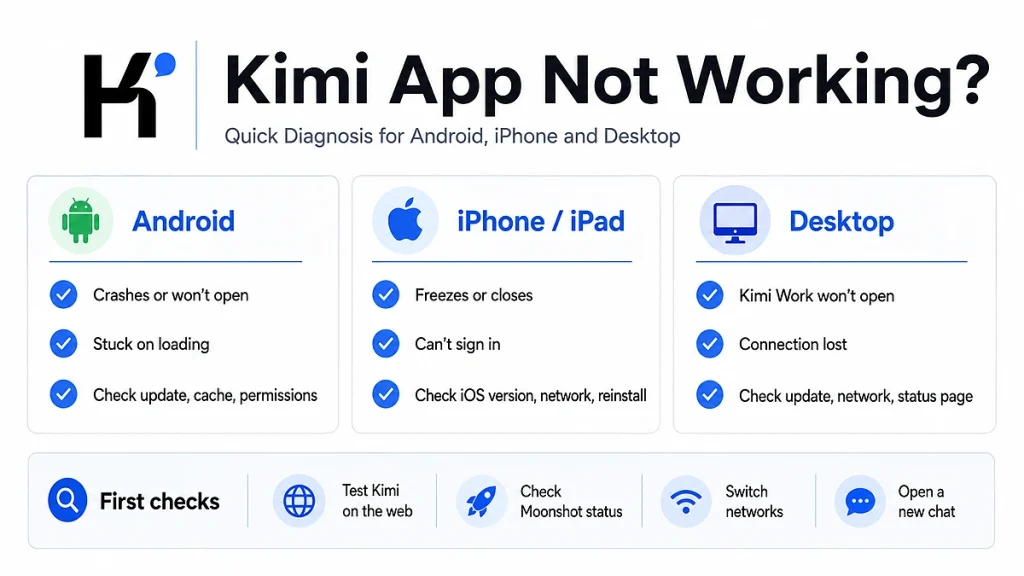
Kimi App Not Working: Quick Diagnosis
| Symptom | Most likely category | First check |
|---|---|---|
| The app closes immediately | App version, operating-system compatibility, damaged cache, or a software regression | Update Kimi, restart the device, and test the web version |
| Kimi stays on the logo or loading screen | Network, VPN, account session, service availability, or damaged local data | Check the official status page and switch between Wi-Fi and mobile data |
| Kimi works on the web but not in the app | Local app or device problem | Force close, update, check permissions, clear cache where available, or reinstall |
| Kimi fails on the web and app | Service incident, account problem, regional access, or usage limit | Test another network and device, then review status and account messages |
| Only one conversation freezes | Long history, problematic attachment, or conversation-specific state | Open a new chat and test a short message |
| “Connection lost” appears in Kimi Work | Network, proxy, firewall, WebBridge, desktop-client bug, or service issue | Test Kimi in a browser, restart Kimi Work, and check the release notes |
| Camera, microphone, files, or photos do not work | Missing operating-system permission | Open the device’s app-permission settings |
| Chats or membership are missing | Wrong Kimi account or stale login session | Confirm the account and sign out, then sign in again |
| A scheduled desktop task did not run | Kimi Work was closed or the computer was asleep | Keep the computer awake and Kimi Work open |
| “Too many people are chatting” or a limit message appears | Capacity or usage limit rather than app corruption | Do not reinstall; diagnose the displayed limit |
Protect Your Chats and Files Before Troubleshooting
Before clearing app data, uninstalling Kimi, or resetting Kimi Work, preserve anything that may not yet be synchronized.
- Copy an unsent prompt into Notes or a text file.
- Download generated documents, presentations, spreadsheets, images, and code.
- Record the email address or phone number used for the Kimi account.
- Take a screenshot of the complete error message.
- Record the app version, operating-system version, device model, date, and time zone.
- For Kimi Work, note the local workspace folder and save important local files separately.
Kimi says conversations sync across web, mobile, and desktop when the same account is used. However, an unsent draft may not be synchronized, and Kimi Work tasks that depend on local files must be continued on the computer where those files exist.
Do not manually delete Kimi Work support folders, workspace directories, or configuration files unless official support tells you exactly which location to remove.
Try These Fixes in the First Five Minutes
- Check the official service status. Open the Moonshot AI Status page and review Kimi, Website, Sign In, File Upload, Search, and Model components.
- Test Kimi in a browser. Sign in to Kimi.com using the same account.
- Open a new conversation. Send one short message without a file or image.
- Change networks. Switch between Wi-Fi and mobile data, or test another trusted connection.
- Temporarily disable a VPN, proxy, Private DNS, or filtering extension. Re-enable security tools after the test.
- Close and reopen Kimi. Force close or fully quit the app rather than leaving it in the background.
- Restart the device. This clears stuck processes and temporary network state.
- Check for an official update. Use Google Play, the App Store, or Kimi’s official desktop download page.
The result tells you where to continue:
- Web works, app fails: follow the platform-specific app steps below.
- Web and app both fail: investigate service status, account access, network restrictions, or usage limits.
- A new chat works: the original conversation or attachment is likely responsible.
- Another network works: check your router, VPN, DNS, firewall, or network administrator.
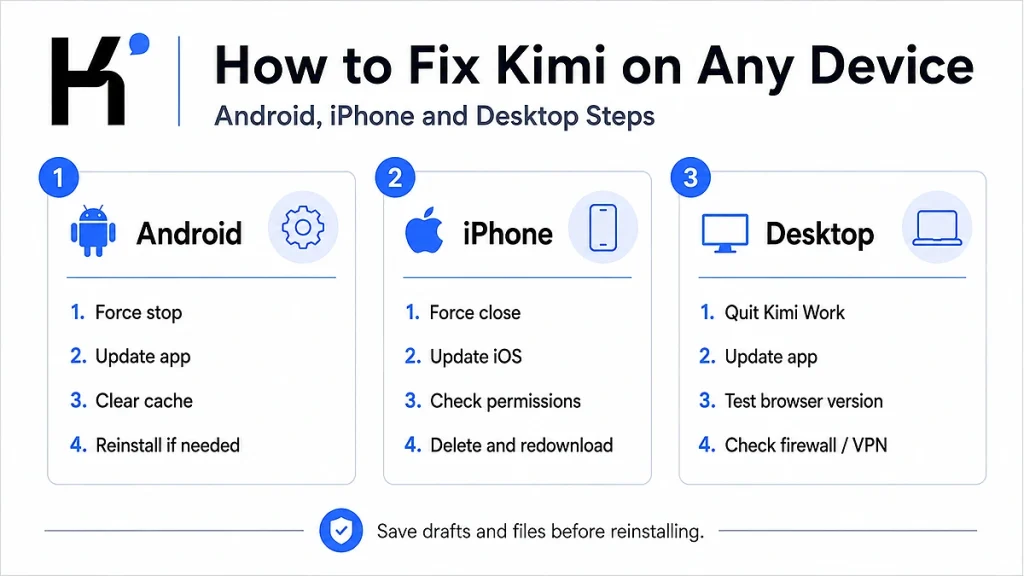
How to Fix the Kimi App on Android
Install Kimi only from the official Google Play listing published by Moonshot AI. The official Android package is com.moonshot.kimichat. Avoid similarly named guide apps, unofficial APK files, and download mirrors.
1. Force stop Kimi and reopen it
Android menu names vary by manufacturer, but the usual route is:
- Open Settings.
- Choose Apps or Applications.
- Select Kimi.
- Tap Force stop.
- Open Kimi again and test a new chat.
Force stopping ends a frozen app process without deleting conversations or settings.
2. Restart the Android phone
Restart the phone rather than only locking and unlocking it. A restart can recover memory, network services, authentication components, and system processes used by the app.
3. Update Kimi and Android
- Open Google Play.
- Search for the official Kimi app by Moonshot AI.
- Tap Update if the button appears.
- Open Android Settings and check for system updates.
- Restart the phone after installing major updates.
If Google Play says that Kimi is incompatible with your device, do not bypass that warning with an APK from an unknown source. Use the Kimi web version or another officially supported device.
4. Check available storage
Low storage can prevent updates, downloads, temporary-file creation, camera processing, and stable app operation. Free space by removing unnecessary downloads, videos, duplicate files, or unused apps, then restart Kimi.
If several apps are crashing—not only Kimi—the problem is more likely related to Android, storage, or another installed app.
5. Clear the Kimi cache
The typical route is:
- Open Settings → Apps → Kimi.
- Open Storage & cache.
- Tap Clear cache.
- Reopen Kimi and sign in if requested.
Clearing the cache removes temporary files. It is less disruptive than clearing storage or app data.
6. Clear app storage only as a later step
If clearing the cache does not help, Android may offer Clear storage or Clear data. This resets Kimi on that device, signs you out, and removes locally stored settings or drafts.
Before using it:
- Confirm your Kimi login method.
- Save unsent text and downloaded files.
- Verify that important conversations appear in the web version.
- Make sure you can receive the required login code.
Google’s official Android guidance recommends trying Force Stop, cache clearing, data clearing, updates, and developer support in that general order for an installed app that is not working.
7. Check Kimi permissions
Open Settings → Apps → Kimi → Permissions and review only the permissions required for the feature you are using:
- Camera: taking a photo inside Kimi.
- Microphone: voice input or voice calls.
- Photos and videos: selecting media.
- Files or storage: uploading or saving documents where required.
- Notifications: task-completion alerts.
Grant only necessary permissions. A denied microphone permission does not usually make the entire app crash, but it can make one feature appear broken.
8. Check network restrictions
- Allow Kimi to use both Wi-Fi and mobile data.
- Disable Data Saver for Kimi during testing.
- Temporarily turn off a VPN, Private DNS, ad blocker, or security filter.
- Check whether the problem occurs on another Wi-Fi network.
- Set the phone’s date and time to automatic.
If Kimi works on mobile data but not Wi-Fi, the app is probably not corrupted. Investigate the Wi-Fi network, DNS, router, proxy, or organizational firewall.
9. Reinstall the official Android app
Reinstall only after confirming that the web version works and that you can sign back into the correct account.
- Save unsynced work.
- Uninstall Kimi.
- Restart the phone.
- Open Google Play.
- Confirm that the developer is Moonshot AI.
- Install Kimi and sign in using the original account.
How to Fix the Kimi App on iPhone or iPad
The official App Store listing currently requires iOS 15.0 or later for iPhone and iPadOS 15.0 or later for iPad. If the device cannot install a compatible version, use Kimi in a browser or update the operating system where supported.
1. Force close and reopen Kimi
Open the App Switcher, find Kimi, and swipe it away. Then reopen the app. Apple recommends closing and reopening an app as the first step when it stops responding, quits unexpectedly, or will not open.
2. Restart the iPhone or iPad
Restart the device, then test Kimi before opening many other apps. This helps distinguish a temporary operating-system state from a repeatable Kimi problem.
3. Update Kimi and iOS
- Open the App Store.
- Tap your profile picture.
- Install the Kimi update if one is listed.
- Go to Settings → General → Software Update.
- Install an available iOS or iPadOS update after backing up the device.
The Kimi App Store release history receives frequent bug-fix and performance updates, so using an outdated build can leave a resolved crash on the device.
4. Test the network and VPN
- Switch from Wi-Fi to cellular data or another trusted Wi-Fi network.
- Temporarily disable VPN or filtering profiles.
- Check whether Safari can open Kimi.com.
- Set date and time automatically.
- If the device belongs to an employer or school, ask whether network filtering blocks Kimi services.
5. Check iPhone permissions
Open Settings → Apps → Kimi, or find Kimi in the Settings app, then review permissions for microphone, camera, photos, mobile data, and notifications.
If Kimi opens normally but cannot take photos, hear your voice, or access selected files, fix the relevant permission rather than reinstalling the entire app immediately.
6. Check iPhone storage
Go to Settings → General → iPhone Storage. Free enough space for app updates, downloads, temporary files, and media processing.
7. Delete and redownload Kimi
iOS does not offer the same per-app cache-clearing control commonly found on Android. If the previous steps fail, Apple recommends deleting the app and downloading it again.
Deleting an app can remove data stored locally on the device. Before proceeding, confirm that conversations appear when you sign in to Kimi on the web and save unsent or downloaded material.
- Touch and hold the Kimi icon.
- Choose Remove App → Delete App.
- Restart the iPhone or iPad.
- Open the App Store and search for Kimi.
- Confirm the seller is Moonshot AI or Beijing Moonshot Technology Co., Ltd.
- Redownload the app and sign in with the original account.
How to Fix Kimi Work on Windows
Kimi Work is the official Kimi desktop application for local files, desktop workflows, plugins, scheduled tasks, browser automation, and other professional work. Download it only from Kimi’s official download page.
1. Fully quit Kimi Work
- Save any open work.
- Close the Kimi Work window.
- Check the Windows notification area for a Kimi icon and exit it if present.
- Open Task Manager and end Kimi processes that remain unresponsive.
- Reopen Kimi Work.
Closing only the visible window may leave a background process running, especially when local tasks, notifications, or plugins are active.
2. Restart Windows
Restarting can clear locked files, incomplete update processes, graphics state, local networking components, and a hung WebBridge or Agent process.
3. Update Kimi Work from the official source
Check the official Kimi Work Release Notes and compare the listed current version with the version installed on your computer.
At the time this article was verified, the release notes listed version 3.2.1 dated August 21, 2026. An earlier release, 3.1.10, specifically fixed a crash that occurred during upgrade for some Windows users. Do not treat those numbers as permanently current; always use the latest official release notes.
4. Test Kimi on the web
Sign in to Kimi.com using the same account:
- If web chat works, focus on Kimi Work, Windows, local permissions, or the network path used by the desktop client.
- If web chat also fails, check service status, account access, and usage limits before reinstalling.
5. Check VPN, proxy, firewall, and security software
- Temporarily disconnect from a VPN or proxy.
- Try another trusted network.
- Check whether Windows Firewall or endpoint-security software blocked Kimi Work after an update.
- Review antivirus quarantine rather than disabling protection permanently.
- Allow only the official Kimi executable and required network connections.
If the application works only when security software is disabled, do not leave the protection turned off. Create a narrowly scoped rule or ask the security administrator to review the blocked connection.
6. Use Windows Repair if it is available
Open Settings → Apps → Installed apps → Kimi. If Windows provides Advanced options, try Repair before Reset. Not every traditional desktop application exposes these controls.
Reset can remove local app settings, so preserve workspace information first. Microsoft recommends Repair before Reset when those options are available.
7. Reinstall Kimi Work
If Kimi Work still crashes or will not open:
- Save important workspace files outside the application.
- Record the current version and error.
- Uninstall Kimi Work through Windows Settings.
- Restart Windows.
- Download a fresh installer from the official Kimi page.
- Install it and sign in with the same account.
- Grant local-folder access only when you understand the requested scope.
How to Fix Kimi Work on Mac
The current official download page labels Kimi Work for macOS on Apple silicon. If you use an Intel Mac and the desktop installer will not run or the app is unavailable, do not assume that the Intel model is supported. Use the Kimi web version unless Moonshot publishes compatible desktop support.
1. Force quit Kimi Work
Press Option–Command–Esc, select Kimi Work, and choose Force Quit. Reopen the app after it closes. Unsaved local changes may be lost when an application is force quit.
2. Restart the Mac
Restart macOS, then open Kimi Work before launching many other desktop applications or automation tools.
3. Update Kimi Work and macOS
- Check Kimi Work’s official Release Notes.
- Download the latest official Apple-silicon build.
- Open System Settings → General → Software Update.
- Install compatible macOS updates after backing up important files.
Apple’s troubleshooting guidance for an app that quits unexpectedly or will not open is to quit and reopen it, restart the Mac, install updates, verify compatibility, and reinstall where necessary.
4. Review macOS permissions
Open System Settings → Privacy & Security. Depending on the Kimi Work feature, review:
- Files and Folders
- Full Disk Access, only when explicitly required and understood
- Microphone
- Camera
- Screen Recording
- Accessibility or automation permissions for computer-control features
Kimi Work uses permission controls for local-file operations. If you selected a mode that requires approval before acting, Kimi will not modify, overwrite, or run code in local files until you authorize the action.
5. Reinstall the official Mac app
Preserve workspace files, remove the current Kimi Work application, restart the Mac, and install a fresh copy from Kimi’s official download page. Avoid unsigned or repackaged installers.
Kimi Work-Specific Problems
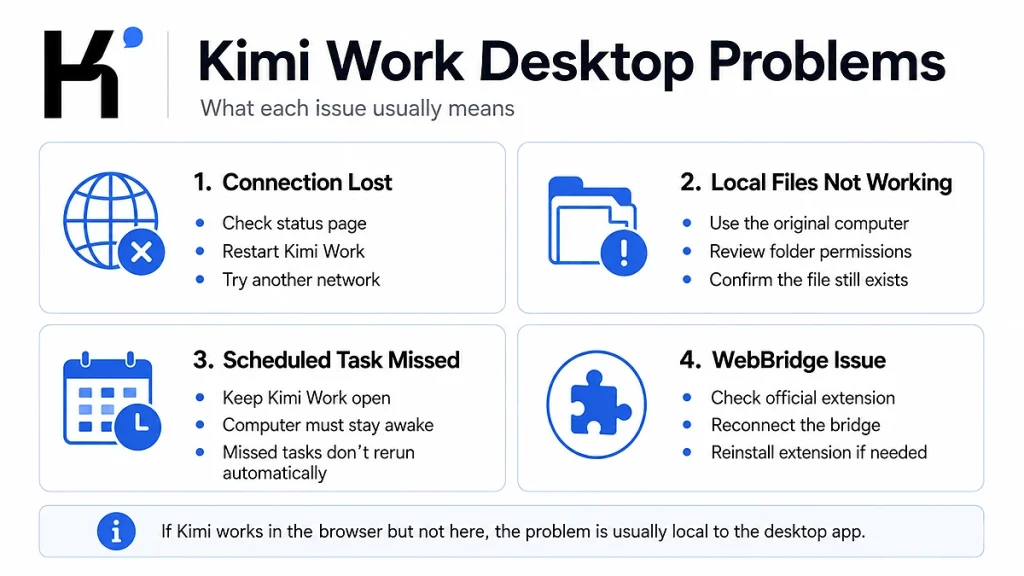
Kimi Work says “Connection lost”
Use this order:
- Check the official Kimi status page.
- Open Kimi.com in a browser using the same network.
- Fully quit and reopen Kimi Work.
- Switch networks or disable VPN and proxy settings temporarily.
- Confirm the desktop client is up to date.
- Check the official Release Notes for recent connection or stability fixes.
- If the problem began immediately after an update and the web version works, report the installed build number as a possible regression.
A user report from June 2026 described a particular Kimi Work build remaining on “Connection lost” while the network itself worked. A community report does not prove that every connection error is a software regression, but it shows why the exact app version should be included in a support request.
Kimi Work cannot access a local folder
- Confirm the folder still exists and has not been moved or renamed.
- Open the task on the same computer where the local files are stored.
- Review Kimi Work’s folder authorization.
- Check Windows or macOS privacy and file-access permissions.
- Grant the smallest folder scope required for the task.
- Do not assume a conversation synchronized to another device also transferred its local files.
Scheduled tasks are not running
On Kimi Work desktop, scheduled tasks run locally. The computer must be awake and the Kimi Work application must remain open. A trigger missed while the computer is asleep, shut down, or the app is closed is not run retroactively when Kimi Work opens again.
This is expected behavior, not an app crash. For a task that must run while your computer is unavailable, check whether an equivalent cloud-based Kimi task is suitable.
WebBridge is disconnected or does nothing
- Confirm the browser extension came from the official Chrome Web Store or Edge Add-ons listing.
- Check that Kimi Work and the browser have network access.
- Restart Kimi Work.
- Disable and re-enable the WebBridge plugin or extension.
- Resend the official connection command.
- Reinstall the extension from the official store if the connection remains broken.
Browser automation can also fail when the target website changes, blocks automation, requires a new login, or displays an additional security challenge. That does not necessarily mean the entire Kimi Work app is broken.
Kimi Login, Verification, and Sync Problems
Kimi works, but your chats or membership are missing
Confirm that you signed in with the same email address, mobile number, and account method used on the other device or for the subscription.
- Open Kimi on the web and note the active account.
- Compare it with the account displayed in the app.
- Sign out of the app.
- Restart the app.
- Sign in again using the matching method.
- Check whether the conversations and membership refresh.
Do not purchase a second subscription before confirming that the original membership is attached to a different Kimi account.
The SMS verification code does not arrive
- Confirm the phone number and country code.
- Wait several minutes for delivery.
- If no code arrives after more than five minutes, request a new code.
- Check whether the number is from a currently supported region.
- VoIP numbers and landlines are not supported under the current official rules.
- Avoid requesting codes repeatedly in a short period.
If login works on one platform but not another, record the platform, country-code options, login method, and exact error before contacting support.
An App Crash Is Not the Same as Every Kimi Error
| Problem | Does reinstalling usually help? | Correct direction |
|---|---|---|
| The app closes immediately on one device | Possibly | Update, restart, clear cache, check compatibility, then reinstall |
| Kimi fails across app and web | Usually not | Check status, account, region, and network |
| “Too many people are chatting” | No | Wait, check priority or capacity information, and review usage limits |
| Usage limit reached | No | Wait for reset, change plan, or use eligible additional usage |
| One long conversation freezes | Usually not | Create a handoff and start a new conversation |
| File, microphone, or camera fails | Not first | Fix permission, file, storage, or network conditions |
| Scheduled Work task missed while the PC was asleep | No | Keep Kimi Work open and the computer awake |
| Local file unavailable on another computer | No | Continue on the original computer or transfer the file separately |
For a limit or capacity message, use our Kimi Usage Limit Reached guide rather than repeatedly reinstalling the application.
When You Should Not Reinstall Kimi
- The official status page reports an incident.
- Kimi fails on several devices and networks.
- The app displays a clear usage or rate-limit message.
- Your phone number or login region is unsupported.
- Only one conversation or attachment fails.
- A scheduled Kimi Work task was expected to run while the application was closed.
- A local-file task was opened on a different computer.
- The feature requires a permission or membership benefit that the account does not have.
Reinstallation is most appropriate when the installed app alone is broken, the web version works, the account works, and the simpler local fixes have failed.
How to Reduce Future Kimi App Crashes
- Install Kimi only from official stores or the official download page.
- Keep the app and operating system updated.
- Maintain enough free storage.
- Restart the device periodically after major updates.
- Avoid extremely long conversations when a clean handoff will work.
- Upload only the files needed for the current task.
- Do not run many duplicate Agent tasks after a response becomes slow.
- Keep Kimi Work updated before installing new plugins.
- Review WebBridge and computer-control permissions after an operating-system update.
- Keep important local files outside temporary application folders.
- Record the version before applying a major update so a regression can be reported accurately.
How to Contact Kimi Support
Kimi’s official general-support email is [email protected]. Mobile users can also go to Me → Help & Feedback → Report an Issue. In-product feedback automatically provides useful device and account information.
Contact support when:
- The latest official app continues to crash after reinstalling.
- The problem is reproducible on a supported operating system.
- A Connection Lost state persists while the web version and network work.
- A paid benefit is missing from the correct account.
- The reset time or error message is inconsistent with the account display.
- The problem began immediately after a specific Kimi Work update.
- The app cannot sign in after all documented verification steps.
Include:
- Device model and operating-system version.
- Kimi or Kimi Work version.
- Date, time, and time zone.
- Account email or safely masked phone number.
- Exact error message.
- Screenshot or short screen recording.
- Steps that reproduce the problem.
- Whether Kimi works in the browser.
- Whether another network changes the result.
- For desktop, relevant logs or crash reports and the workspace type.
Never include your password, full session cookie, one-time verification code, API key, bank-card number, or an unredacted confidential document.
Frequently Asked Questions
Why is the Kimi app not working?
The cause may be a temporary Kimi incident, network filtering, an expired login session, usage limits, an outdated app, low storage, missing permissions, damaged local cache, unsupported hardware, or a platform-specific software bug. Test Kimi in a browser first to separate a local app problem from a wider issue.
Why does the Kimi app keep crashing on Android?
Common causes include an outdated app or Android version, low storage, damaged cache or app data, network or security conflicts, and a device-specific compatibility problem. Force stop Kimi, restart the phone, update the app, clear the cache, and reinstall only if the previous steps fail.
How do I clear the Kimi app cache on Android?
The usual route is Settings → Apps → Kimi → Storage & cache → Clear cache. The exact labels vary by phone manufacturer. Clear storage or data only after saving unsynced work and confirming your login method.
How do I clear the Kimi cache on iPhone?
iOS does not provide the same direct per-app cache button found on many Android devices. First force close, restart, and update Kimi. If the problem continues, delete and redownload the app after confirming your conversations and login details.
What iOS version does Kimi require?
The official App Store listing currently requires iOS 15.0 or later for iPhone and iPadOS 15.0 or later for iPad.
Will reinstalling Kimi delete my chats?
Kimi states that conversations synchronize across devices when you sign in with the same account. However, unsent drafts and data stored only on the device may be lost. Confirm the conversations in the web version and save local files before reinstalling.
Why does Kimi work in my browser but not the app?
This usually points to the installed app, device permissions, local cache, app version, operating-system compatibility, or network rules that affect the app differently from the browser.
Why is Kimi Work showing Connection Lost?
Possible causes include service availability, network filtering, VPN or proxy settings, firewall rules, a disconnected WebBridge component, an outdated desktop client, or a regression in a particular build. Test Kimi on the web, restart Kimi Work, update it, and report the exact version if the issue remains.
Does Kimi Work support Intel Macs?
The current official desktop download is labeled for macOS on Apple silicon. Intel-Mac users should not assume support and should use the web version unless Moonshot publishes an officially compatible build.
Why did my Kimi Work scheduled task not run?
Desktop scheduled tasks run locally only while Kimi Work is open and the computer is awake. Missed triggers are not run retroactively after the app or computer starts again.
Why can’t Kimi Work find my files on another computer?
Conversation history can synchronize through the account, but local files are not automatically transferred to another computer. Continue the task on the original device or move the required files separately.
Is “Too many people are chatting with Kimi” an app crash?
No. It is a service-capacity or priority message. Clearing cache or reinstalling usually does not solve it. Wait, test another model where appropriate, and review the current usage or plan information.
Why is only one Kimi conversation not working?
The thread may be too long, contain a problematic attachment, or have a conversation-specific state. Create a concise handoff, start a new chat, and add only the files needed for the next step.
Should I download a Kimi APK from another website?
No. Use the official Google Play listing or Kimi’s official download page. An unofficial APK may be outdated, modified, incompatible, or unsafe.
How do I report a Kimi app bug?
In the mobile app, go to Me → Help & Feedback → Report an Issue. You can also email [email protected] with the device, operating system, app version, error, reproduction steps, screenshots, and whether the web version works.
Official Sources and Update Methodology
This guide prioritizes Kimi, Moonshot AI, Apple, Google, and Microsoft documentation. The main sources reviewed were:
- Official Kimi Download Page
- Moonshot AI Status
- Official Kimi Google Play Listing
- Official Kimi App Store Listing
- Kimi Work Overview
- Kimi Work FAQ
- Kimi Work Release Notes
- Kimi WebBridge FAQ
- Kimi Mobile Number and Profile Management
- Official Kimi Support Contacts
- Google: Fix an Installed Android App That Is Not Working
- Apple: If an iPhone or iPad App Stops Responding
- Apple: If a Mac App Stops Responding or Won’t Open
- Microsoft: Repair Apps and Programs in Windows
Platform availability, app versions, requirements, and troubleshooting menus were checked on August 22, 2026. The current official app-store listing, Kimi Work Release Notes, account interface, and Moonshot status page take priority over static version numbers in this article.
Last verified: August 22, 2026.
[…] Kimi app not working on Android, iPhone or desktop […]