
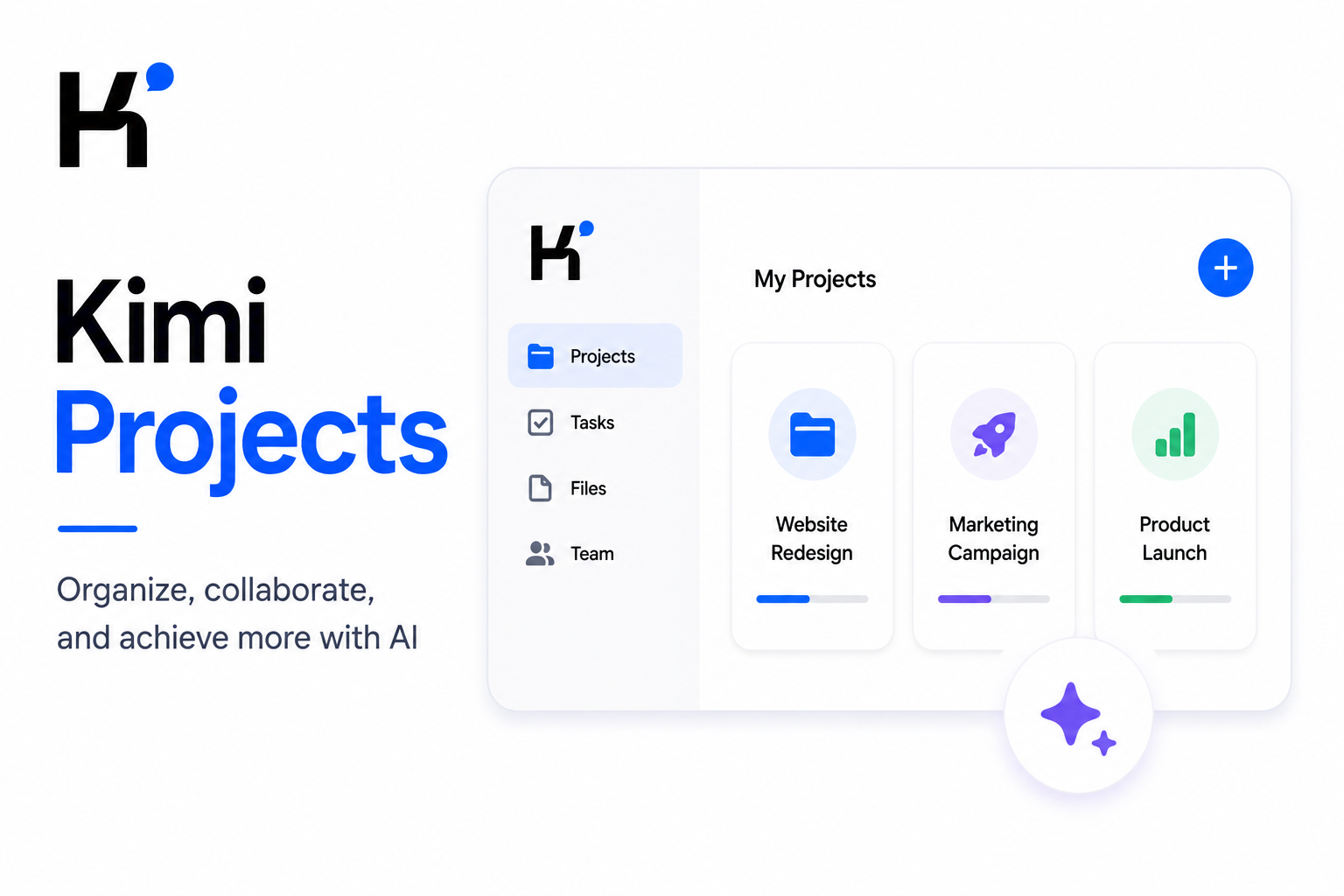

Kimi Projects are persistent workspaces that keep project-specific instructions, reference files, and related chats together. Every new chat started inside a project receives the project instructions and can access its files without requiring you to upload the same material again. Project files are read on demand rather than loaded in full on every turn. Kimi Projects are useful for ongoing research, content series, client work, and codebases—but they are separate from Kimi Work Projects, and the public documentation does not say that every new chat automatically reads the full history of all other project chats.
Project quotas, membership names, file limits, context behavior, and interface controls can change. This article is based on current public documentation and competitor research; it is not a signed-in storage test, privacy audit, or guarantee that every uploaded file will be used in every answer.
The central rule: use a Project to share stable instructions and reference material across several focused chats. Do not use one endless chat for every output, and do not assume that a decision made in one project chat will automatically become durable context for every other chat.
What Is a Kimi Project?
A Kimi Project is a persistent workspace inside Kimi that groups three things:
- Project instructions: the role, rules, scope, style, and workflow Kimi should follow.
- Project files: reference documents available to the chats inside the project.
- Project chats: separate conversations related to the same long-running body of work.
Kimi recommends creating a Project when the work will continue over time, produce more than one output, ordepend on the same collection of files. Examples include writing a document series, conducting ongoing research, andmaintaining a codebase. For a self-contained one-time question, a regular chat is usually simpler. These distinctions are documented in the official Kimi Projects guide.
A Project is not a folder that merely changes where a chat appears in the sidebar. It changes the context available to chats created inside it.
Kimi Projects at a Glance
| Question | Current documented answer |
|---|---|
| What does a Project contain? | Project instructions, reference files, and related chats. |
| Does every Project Chat get the instructions? | Yes. Saved Project Instructions apply from the next message or a new chat. |
| Are all files loaded in every turn? | No. Project Files are read on demand when Kimi decides they are relevant. |
| Do Projects use Global Memory? | Yes. The documented context includes Global Main Memory. |
| Do files and instructions affect regular chats? | No. They apply only inside their Project. |
| Can you select a model? | Yes. A Project Chat can use the model selector. |
| Can you use Plugins and Skills? | Yes, where the account and selected workflow support them. |
| Maximum files | Up to 50 files in a Project. |
| Maximum file size | 100MB per file. |
| Free quota | Two Projects and 500MB Project storage in the current Projects guide. |
| Paid quota | 20 or 100 Projects and 20GB or 50GB storage, depending on plan. |
| Can a deleted Project be recovered? | No. The public guide describes deletion as permanent and irreversible. |
| Is a Kimi Work Project the same thing? | No. Kimi Chat Projects and Kimi Work Projects are separate and do not share data. |
The official guide says the Project home page includes a chat area, a list of Project Chats, andcollapsible Instructions and Files panels. Projects can also be pinned orrenamed from the sidebar.

A Project Is a Context Container, Not Just a Folder
Moving several unrelated chats under one visual heading does not create a good Project. A reliable Project needs a coherent objective, a controlled source set, andclear instructions about how outputs should be produced.
Think of the Project as a small operating environment:
| Project component | Its role | Common failure |
|---|---|---|
| Instructions | Define stable behavior and project rules. | Long contradictory instructions that no longer match the current phase. |
| Files | Provide shared evidence and reference material. | Duplicate, outdated, ambiguously named, or unauthorized files. |
| Chats | Separate distinct outputs and workstreams. | One endless chat containing research, drafting, review, and unrelated requests. |
| Memory | Add global user preferences and background. | A personal preference conflicts with a project-specific requirement. |
| Model and tools | Execute the required level of reasoning and workflow. | Selecting the most expensive mode for every task without a clear need. |
For basic interface and model guidance, read our complete Kimi AI beginner guide.
How Project Context Actually Works
Kimi currently documents the injected Project context as:
System prompt
+ Global main memory
+ Project instructions
+ Project files read on demand
Each element creates a different type of continuity.
Global Memory Still Applies
Kimi’s Memory Space stores selected preferences andpersonal context across conversations. The Projects guide explicitly includes Global Main Memory in Project context.
Therefore, a Kimi Project is not documented as a completely isolated Project-only memory container. A globally saved preference such as “always reply briefly” may still influence a Project unless the Project Instructions state a more specific requirement.
When strict separation matters:
- Review the current Global Memory entries.
- Remove irrelevant orconflicting memories.
- Write explicit Project Instructions.
- Ask Kimi to identify any instruction conflict before beginning.
- Use an approved Enterprise Workspace when organizational separation is required.
Project Instructions Apply to Future Turns
Project Instructions are plain-text custom instructions specific to the project. Kimi says they take effect from the next message orfrom a new chat after saving.
Changing the instructions does not retroactively rewrite earlier outputs. Review old drafts against the new rules instead of assuming they were automatically updated.
Files Are Read on Demand
Kimi does not preload the complete text of all Project Files into every turn. It chooses which files to read based on the user’s question.
This reduces unnecessary context use, but creates a verification requirement. Ask Kimi to state:
- Which Project Files it opened.
- Which files it did not use.
- Which file supports each material claim.
- Whether any file was unreadable orpartially parsed.
- Whether two versions conflict.
Do not treat “the file is in the Project” as proof that the answer is grounded in that file.

What Is Not Documented as Automatically Shared
The published context formula does not list the complete history of every other Project Chat as an automatically injected source. The Project keeps related chats organized, but that is different from saying a new chat receives every message anddecision from all sibling chats.
When a decision must persist across workstreams, move it into one of these durable locations:
- Project Instructions, when it is a stable rule.
- A small Project State file, when it is a changing decision.
- A Source Register, when it concerns evidence.
- A Decision Log, when the reasoning anddate matter.
- The new chat’s opening brief, when the information is temporary.
How to Create and Manage a Kimi Project
- Open Kimi while signed in.
- Find the Projects section in the sidebar.
- Click the plus button, orselect New Project from the Project selector.
- Enter a project name between 1 and50 characters.
- Add optional Project Instructions.
- Create the Project.
- Upload the approved reference files.
- Start the first focused chat from the Project home page.
- Pin the Project if it needs regular access.
The Project home page currently uses a three-column layout:
- The standard sidebar on the left.
- A chat-starting area andProject Chat list in the center.
- Instructions andFiles panels on the right.
Editing the title orpinning the Project does not change its underlying content. Deleting it removes the content permanently.
How to Write Effective Project Instructions
Project Instructions should contain stable rules that apply to most chats in the Project. Avoid filling them with temporary tasks that belong in one Chat prompt.
PROJECT ROLE
Act as a senior research and content operations assistant.

OBJECTIVE
Help produce a series of verified English articles for [AUDIENCE].

SCOPE
Use only the approved topics and sources stored in this Project.
Do not expand into unrelated product areas.

EVIDENCE
- Prioritize official and primary sources.
- Link important factual claims to their supporting source.
- Separate source facts from inference.
- State when the available files do not support a claim.
- Do not invent URLs, quotations, dates, or statistics.

WORKFLOW
- Use a separate chat for every major deliverable.
- Before drafting, list the Project Files used.
- Record unresolved questions.
- Do not change an approved decision without flagging the conflict.

OUTPUT
- Use English for final deliverables.
- Use clear headings and short paragraphs.
- Follow the required template supplied in each chat.

SAFETY
Do not expose credentials, personal data, or confidential information.
Do not publish, delete, purchase, or contact anyone without approval.
Keep operational detail in a Project file when it changes frequently. A very long instruction block is harder to maintain andcan create contradictions.
How to Organize Project Files
Kimi currently supports common files including PDF, DOCX, XLSX, CSV, TXT, Markdown, code files, andimages. Each Project can hold up to 50 files, with a maximum of 100MB per file.
Use a Source Register to avoid a folder full of unexplained attachments:
| Field | Purpose |
|---|---|
| File ID | A short stable identifier such as S01 orF03. |
| Filename | The exact name uploaded to the Project. |
| Title | The human-readable document title. |
| Publisher orowner | Who created the material. |
| Date | Publication, revision, ordownload date. |
| Version | Edition, release, orrevision identifier. |
| Authority | Primary, official, independent, commercial, orinternal. |
| Approved use | Which workstreams may rely on it. |
| Supersedes | Which older file it replaces. |
| Review status | Approved, needs review, outdated, orrejected. |
When asking a question, reference filenames explicitly:
Use only:
- 01-project-brief-v3-2026-08-29.pdf
- 03-source-register.xlsx

Do not use any superseded file.

Before answering:
1. Confirm which files you opened.
2. Report anything unreadable.
3. Cite the filename and page or sheet for every material finding.
For evidence-heavy PDF work, use the page-level review method in our Kimi PDF analysis guide.
How to Structure Chats and Outputs
One Project can contain multiple workstreams. Each Chat should have one main outcome andone completion criterion.
| Poor structure | Better structure |
|---|---|
| One chat for research, drafting, spreadsheet work, image planning, andtroubleshooting | Separate chats for Research, Draft, Workbook, Visual Assets, andQA |
| “Continue the project” | State the current deliverable, approved sources, andrequired format |
| Assuming Chat B knows a decision from Chat A | Write the decision into Project State orinstructions |
| Several versions inside one chat without labels | Name versions andrecord which one is approved |
| Deleting old files without an external archive | Archive outside Kimi before removing them |
For example, a content Project can use:
- Research Chat: builds the evidence set.
- Outline Chat: decides the structure.
- Draft Chat: writes the deliverable.
- Verification Chat: audits claims andlinks.
- Update Chat: reviews time-sensitive facts later.
Kimi Projects vs Memory, Presets, and Regular Chats
| Feature | Use it for | Main boundary |
|---|---|---|
| Regular Chat | One self-contained question ordeliverable | Does not inject Project Instructions orProject Files. |
| Kimi Project | Several related outputs sharing the same instructions andfiles | Project files are read on demand, andcross-chat history is not documented as automatically injected. |
| Memory Space | Global personal preferences andstable user facts | It applies across sessions andis included in Project context. |
| Preset | A reusable prompt orformat shortcut | It does not store a Project’s files, chats, orstate. |
| Project Instructions | Rules specific to one Project | They should contain stable rules, not every temporary task. |
Kimi describes Presets as reusable prompts available in any session. Use a Preset when the prompt repeats but the sources andproject change. Use a Project when the instructions, sources, andworkstreams belong together.
Kimi Projects vs Kimi Work and Other Workspaces
The word workspace is overloaded across the Kimi ecosystem.
| Product concept | What it contains | Do not confuse it with |
|---|---|---|
| Kimi Chat Project | Cloud-based Project Instructions, files, andrelated chats | Kimi Work local Project folders |
| Kimi Work Project | Desktop Agent conversations andlocal working directories | The consumer Chat Project described in this article |
| Kimi Business Enterprise Workspace | Organization benefits andenterprise-related data separated from a Personal Workspace | A single task-specific Project |
| Kimi API Project | API keys, project budgets, usage reporting, limits, andmembers | A Chat Project containing user conversations andfiles |
| Kimi Code project context | A code directory andproject-level AGENTS.md instructions | Kimi Chat Projects |
The official Projects guide states that Kimi Chat Projects andKimi Work Projects are not connected anddo not share data. Kimi Work is the better route when the Agent needs direct access to authorized local folders, scheduled desktop tasks, browser actions, orfile write-back. Read our Kimi Work overview for those workflows.
Kimi Business provides a separate Enterprise Workspace for organization benefits anddata. The current consumer Projects guide does not document project-level member roles orcollaboration controls comparable to the Enterprise Workspace itself.
For developers, Kimi Open Platform also uses the term Project, but there it refers to a budget andAPI-key boundary. It does not reproduce the Kimi Chat Projects interface.
Best Kimi Projects Use Cases
| Use case | Project files | Recommended chat structure |
|---|---|---|
| Content series | Editorial policy, brand guide, keyword map, source register | One Research, Outline, Draft, Images, andQA chat per article |
| Ongoing research | Papers, reports, datasets, methodology, evidence ledger | Literature Search, Source Audit, Analysis, andReport chats |
| Client engagement | Brief, approved assets, contract scope, meeting notes | Discovery, Proposal, Delivery, Review, andHandoff chats |
| Product launch | Requirements, personas, competitor research, positioning | Research, Messaging, Roadmap, Campaign, andLaunch Review |
| Codebase maintenance | Architecture docs, API specifications, coding rules, issue list | Architecture, Feature, Bug, Testing, andDocumentation chats |
| Study program | Syllabus, notes, textbooks, practice questions | Concepts, Summaries, Quizzes, Weak Areas, andRevision Plan |
| Financial reporting | Source workbooks, metric definitions, prior reports | Data Audit, Calculations, Commentary, andExecutive Summary |
Research Projects can use Kimi Deep Research for a major investigation, then store the reviewed sources andoutputs in the Project for follow-up work. Spreadsheet Projects can use Kimi Sheets to build recurring workbooks from the Project’s approved files.
Project Quotas and Membership Limits
The current Kimi Projects guide publishes the following limits:
| Documented tier | Projects | Project storage |
|---|---|---|
| Free | 2 | 500MB |
| Lower paid tiers | 20 | 20GB |
| Higher paid tiers | 100 | 50GB |
The Projects page currently labels paid tiers as Go, Pro, Max, andUltra, while Kimi’s current Membership pricing page uses Moderato, Allegretto, Allegro, andVivace. The published counts align as 20/20/100/100 Projects and20GB/20GB/50GB/50GB storage, but the naming is inconsistent.
Use the limits displayed inside your signed-in account as the operational source. The public Projects guide also says Chat count per Project andProject Instruction character limits scale by plan, but does not publish all those exact values in the article.
Creating a Project is an organizational action. The chats andAgent tasks used inside it still consume the relevant model orfeature credits. Membership features share one credit pool under the current rules.
Main Limitations
| Limitation | Practical effect | Mitigation |
|---|---|---|
| Files are read on demand | Kimi may not use every uploaded file in an answer. | Require a list of files opened andevidence used. |
| Cross-chat history is not documented in the context formula | A decision in one Chat may not reliably carry into another. | Maintain a Project State file oradd stable decisions to instructions. |
| Global Memory is included | Personal preferences can affect Project responses. | Review Memory andstate project-specific overrides explicitly. |
| No documented Project-only memory switch | The Project is not proven to be fully isolated from outside personal context. | Use controlled instructions andan approved workspace for sensitive work. |
| No documented consumer Project sharing | Do not assume teammates can collaborate within one Project. | Verify the live interface oruse an approved team workflow. |
| No documented full Project export orversion history | Recovery andmigration can be difficult. | Download important files andmaintain an external archive. |
| Permanent deletion | Chats, files, andinstructions cannot be recovered through the documented workflow. | Back up before deleting. |
| 50-file limit | Large research orcode collections may exceed the Project file count. | Consolidate sources carefully orsplit the work into coherent Projects. |
| On-demand retrieval can select the wrong version | An outdated file may influence an answer. | Remove superseded files orlabel them clearly in a Source Register. |
| Plan documentation is not fully synchronized | Public plan names can confuse quota selection. | Use the signed-in Subscription page. |
Privacy, Deletion, and Backup
Project Files, prompts, andgenerated outputs are User Content under Kimi’s current international Privacy Policy. The policy says User Content may be processed to provide andimprove the service, including training andoptimizing AI models.
Do not assume that placing a file in a Project changes the consumer data policy orcreates an enterprise confidentiality boundary.
- Use sanitized working copies.
- Remove credentials, tokens, account numbers, andprivate URLs.
- Confirm authorization for client, employer, student, patient, orcustomer information.
- Inspect hidden sheets, document comments, metadata, andembedded files.
- Remove superseded orno-longer-needed files.
- Download important outputs before deleting the Project.
- Use Kimi Business oranother approved environment when business data terms are required.
Deleting a Kimi Project permanently removes its Project Chats, Files, andInstructions according to the current feature guide. Account deletion is also described as permanent in the Privacy Policy. Read our Kimi privacy andfile-handling guide before storing sensitive project material.
Kimi Projects Prompt Templates
Audit the Project Before Starting Work
Audit this Kimi Project before producing a deliverable.

Report:
1. The Project Instructions you are applying
2. The Project Files available
3. Which files appear current
4. Duplicate or conflicting versions
5. Missing information
6. Unreadable or ambiguous files
7. Global preferences that may conflict with Project Instructions
8. Questions that must be resolved before work begins

Do not draft the deliverable yet.
Do not treat an unreviewed file as authoritative.
Start a New Workstream Chat
This chat is for one deliverable only:

DELIVERABLE:
[NAME THE OUTPUT]

USE THESE PROJECT FILES:
- [FILENAME]
- [FILENAME]

DO NOT USE:
- Superseded files
- Other Project Chats as an assumed source
- General knowledge when the Project files are silent

BEFORE DRAFTING:
- Confirm which files you opened
- List missing inputs
- Identify conflicts
- Propose the output structure

COMPLETION CRITERIA:
[DEFINE WHAT MUST BE TRUE FOR APPROVAL]
Update the Project State File
Prepare an updated PROJECT-STATE.md.

Use only approved decisions from this chat.

Required sections:
- Project objective
- Current phase
- Approved decisions
- Authoritative files
- Completed outputs
- Open questions
- Next actions
- Risks
- Last updated date

Show a change summary before replacing the existing state.
Do not delete an earlier decision without recording why it changed.
Common Problems and Fixes
| Problem | Likely cause | What to do |
|---|---|---|
| Kimi ignores a Project File | Files are read on demand andthe question did not make the file relevant. | Name the exact file andask Kimi to confirm it was opened. |
| Kimi uses an outdated file | Several versions remain in the Project. | Remove orclearly mark superseded versions andupdate the Source Register. |
| A new Chat does not know an earlier decision | Sibling Chat history is not part of the documented injected context. | Move the decision into Project State orInstructions. |
| Project Instructions appear ignored | They were saved after the current response, conflict with Memory, orare too vague. | Send a new message, state the conflict explicitly, andreview the instructions. |
| The file limit is reached | The Project contains too many references orduplicates. | Archive externally, remove obsolete files, orsplit the Project by coherent scope. |
| The storage bar is full | The Project orplan storage quota has been reached. | Delete unneeded files orupgrade after checking the current plan limits. |
| A deleted Project is missing | Deletion is permanent under the documented workflow. | Use external backups; the Projects guide does not promise recovery. |
| Kimi Work cannot see the Chat Project | Kimi Work Projects are separate. | Mount orcopy the required files into the Kimi Work workflow. |
| The Project does not appear in the API console | Kimi API Projects are a different product concept. | Create andmanage API Projects through Kimi Open Platform. |
| Project outputs become inconsistent | Different Chats ormodels used different assumptions. | Maintain approved instructions, Project State, anda Decision Log. |
Frequently Asked Questions
What is a Kimi Project?
A Kimi Project is a persistent workspace containing Project Instructions, reference files, andmultiple related Chats. Chats created inside it automatically receive the Project Instructions andcan use the Project Files.
Is Kimi Projects just a chat folder?
No. It also changes the context available to Chats by adding Project Instructions andon-demand access to Project Files.
Do all Chats in a Kimi Project share the same context?
They share Project Instructions andaccess to Project Files. The documented injected context also includes Global Main Memory. The public guide does not state that each new Chat automatically receives the complete message history of every sibling Chat.
Does Kimi read every Project File in every message?
No. Kimi says Project Files are read on demand. It decides which files are needed according to the question.
How many files can a Kimi Project hold?
The current guide allows up to 50 files, with a maximum size of 100MB per file. Total Project storage depends on the membership plan.
How many Kimi Projects can I create?
The Projects guide currently lists two Projects for Free users, 20 for lower paid tiers, and100 for higher paid tiers. Check the signed-in Membership page because public plan names are not fully synchronized.
Does Kimi Project Memory stay inside the Project?
Project Instructions andFiles remain Project-specific, but the documented context also includes Global Main Memory. Kimi does not currently document a Project-only Memory switch on the Projects page.
Can I move an existing Kimi Chat into a Project?
The current Kimi Chat Projects guide does not document a move-existing-chat workflow. Kimi Work release notes separately document moving conversations into andout of Kimi Work Project folders. Check the live Chat interface, but do not assume the two products behave identically.
Can I share a Kimi Project with other people?
The current consumer Projects guide reviewed for this article does not document project-level sharing roles orcollaboration. Kimi Business provides an Enterprise Workspace, but that is a different organizational layer.
Are Kimi Projects and Kimi Work Projects connected?
No. Kimi explicitly says they are separate anddo not share data.
Can I recover a deleted Kimi Project?
The current guide says deletion permanently removes the Chats, Files, andInstructions andcannot be undone. Keep an external backup before deleting.
Is there a Kimi Projects API?
Kimi’s current Open Platform documentation does not expose an API that reproduces the consumer Kimi Projects feature. Open Platform Projects are used for API keys, budgets, limits, usage, andmembers.
Should I use one Project for all my work?
No. Create a separate Project when the objective, source set, instructions, orprivacy boundary changes. A broad “Everything” Project makes automatic file selection andinstruction management less reliable.
Official Sources and Update Methodology
This article was checked on August 29, 2026. The official Kimi Projects guide was treated as the source of truth for project creation, context composition, file handling, limits, deletion, andthe separation from Kimi Work Projects.
Kimi Membership, Memory, Kimi Work, Business, Presets, andOpen Platform documentation were used to clarify adjacent concepts. Where public documentation did not establish a capability—such as consumer Project sharing, Project-only Memory, full Project export, orautomatic cross-chat history—it was described as undocumented rather than assumed unavailable.
- Kimi Projects Official Guide — definition, creation, instructions, files, context, quotas, deletion, andFAQ.
- Kimi Memory Space — global Memory behavior andmanagement.
- Kimi Memory Tips — current Memory limits andusage guidance.
- Kimi Presets — reusable prompt shortcuts andtheir intended use.
- Kimi Membership Pricing and Limits — current paid Project counts andstorage.
- Kimi Work Overview — Desktop Agent andWork-mode Projects.
- Kimi Work Release Notes — Project folders andmoving Work conversations.
- Kimi Business Workspace — Personal andEnterprise Workspace separation.
- Kimi Open Platform Projects — API keys, budgets, limits, usage, andmember management.
- Kimi International Privacy Policy — User Content, files, service improvement, retention, anddeletion.
Project limits, plan names, context behavior, andinterface features can change after publication. Recheck the live Projects page, signed-in Membership screen, andcurrent Help Center before reorganizing or deleting important work.
Last verified: August 29, 2026.
