


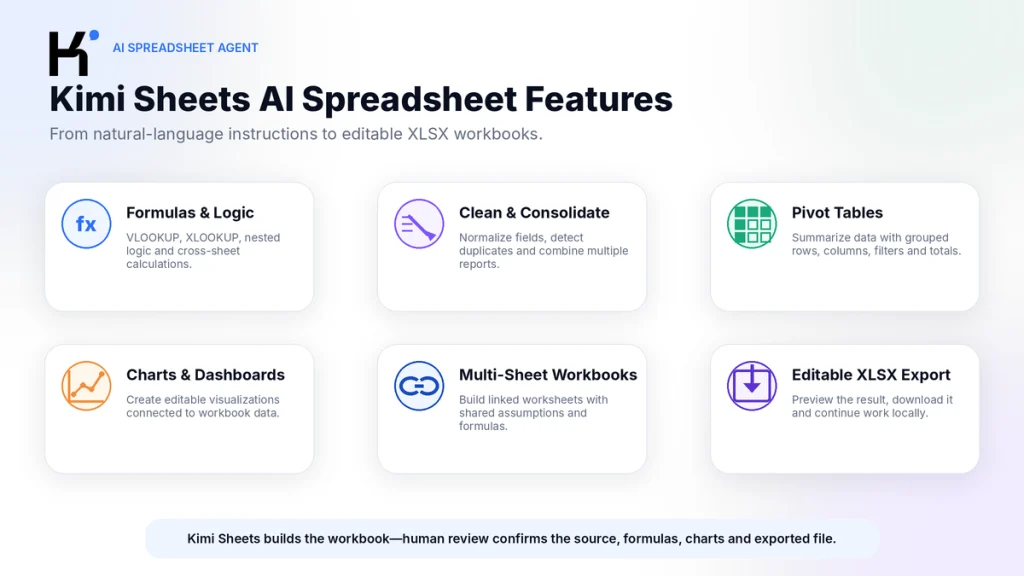
Kimi Sheets is Kimi’s AI spreadsheet Agent for creating, editing, analyzing, and exporting Excel workbooks. You can describe a spreadsheet in natural language or upload an existing Excel or CSV file. Kimi can generate formulas, link multiple sheets, build pivot tables, clean and consolidate data, create charts and dashboards, preview the result online, and export an editable .xlsx file. It is best treated as a workbook-building Agent—not as a guarantee that every formula, source, chart, or financial assumption is correct.
Kimi Sheets, its underlying models, credit rules, supported files, and interface can change. This article is based on current documentation and competitor research; it is not a signed-in workbook benchmark or an independent accuracy certification.
The key rule: the downloaded workbook—not the browser preview—is the final product. Open the XLSX locally, inspect its formulas and dependencies, reconcile the totals, and confirm that charts and linked sheets remain editable before using the result.
What Is Kimi Sheets?
Kimi Sheets is a specialized spreadsheet workflow inside Kimi. Moonshot AI describes it as an AI Excel Agent that can turn natural-language instructions and uploaded data into structured Excel workbooks.
Unlike a normal chatbot that only tells you which formula to type, Kimi Sheets is designed to create the workbook itself. Its current documentation includes:
- Formula generation.
- Cross-sheet links and calculations.
- Pivot tables.
- Data cleaning and restructuring.
- Charts and dashboards.
- Multi-file consolidation.
- Financial modeling.
- Data extraction from documents.
- Editable XLSX output.
The product is part of the broader Kimi Agent environment. If you are new to the platform, start with our complete beginner’s guide to Kimi AI before delegating a complex workbook.
Kimi Sheets at a Glance
| Question | Current answer |
|---|---|
| What is it? | A Kimi Agent workflow for building and processing Excel workbooks. |
| What can you provide? | A natural-language task or an existing Excel or CSV file; the wider Kimi platform also accepts documents and images. |
| What can it create? | Tables, formulas, linked sheets, pivots, charts, dashboards, financial models, trackers, and structured reports. |
| Primary output | An editable .xlsx workbook. |
| Can you preview the result? | Yes. Kimi documents an online preview before download. |
| Does it run inside Excel? | The documented workflow runs inside Kimi and returns a downloaded workbook; no native Microsoft Excel add-in is documented. |
| Can it edit an uploaded workbook? | Yes. Upload an Excel or CSV file and describe the required changes. |
| Can it search for data? | Yes. Kimi documents web search and access to supported financial or academic sources. |
| Is it free? | New users may receive trial credits. Ongoing Agent and Sheets tasks use the shared Kimi credit pool. |
| Is there a public Kimi Sheets API? | No dedicated Sheets-generation API is documented in the current Kimi Open Platform materials. |
The official Docs and Sheets overview confirms the ability to understand cell relationships, connect multiple worksheets, preview results, and download XLSX files.
Kimi Sheets Is a Workbook Agent, Not an Excel Add-In
Kimi Sheets is frequently described as “Kimi Excel AI,” but its workflow differs from an AI assistant embedded directly inside Microsoft Excel.
| Workflow | How it works | Best for |
|---|---|---|
| Kimi Sheets | Upload or describe data in Kimi, let the Agent build the workbook, preview it, then download XLSX. | Creating full workbooks and multi-step spreadsheet deliverables from a prompt. |
| Excel add-in or Copilot | Works inside an open Excel workbook and can interact with the current grid. | Incremental editing while the user remains inside Excel. |
| Normal Kimi Chat | Returns explanations, formulas, code, or table text. | Asking how to perform a spreadsheet task without generating a complete file. |
| Kimi Work | Operates through the desktop Agent and can work with authorized local folders and applications. | Recurring or local file workflows involving several spreadsheet files. |
| Kimi API | Provides model inference, Tool Calls, file parsing, and developer integrations. | Building a custom spreadsheet application or processing pipeline. |
Kimi can modify an uploaded workbook, but the documented path is still a Kimi web orAgent workflow followed by an exported file. The public documentation does not establish a native Excel orGoogle Sheets add-in that edits the user’s live grid in place.
For direct access to files stored on your computer, review What Is Kimi Work? and its folder-permission model.
How to Access and Use Kimi Sheets
- Open the official Kimi Sheets page and sign in.
- Alternatively, use the Sheets shortcut in the Kimi sidebar or select Agent beneath the input box.
- Describe a new workbook or upload an existing Excel or CSV file.
- State what must remain unchanged before describing calculations or formatting.
- Define the required worksheets, columns, formulas, charts, and output format.
- Review Kimi’s online preview.
- Download the XLSX.
- Open it in Microsoft Excel, WPS Office, LibreOffice, or the target application and run a complete validation.
The wider Kimi platform currently accepts common formats including PDF, Word, Excel, PowerPoint, images, TXT, and video. The platform-wide published upload limits are 100MB per file and up to 50 files in an applicable operation. These limits do not guarantee that every large orcomplex workbook will be processed completely.
Which Model Powers Kimi Sheets?
Kimi’s Office-generation capabilities were introduced with Kimi K2.5 in January 2026. Current documentation, however, states that the broader Kimi Agent is now powered by Kimi K3 and lists Sheets as one of its core capabilities.
The dedicated Sheets pages do not publish a permanent model contract. It is therefore more accurate to describe Kimi Sheets as a Kimi Agent feature than as a fixed “K2.5 spreadsheet model.” The underlying model, tools, and execution environment can be updated independently of the feature name.
When creating a complex spreadsheet through general Agent mode, Kimi recommends K3 because it can produce editable XLSX files end to end. K2.6 inside ordinary Chat focuses on fast textual responses rather than generating the finished workbook. Our Kimi K3 vs K2.6 comparison explains that distinction in detail.
Spreadsheet Generation and Editing
Kimi Sheets can start from either a blank request or an existing workbook.
Create a New Workbook From a Prompt
You can describe the required worksheets, headers, formats, formulas, assumptions, and visualizations in natural language. Useful examples include:
- Budget trackers.
- Monthly sales reports.
- Inventory workbooks.
- Project trackers.
- Research catalogs.
- Cash-flow forecasts.
- Customer lead lists.
- Marketing dashboards.
Modify an Existing Workbook
Upload an Excel or CSV file and specify the required changes. Kimi can restructure tables, add calculated columns, clean formatting, produce summaries, combine sheets, and create a new output workbook.
Never make “improve this spreadsheet” the entire instruction. Explain which data is authoritative, which tabs must remain unchanged, what counts as a duplicate, and what calculations are permitted.
Formulas and Cross-Sheet Logic
Kimi’s official feature page advertises native formulas ranging from VLOOKUP and XLOOKUP to more complex nested logic, along with linked worksheets and auto-updating models.
For a trustworthy output, specify that derived values must use formulas rather than pasted constants. A result can look correct on the current data while failing as soon as a user changes an input.
- Require every calculated column to contain a formula.
- Ask Kimi to list which cells are inputs and which are outputs.
- Keep assumptions in a separate Assumptions sheet.
- Use consistent absolute and relative references.
- Avoid unexplained magic numbers inside formulas.
- Require totals to reconcile with the source data.
- Ask for an Errors orChecks sheet.
After download, inspect representative formulas from the beginning, middle, and end of every calculated range. Confirm that the formula was filled down to the correct final row and did not include totals, headers, orblank records by mistake.
Data Cleaning and Multi-File Consolidation
Kimi documents spreadsheet workflows that merge reports from up to 50 departments, combine monthly files, remove duplicates, normalize formatting, and extract structured records from PDFs orimages.
Cleaning rules must be explicit. “Remove blanks” can produce very different outcomes:
| Column type | Possible blank rule | Risk of the wrong rule |
|---|---|---|
| Sales amount | Keep blank and exclude from calculations until reviewed | Replacing with zero may understate missing revenue. |
| Discount | Use zero only if blank legally means no discount | A missing entry may be mistaken for a confirmed zero. |
| Customer name | Mark as missing and route to review | Deleting the row may remove a valid transaction. |
| Date | Keep blank and flag | Guessing a date can change period reporting. |
| Category | Map only through an approved lookup table | AI classification can silently change reporting groups. |
Require a separate Data Quality Report listing removed duplicates, changed data types, unresolved records, and every transformation applied. Preserve the original data in an unchanged sheet orseparate source file.

For document-to-spreadsheet extraction, use the verification method in our Kimi PDF analysis guide before trusting values extracted from tables, scans, orcharts.
Pivot Tables, Charts, and Dashboards
Kimi Sheets can create Pivot Tables, apply filters, summarize data, and build Bar, Line, Scatter, and Pie Charts. The feature page also advertises interactive dashboards with filters and drill-down behavior.
Verify the workbook after download:
- Is the Pivot Table connected to the full source range?
- Does it refresh after new rows are added?
- Are dates grouped correctly?
- Do charts use the intended series?
- Are axes and units labeled?
- Are percentages stored as percentages rather than text?
- Is the chart a native editable object rather than a screenshot?
- Do dashboard filters still work outside the browser preview?

A visually attractive chart can still be misleading if it starts its axis at an inappropriate value, combines different units, omits missing periods, oruses the wrong denominator.
File Extraction and Format Conversion
Kimi advertises conversion between Excel and formats such as PDF, Word, PowerPoint, CSV, and JSON. It also documents workflows that extract exhibitor lists, tables, research records, and sales leads from PDFs and images into spreadsheets.
Conversion quality depends on the source:
- Text-native tables are usually easier than scanned pages.
- Merged cells can disrupt row and column alignment.
- Multi-line headers may be assigned to the wrong fields.
- Footnotes and units can be detached from values.
- Handwriting and low-resolution images can cause OCR errors.
- PDF page numbers and table titles may be lost unless requested.
Ask Kimi to include a Source File, Source Page, Extraction Confidence, and Review Status column for every important extracted record.
Best Kimi Sheets Use Cases
| Use case | What Kimi can produce | Main review requirement |
|---|---|---|
| Financial valuation | DCF model, assumptions, forecasts, cash flows, terminal value, and valuation summary | Source data, formulas, discount rate, growth assumptions, units, and professional review |
| Monthly report consolidation | Annual summary linked to 12 monthly files or worksheets | Column mapping, duplicates, period completeness, and reconciled totals |
| Sales lead extraction | Structured lead list from PDFs, images, orweb sources | OCR accuracy, consent, source URLs, duplicate organizations, and contact-data rules |
| Research catalog | Paper titles, authors, methods, findings, dates, and source links | Paper identity, DOI, publication date, and claim accuracy |
| Project management | Task list, owners, status, Gantt chart, risks, and progress dashboard | Dependencies, working-day logic, milestone dates, and owner confirmation |
| Marketing dashboard | Channel data, trend charts, conversion metrics, and regional performance | Metric definitions, attribution window, denominators, and source freshness |
| Storyboard | Excel-format shot list with duration, narration, sound, and references | Timing totals, asset rights, scene order, and production feasibility |
| Inventory tracker | Stock levels, reorder alerts, supplier data, and movement summaries | Units, duplicate SKUs, negative stock, and authoritative inventory source |
Kimi’s official Sheets prompt library includes financial valuation, industry comparison, literature cataloging, multi-sheet merging, sales-lead extraction, project management, and visualization examples.
Write a Workbook Contract Before Generation
A Workbook Contract describes what must be preserved, calculated, displayed, and delivered. It reduces the chance that Kimi silently makes assumptions.
Create an editable Excel workbook from the attached file.

SOURCE PRESERVATION
- Keep the uploaded data unchanged in a sheet named Raw Data.
- Do not delete, reorder, rename, or overwrite source columns.
- Record the source filename and import date.
- Create a separate Clean Data sheet for transformations.

DATA-QUALITY RULES
- List duplicates before removing any.
- Preserve blank values unless a column-specific rule is approved.
- Flag invalid dates, currencies, IDs, and data types.
- Do not guess missing values.

WORKBOOK STRUCTURE
1. Raw Data
2. Clean Data
3. Assumptions
4. Calculations
5. Summary
6. Checks

CALCULATION RULES
- Use formulas for all derived values.
- Do not paste calculated constants.
- Put every manual assumption in the Assumptions sheet.
- Label units, currencies, date ranges, and formula methods.
- Add reconciliation checks for totals and row counts.

VISUALIZATION RULES
- Create native editable charts.
- Use labeled axes and source-linked data ranges.
- Do not use screenshots as charts.
- Explain why each chart type was selected.

OUTPUT
- Export an editable XLSX.
- List every transformation and assumption.
- Identify any requirement you could not complete.
- Do not claim the workbook is verified; create a manual-review checklist.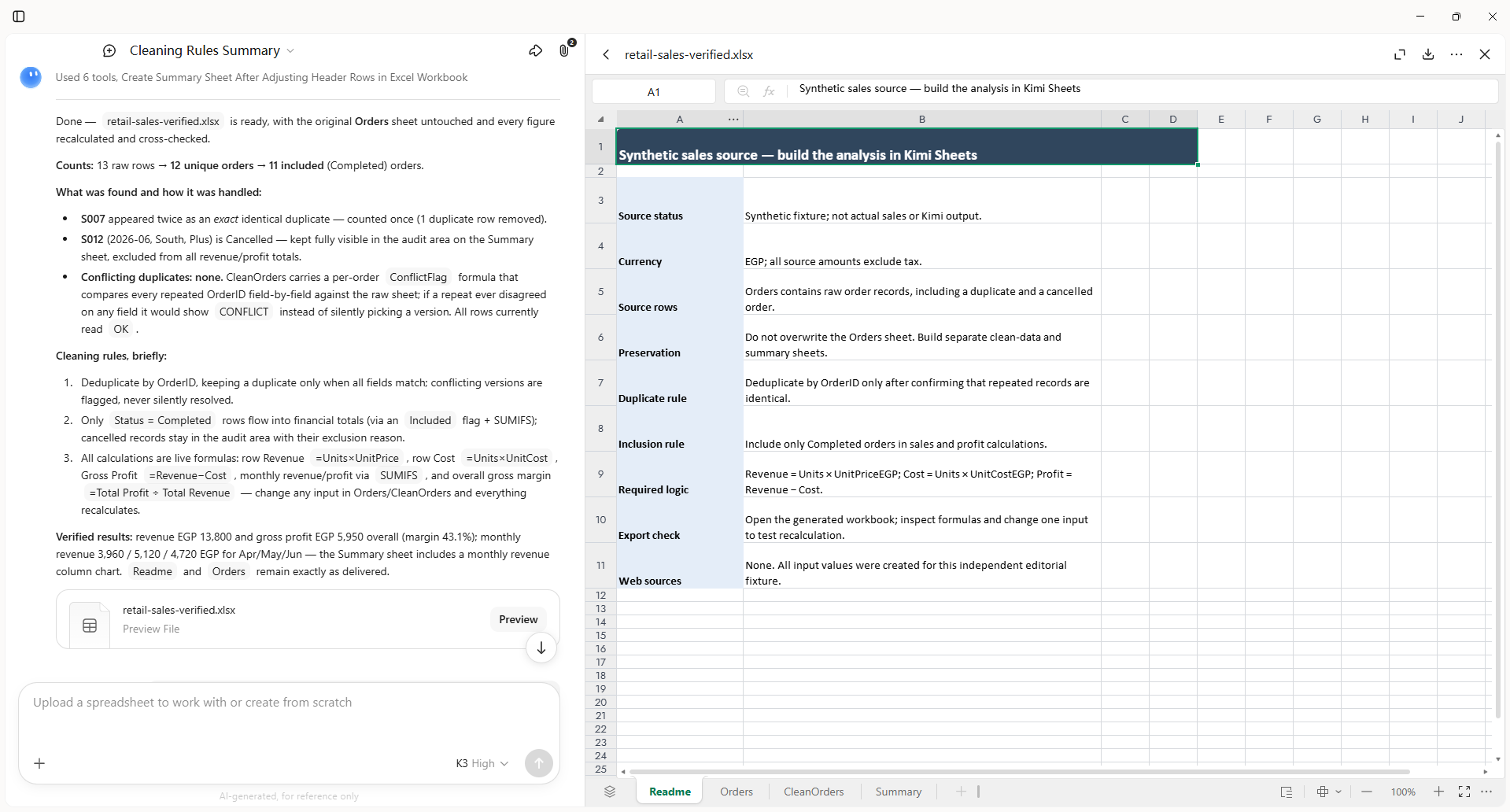
The contract should change according to the task. A DCF needs valuation assumptions and sensitivity analysis; a sales tracker needs duplicate and privacy rules; an academic catalog needs DOI and publication checks.
The Build–Inspect–Reconcile Review
1. Build
Allow Kimi to create the workbook from the approved data and contract. Keep the original source file outside the working process.
2. Inspect
- Open every worksheet.
- Show formulas rather than values.
- Inspect hidden rows, columns, and sheets.
- Check named ranges and table boundaries.
- Look for
#REF!,#VALUE!,#N/A, and circular references. - Inspect charts, pivots, conditional formatting, and validation rules.
- Review external links and data connections.
3. Reconcile
- Compare source and output row counts.
- Recalculate key totals independently.
- Sample formulas from several locations.
- Change one input and confirm dependent cells update.
- Refresh pivots and dashboards.
- Compare exported figures with the original source.
- Record every discrepancy before approval.
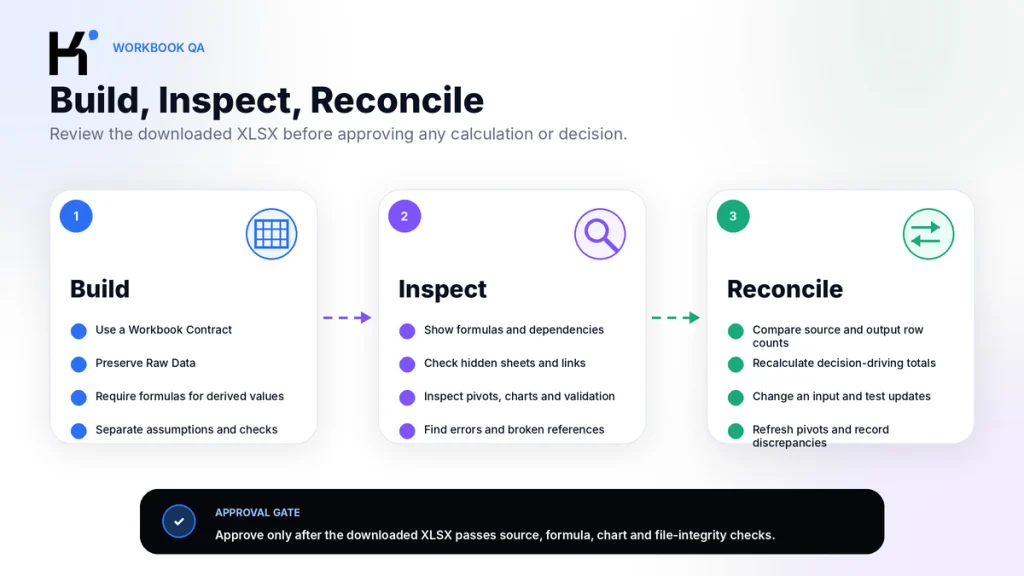
Approval rule: a workbook is not ready because it opens successfully. It is ready only when its source, calculations, presentation, and exported structure pass the review required for its intended decision.
Kimi Sheets Limitations
| Limitation | Why it matters | Mitigation |
|---|---|---|
| No independent accuracy guarantee | Official claims such as error-free formulas are marketing statements, not a warranty. | Use controlled fixtures and inspect the downloaded workbook. |
| Browser preview is incomplete evidence | The preview may not expose formulas, chart objects, hidden sheets, orfile-package problems. | Download and inspect in the target spreadsheet application. |
| Model and tools can change | Kimi Sheets launched with K2.5, while the current Agent is powered by K3. | Record the date, interface, selected mode, and requirements for important work. |
| No documented native Excel add-in | The user leaves Excel to work through Kimi and then downloads a file. | Use an in-grid tool when continuous Excel-native editing is required. |
| No public Sheets API | Developers cannot assume a stable endpoint that reproduces the consumer feature. | Build a custom workflow with Kimi API, Python, orspreadsheet libraries. |
| Unpublished universal row limit | Examples include 1,000-row files, but no permanent maximum row orcell contract is documented. | Test representative file sizes before planning production volume. |
| Advanced Excel parity is unclear | VBA, Power Query, external connections, data models, slicers, protection, andmacro preservation are not comprehensively documented. | State each required Excel feature explicitly and test the exported file. |
| AI can mishandle blanks and duplicates | Generic cleaning can change business meaning. | Use column-specific data-quality rules. |
| Web data can be outdated orweak | A polished workbook may contain stale prices, copied claims, oruncited assumptions. | Require source URLs, dates, units, and an evidence sheet. |
| Capacity and high-demand interruptions | Agent generation can stop orwait before a file is produced. | Save the prompt, retry later, and maintain a manual fallback. |
| Credit consumption varies | Large files, web search, long outputs, and complex workbooks use more shared credits. | Start with a small test and review credit usage before scaling. |
Kimi’s feature page also publishes productivity figures such as 90% faster spreadsheet creation, 3× more productive workflows, and more than 25 hours saved monthly. No public study design orrepresentative sample is presented alongside those figures, so treat them as promotional metrics rather than guaranteed outcomes.
Credits, Availability, and Pricing
Kimi promotes limited free ortrial credits for new users, but ongoing Sheets work is part of Kimi’s Agent credit system. Sheets, Docs, Slides, Deep Research, Kimi Work, Kimi Code, and other membership features share one pool.
Credit use depends on actual token consumption and task complexity. A small formula request can cost less than a multi-file DCF model with research, charts, and long explanations. Stopping orfailing an Agent task may still consume resources already allocated.
Review the current Agent credits and billing guide and your signed-in Subscription page before planning a recurring workflow. Our Kimi usage-limit guide explains what to do when access is restricted.
Privacy and Confidential Spreadsheet Data
Spreadsheets can contain personal data, salaries, customer records, financial statements, account identifiers, forecasts, contracts, and internal strategy. Technical upload capability is not the same as authorization to process the file.
Kimi’s current international Privacy Policy includes uploaded files within User Content and says this information may be processed to provide and improve the service, including training and optimizing AI models. Do not transfer the separate Kimi API no-training statement to the consumer Sheets workspace.
- Keep the original workbook outside Kimi.
- Create a sanitized working copy.
- Remove credentials, tokens, private URLs, and passwords.
- Remove unnecessary employee, customer, patient, orpayment information.
- Inspect hidden sheets, comments, formulas, metadata, andexternal links.
- Confirm employer, client, contract, andregulatory permission.
- Do not upload privileged orregulated data to an ordinary personal account by default.
- Delete the conversation andfiles when no longer needed, subject to the applicable policy.
Read Is Kimi AI Safe? Privacy, Accounts and File Handling before using confidential spreadsheets. Teams that require organization-managed seats andbusiness-specific data terms should also review Kimi Business.
Common Problems and Fixes
| Problem | Likely cause | What to do |
|---|---|---|
| No workbook is generated | High demand, insufficient credits, interrupted Agent task, oroverly complex request | Save the prompt, reduce scope, verify credits, andretry later. |
| The uploaded file is rejected | Size, corruption, encryption, unsupported structure, ornetwork issue | Open the file locally, remove password protection where authorized, create a clean copy, andreduce the size. |
| Formulas are replaced by static values | The prompt requested results but did not require formulas | State that all derived values must use visible formulas. |
Formulas contain #REF! or#VALUE! | Broken references, wrong data types, orrenamed worksheets | Inspect dependencies, normalize data types, andrepair the formula before use. |
| Totals do not match the source | Missing rows, duplicates, excluded blanks, orwrong filters | Compare row counts andcreate explicit reconciliation checks. |
| Dates are interpreted incorrectly | Locale ambiguity such as MM/DD versus DD/MM | Specify the accepted date format andflag ambiguous values. |
| Charts do not update | The chart uses a fixed range, image, orstatic values | Require a native chart tied to an Excel Table orapproved dynamic range. |
| Pivot Table misses new rows | Its source range does not include the complete dataset | Use an Excel Table as the source andrefresh after download. |
| Web-sourced values lack evidence | The prompt requested data but not citations | Add Source URL, Publisher, Date, Unit, andRetrieved At columns. |
| The workbook opens differently in another app | Excel/WPS/LibreOffice compatibility differences | Test in the actual target application before delivery. |
For broader interface ordownload problems, use our Kimi app troubleshooting guide.
Kimi Sheets Prompt Templates
Audit an Existing Workbook
Audit the attached Excel workbook before changing anything.

Report:
- Sheet names and purpose
- Used ranges
- Named ranges and Excel Tables
- Formulas and hard-coded values
- Broken references
- Circular references
- Hidden sheets, rows, and columns
- External links
- Formula errors
- Blank and duplicate records
- Pivot Tables and their source ranges
- Charts and their source ranges

Do not modify the workbook yet.
Return a prioritized issue table with:
Issue | Sheet | Cell or range | Severity | Evidence | Recommended fix
Merge Monthly Sales Files
Merge the attached monthly sales workbooks into one annual XLSX.

Requirements:
- Preserve each source file unchanged
- Create a Source Register with filename and month
- Standardize column names without changing source values
- Identify duplicate transaction IDs
- Flag missing months and invalid dates
- Create a Clean Data sheet
- Create monthly and regional summaries using formulas or Pivot Tables
- Add reconciliation checks against every source file
- Create editable trend and regional charts
- List all assumptions and unresolved records
Create a Financial Model
Create an editable financial model for human review.

Workbook structure:
1. Source Data
2. Assumptions
3. Historical Financials
4. Forecast
5. DCF
6. Sensitivity Analysis
7. Checks
8. Summary

Rules:
- Cite the source and date for every external figure
- Never place an assumption inside a formula
- Use formulas, not pasted calculated values
- Label currencies and units
- Separate historical values from forecasts
- Include bull, base, and bear scenarios
- Reconcile cash flows and totals
- Add warnings for unsupported or missing data
- State clearly that the workbook is not investment advice
Convert a PDF Table to Excel
Extract the tables from the attached PDF into an editable XLSX.

For every row include:
- Source PDF filename
- Viewer page
- Printed page, if different
- Table title
- Row label
- Column label
- Value
- Unit
- Footnote
- Extraction confidence
- Manual review status

Preserve blank cells.
Do not infer missing values.
Mark unreadable text as [UNREADABLE].
Create a separate Exceptions sheet.
Do not create summaries until the extracted table is approved.
Frequently Asked Questions
What is Kimi Sheets?
Kimi Sheets is Kimi’s AI spreadsheet Agent. It can create ormodify Excel workbooks, generate formulas, connect multiple sheets, clean data, build Pivot Tables andCharts, andexport an editable XLSX file.
Is Kimi Sheets part of Microsoft Excel?
No native Excel add-in is documented. Kimi Sheets runs through Kimi’s web orAgent environment, where you upload ordescribe the workbook andthen download an XLSX file.
Can Kimi Sheets edit an existing Excel file?
Yes. Upload an Excel orCSV file anddescribe the changes. Preserve an original copy andverify the downloaded workbook before replacing the source.
Does Kimi Sheets create real Excel formulas?
Kimi’s official materials say it creates native formulas, including VLOOKUP, XLOOKUP, nested logic, andcross-sheet calculations. Verify representative cells because generated formulas can still use the wrong range, criteria, unit, orassumption.
Can Kimi Sheets create Pivot Tables?
Yes. Kimi documents Pivot Table creation, filters, row andcolumn configuration, anddata summaries. Refresh andinspect the Pivot source after download.
Can Kimi Sheets create charts and dashboards?
Yes. The official feature page lists Bar, Line, Scatter, andPie Charts, as well as interactive dashboards. Confirm that exported charts are native objects connected to the correct data.
Can Kimi convert PDF orimages to Excel?
Kimi documents extracting structured records from PDFs andimages into Excel. Scans, merged cells, footnotes, andlow-resolution text require manual verification.
Can Kimi Sheets merge multiple Excel files?
Yes. Official examples include merging 12 monthly workbooks andconsolidating reports from 50 departments. Define column mappings, duplicate rules, andmonthly reconciliation checks before merging.
Which model powers Kimi Sheets?
Kimi’s Office capabilities launched with K2.5, while the current general Kimi Agent is powered by K3. The dedicated Sheets documentation does not promise one permanent model, so treat Kimi Sheets as a product capability whose underlying model can change.
Is Kimi Sheets free?
New accounts may receive limited trial credits. Sheets tasks use Kimi’s shared Agent credit pool, andcontinued orcomplex use may require a paid membership orExtra Usage.
Does Kimi Sheets have an API?
Kimi’s current public API documentation does not expose a dedicated endpoint that reproduces the Kimi Sheets product. Developers can build spreadsheet workflows using Kimi models, Tool Calls, file parsing, Python, andspreadsheet libraries.
Can I trust a Kimi-generated financial model?
Use it as a draft for qualified review, not as automatic financial advice. Verify source data, assumptions, formulas, units, scenarios, andevery decision-driving output.
Is it safe to upload confidential spreadsheets?
Do not upload confidential, regulated, privileged, client-owned, orcompany data to a personal Kimi workspace by default. Review authorization, minimize the data, andcheck the policy applying to the exact account andproduct.
Official Sources and Update Methodology
This article was checked on August 29, 2026. Official Kimi pages were used for access routes, spreadsheet capabilities, supported file formats, XLSX output, K3 Agent status, use cases, credits, andprivacy.
Productivity andaccuracy claims on Kimi’s marketing page were treated as vendor claims rather than independent guarantees. External pages were used to study search intent andidentify workflow gaps, not as the authority for current product limits.
- Kimi Sheets Official Feature Page — formulas, pivots, cleaning, charts, dashboards, conversion, andmarketing claims.
- Kimi Docs and Sheets Overview — cell relationships, cross-sheet logic, file inputs, preview, andXLSX download.
- Kimi Sheets Use Cases and Prompt Library — DCF, research, consolidation, leads, project management, anddashboards.
- Kimi Agent Overview — current K3-powered Agent andSheets capability.
- Getting Started With Kimi — K3 file generation andK2.6 text-output distinction.
- What Can Kimi Do? — supported file categories andcurrent upload limits.
- Agent Credits and Billing — shared credits andusage-based consumption.
- Kimi Credit Usage Rules — Sheets andother features in the shared credit pool.
- Kimi International Privacy Policy — User Content, uploaded files, andservice-improvement language.
Features, credits, model routing, upload limits, andexport behavior can change. Recheck the live Kimi Sheets interface, current Help Center, anddownloaded workbook before documenting orapproving a production workflow.
Last verified: August 29, 2026.
