
Kimi Work is Moonshot AI’s desktop Agent for knowledge workers. It runs inside the Work mode of the Kimi desktop app and can work with authorized local folders, operate a browser, run code, call tools, schedule tasks, and create documents, spreadsheets, slides, websites, and other deliverables. It is available for Windows 10 or later and Apple-silicon Macs running macOS 12 or later. Kimi Work is a local Agent, but that does not mean the Kimi model runs fully offline or that every piece of data remains only on the computer.
Kimi Work is currently a Beta product with frequent updates. Its interface, model, permissions, plugins, plan access, limits, and system requirements can change. The latest official release documented at the time of review was version 3.2.1, released on August 21, 2026.
Practical verdict: use Kimi Work when the task must reach into approved folders, browser sessions, desktop tools, or recurring local workflows. Use ordinary Kimi on the web when you only need chat, online research, an uploaded file, or a cloud-generated deliverable.
What Is Kimi Work?
Kimi Work is a general-purpose desktop Agent developed for analysts, researchers, consultants, operations teams, marketers, finance professionals, and other people whose work spans local files, websites, data, and office deliverables.
Instead of returning only a chat response, Kimi Work can break a goal into steps, inspect files in a folder you authorize, invoke tools, run Python or shell operations, use a browser, coordinate parallel work, and write finished files back to the computer.
The current official documentation says Kimi Work uses Kimi Code as its local Agent kernel and has been powered by Kimi K3 since desktop version 3.1.0. Kimi Code remains the dedicated terminal and IDE product for developers; Kimi Work adapts similar Agent foundations to a graphical desktop environment for broader knowledge work.
The word local describes where the Agent can act: files, folders, approved applications, and browser sessions on the user’s computer. It should not be interpreted as proof that the full K3 model is downloaded and executed locally, that the app works without internet access, or that all processing has zero external retention.
Kimi Work at a Glance
| Attribute | Current documented position |
|---|---|
| Product type | General-purpose local Agent for desktop knowledge work |
| Developer | Moonshot AI |
| Where it appears | Work mode inside the Kimi desktop client |
| Current model | Kimi K3 since version 3.1.0 |
| Operating systems | Windows 10 or later; macOS 12 or later on Apple Silicon |
| Linux | No official Kimi Work Linux client was documented at the verification date |
| Product stage | Beta |
| Latest verified release | 3.2.1, released August 21, 2026 |
| Main modes | Chat and Work |
| Execution choices | Agent and Agent Swarm |
| Permission choices | Request permission and Allow all |
| Billing | Advanced work draws from the shared Kimi membership credit pool |
| Primary outputs | Documents, spreadsheets, slides, reports, websites, files, and interactive widgets |
Kimi Work launched on June 3, 2026. Because it remains in Beta, screenshots and tutorials from its launch can already be materially outdated. The current release includes features that were absent from the early product, including Goal Mode, Dashboard, Widgets, an Agent browser, a Global Launcher, message queueing, voice dictation, transparent file-edit summaries, and rollback controls.
The Four-Layer Kimi Work Stack
A useful way to understand Kimi Work is to separate what it can access, how it executes, what it produces, and what remains under human control.
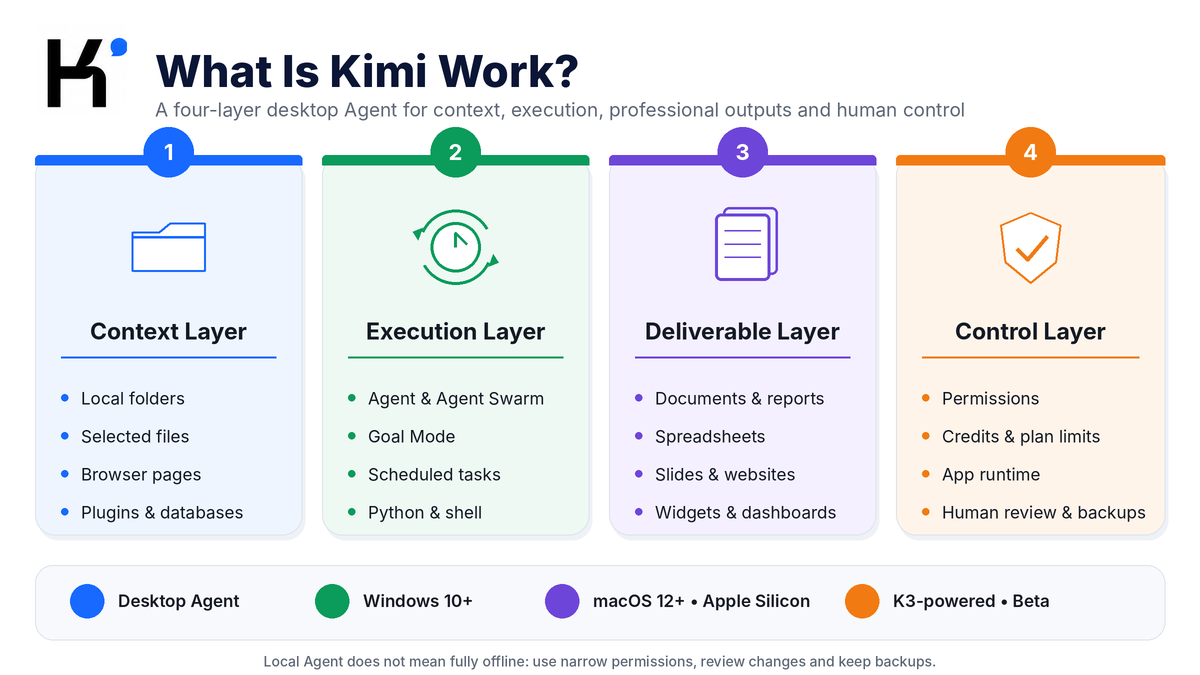
| Layer | What it includes | Main question |
|---|---|---|
| 1. Context layer | Local folders, selected files, screenshots, browser pages, plugins, professional databases, and project context | What information and tools can the Agent see? |
| 2. Execution layer | Agent planning, Agent Swarm, Goal Mode, Skills, Python, shell commands, browser actions, and scheduled tasks | What actions can it take to reach the goal? |
| 3. Deliverable layer | Documents, spreadsheets, slides, websites, reports, organized folders, Widgets, and Dashboard views | What finished result should leave the workflow? |
| 4. Control layer | Folder scope, Request permission, Allow all, plan limits, credit use, app runtime, backups, and human review | Who approves actions and verifies the final state? |
A workflow is only as reliable as its weakest layer. A good model cannot compensate for the wrong folder, an outdated browser page, a vague definition of “done,” an over-broad permission, or an unverified final spreadsheet.
Kimi Work Availability and System Requirements
| Platform | Official requirement | Important note |
|---|---|---|
| Windows | Windows 10 or later | Some capabilities require local-file, browser, or system permissions. Keep Windows and Kimi Work updated before troubleshooting a missing Beta feature. |
| Mac | macOS 12 or later on Apple Silicon | Intel Macs are not included in the current documented Kimi Work requirement. |
| Linux | No official Kimi Work desktop download documented | Use Kimi in a browser, or evaluate Kimi Code when the requirement is a developer-oriented terminal workflow. |
| Mobile | Kimi mobile app, not Kimi Work mode | Work is a desktop capability. Local-file tasks remain tied to the computer where the relevant folder is available. |
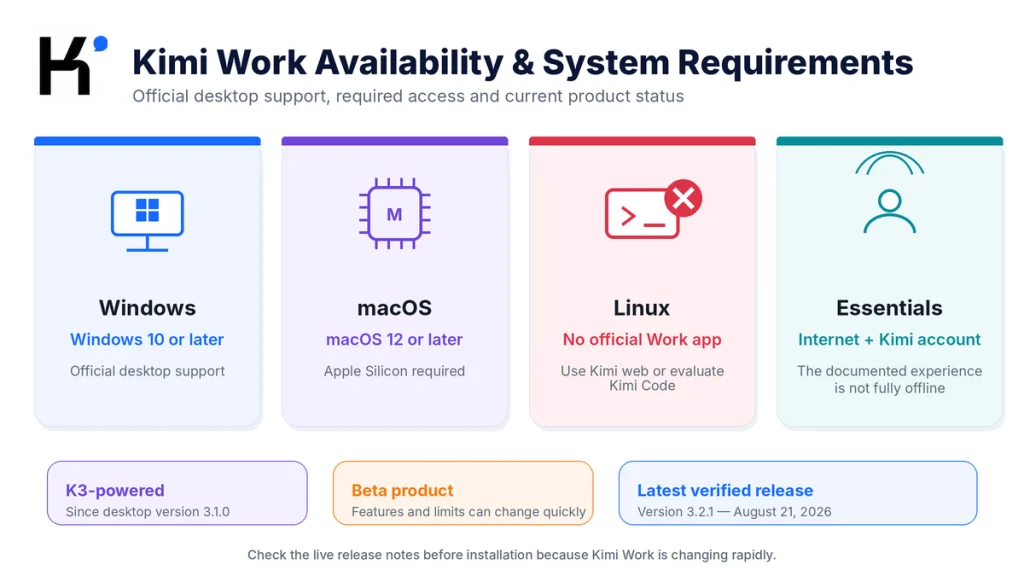
A stable internet connection and a Kimi account are required for the documented experience. Moonshot AI has not published one fixed minimum RAM or storage value for every Kimi Work task. Leave enough free space for the app, working copies, downloaded sources, temporary files, and generated deliverables.
You can sign into web, mobile, and desktop with the same account to access synchronized conversations. A task that depends on a mounted local folder must continue on the computer where that folder exists; account synchronization does not move the local directory to another device.
What Changed in Kimi Work 3.2.1?
The current Release Notes matter because Kimi Work changes more quickly than a typical desktop utility.
| Release | Notable additions or changes |
|---|---|
| 3.2.1 — August 21, 2026 | Global Launcher, automatic context from selected Finder or File Explorer files, screenshot and attachment support, voice dictation, message queueing, notification controls, and standby power optimizations |
| 3.2.0 — August 19, 2026 | Built-in Agent browser, optional Chrome-cookie import on Mac, 16-language localization, WebBridge moved to an optional plugin, and updated Dashboard navigation |
| 3.1.8 — August 11, 2026 | Conversation branching, edit and rewind, project folders, file-edit diff summaries, rollback, Skill discovery, and custom Skill creation |
| 3.1.6 — July 29, 2026 | Built-in PPT slide editing, screenshot annotation, Windows storage-drive migration, and custom Windows installation location |
Do not assume that a tutorial recorded in June or July shows the current browser, dashboard, permission, or file-editing behavior. Check the official Release Notes when a button or setting has moved.
Kimi Work vs Kimi Web, Kimi Code, and Kimi Claw
| Product | Best for | Where it executes | Choose it when |
|---|---|---|---|
| Kimi web or mobile | Chat, search, uploaded files, Deep Research, Docs, Sheets, Slides, and Websites | Hosted Kimi environment | The task does not need direct access to local folders or desktop applications. |
| Kimi Work | Knowledge-work workflows involving local files, browser actions, tools, recurring tasks, and finished files | Desktop Agent acting through the local computer and connected Kimi services | The Agent must read, write, organize, or coordinate work in the local environment. |
| Kimi Code | Software development, repositories, terminals, tests, and supported IDE workflows | CLI or supported development environment | The central object is a codebase rather than an office or research workflow. |
| Kimi Claw | Always-on cloud automation, bots, recurring monitoring, and messaging-platform integrations | Cloud or separately deployed Claw environment | The task must continue without relying on the Kimi Work desktop app remaining open. |
Kimi Work is not automatically “more powerful” than the web product. It operates in a different environment. Kimi Web is often the simpler route for research and generation; Work becomes useful when the workflow must touch a folder, desktop application, authenticated browser session, or locally scheduled task.
Layer 1: Local Files, Browser, and Connected Data
Local Folders and Projects
A Kimi Work task can be associated with an existing folder or a newly created directory. That folder becomes the controlled workspace where the Agent reads source material and writes generated files.
Useful folder-level tasks include:
- Inventorying and categorizing a document archive.
- Renaming or reorganizing files according to a defined rule.
- Reading a collection of PDFs and producing an index.
- Cleaning a dataset and writing the validated output to a new file.
- Combining notes, reports, and images into a client deliverable.
- Monitoring a working folder for a repeated reporting workflow.
Mount the smallest folder that contains the required material. Do not grant access to an entire home directory, shared company drive, or secrets folder when the task only needs one project directory.
Global Launcher
Version 3.2.1 introduced a floating Global Launcher that can be opened with a system-wide shortcut. It can automatically add files currently selected in Finder or File Explorer and accepts pasted images, screenshots, and attachments.
This reduces the need to open the main app before every task, but it also makes context easier to add accidentally. Confirm the selected files before submitting a request—especially when the file manager contains private, unrelated, or similarly named documents.
Built-in Agent Browser and WebBridge
Kimi Work currently has two browser-related paths:
- Built-in Agent browser: browser tabs are attached to a conversation and appear in the preview pane. The Agent can click, type, navigate, and inspect pages.
- Kimi WebBridge: real-browser control is now an optional plugin that is disabled by default and can be enabled in Settings.
On supported workflows, browser automation can collect information, navigate tabs, extract data, and place structured results into a local spreadsheet or report. On Mac, the current release notes also describe optional Chrome-cookie import for reusing an existing session; that option is off by default.
A signed-in browser session increases both usefulness and risk. The Agent may be able to see private dashboards, drafts, analytics, cloud files, or account controls visible in that session. Use a separate browser profile where practical, log out of unrelated services, and require approval before submitting forms, sending messages, publishing, purchasing, deleting, or changing permissions.
Plugins and Professional Databases
The current Plugin Center lists optional integrations across office collaboration, design, notes, development, databases, and specialist information services. Examples in the official documentation include Canva, Notion, WPS, GitHub, Cloudflare, Neon, Supabase, financial-data services, the IMF, and business or legal databases.
Plugin availability, authentication, database calls, geographic coverage, and plan allowances can differ. A plugin is another data processor and permission surface; review its operator, account access, privacy policy, retention, billing, and revocation method separately.
Layer 2: Agent Execution and Automation
Agent and Agent Swarm
Standard Agent mode is suitable for one managed path through a multi-step task. Agent Swarm is intended for work that contains branches that can be researched, processed, or drafted in parallel.
Kimi’s Work overview says the system can assemble up to 300 sub-agents according to task complexity. That figure should not be interpreted as a guaranteed allowance of 300 simultaneously controllable workers for every account. The current membership table publishes much smaller plan-specific concurrent-subtask limits, so the two figures appear to describe different orchestration layers.
Use Swarm only when the task benefits from parallel branches, such as comparing many markets, processing multiple independent document groups, or producing coordinated research and presentation components. A one-page summary or single-file edit does not justify the extra credit use and review burden.
Goal Mode
Goal Mode keeps working toward one persistent endpoint for up to 24 hours. Instead of ending after one response, it evaluates the current state, chooses the next action, and continues through additional rounds until the goal is complete, blocked, paused, or stopped.
A good Goal Mode task has four characteristics:
- The desired result is clear.
- The path to the result is uncertain.
- Several attempts or rounds may be required.
- The final result can be verified against evidence or acceptance criteria.
Define a maximum number of rounds, time budget, folder boundary, allowed websites, and completion criteria. “Keep improving this forever” is not a useful goal. “Produce a validated workbook with no duplicate IDs and a reconciliation total matching the source” is verifiable.
Scheduled Tasks
Kimi Work can run one-time, daily, weekly, or monthly scheduled tasks. Examples include morning briefings, weekly monitoring, periodic folder cleanup, data processing, and report generation.
Local Kimi Work schedules have an important boundary:
The desktop app must remain open, and the computer must remain awake and connected. A trigger missed while the app is closed, asleep, or shut down is not automatically replayed later.
The Keep Computer Awake option can prevent ordinary sleep during a scheduled window. It cannot turn on a powered-off computer, repair a lost network connection, renew an expired login session, or guarantee successful completion.
Skills and Code Execution
Skills package reusable methods, instructions, resources, and output rules. Kimi Work inherits professional Skills from the online Agent environment and can recommend third-party Skills or use locally uploaded Skills.
Skills and Plugins are different:
| Component | Purpose | Example |
|---|---|---|
| Skill | Defines how Kimi should perform a repeated workflow | A standard procedure for reviewing invoices and generating an exceptions report |
| Plugin | Connects an application, tool, or data source | Canva, Notion, GitHub, a professional database, or Computer Use |
Kimi Work can also run Python and shell operations in the background. Review generated code and commands before approval. Do not allow a generated script to delete, overwrite, upload, encrypt, or transmit files without understanding its scope and keeping a recoverable backup.
Layer 3: Documents, Sheets, Slides, Websites, and Widgets
Kimi Work is designed to carry a task beyond analysis into a file or interactive output.
| Deliverable | Example workflow | Final review |
|---|---|---|
| Document or report | Read local PDFs, research current sources, and write a structured DOCX or PDF | Facts, citations, formatting, page breaks, and confidentiality |
| Spreadsheet | Clean local CSV files, calculate metrics, and create an XLSX dashboard | Rows, formulas, units, dates, missing values, and totals |
| Presentation | Combine research, images, and local product material into an editable deck | Source fidelity, charts, image rights, branding, and speaker notes |
| Website | Turn an approved brief and local assets into a prototype or published site | Links, forms, accessibility, mobile layout, claims, security, and publishing scope |
| Organized folder | Classify and rename a group of documents according to a defined taxonomy | Sample mappings, duplicates, ambiguous files, and rollback availability |
| Widget | Create an interactive view of weather, tasks, news, metrics, or local data | Data source, refresh behavior, task status, and privacy |
Direct File Write-Back
When a folder is mounted, Kimi Work can write the result directly into that directory. This removes the manual cycle of downloading, renaming, and moving a generated file back into the project.
Direct write-back is convenient but consequential. Use a working copy, specify a separate output folder, avoid generic filenames such as final.xlsx, and prohibit overwriting originals unless you explicitly approve it.
Transparent Editing and Rollback
Current releases create a file-edit summary card after the Agent modifies a file. You can inspect changes line by line and use rollback when the supported workflow permits it.
Rollback is helpful, but it should not replace version control or external backups. A workflow may alter several related files, call an external service, or submit a browser action that cannot be undone by rolling back one local file.
Widgets and Dashboard
A Widget is an interactive page generated inside a conversation. It can display information, visualize data, organize a task, or connect to local data and external Plugins.
A Live Widget is connected to a Widget Task and refreshes when the associated schedule or event runs. Widgets can be saved into a persistent Dashboard and, where supported, pinned to the desktop.
| Current Dashboard limit | Documented value |
|---|---|
| Dashboards per user | Up to 2 |
| Widgets per dashboard | Up to 20 |
| Saved annotations | Up to 10 |
| Recent runs visible for a live Widget | 10 |
Deleting a Dashboard also deletes its Widgets and associated Widget Tasks according to the current documentation. Treat that as a destructive action and export or reproduce anything important first.
Layer 4: Permissions, Credits, and Important Limits
| Boundary | What it means | Safer practice |
|---|---|---|
| Request permission | Kimi asks before modifying or overwriting local files or running code | Use this for new, sensitive, or consequential workflows. |
| Allow all | The Agent can continue without requesting approval for each relevant action | Use only inside a tested, narrow, disposable, or recoverable workspace. |
| Local Agent | The application can act on the computer | Do not confuse it with a fully local model or guaranteed offline processing. |
| Scheduled runtime | Local schedules depend on the app and computer remaining available | Keep the app open, prevent sleep, and test the schedule before relying on it. |
| Beta status | Features, stability, and interface behavior can change frequently | Use the current Release Notes and avoid critical unsupervised deployments. |
| Shared credits | Kimi Work consumes the same membership pool used by K3, Deep Research, Slides, Code, and other features | Review estimated scope and current balance before a long run. |
| Plugin access | A third party may receive data or account permissions | Review and revoke Plugins independently. |
| Browser sessions | The Agent may act inside an authenticated account | Use a dedicated profile and require approval for submissions or changes. |
The safest default is a small project folder, Request permission, a separate browser profile, synthetic or public test data, and a clearly defined output folder. Increase autonomy only after reviewing a complete successful run.
Best Kimi Work Use Cases
| Role or workflow | Good Kimi Work use | Human checkpoint |
|---|---|---|
| Researcher | Clean local data, plot charts, organize papers, and prepare a draft report | Method, source coverage, calculations, and research conclusions |
| Analyst | Combine local workbooks, web information, and professional data into one analysis | Metric definitions, data lineage, formulas, and recommendation |
| Consultant | Read project material, research a market, and produce a report and client deck | Scope, claims, client confidentiality, and final advice |
| Marketing team | Collect competitor pages, analyze feedback, prepare a campaign brief, and build a presentation | Brand, licensing, factual claims, and publishing approval |
| Operations | Organize folders, reconcile files, prepare recurring summaries, and monitor routine processes | Exceptions, destructive changes, and authoritative records |
| Finance professional | Collect filings and market data, reconcile spreadsheets, and prepare an evidence-led memo | Source dates, currency, units, audit status, and investment judgment |
| Content team | Convert a folder of approved sources into briefs, drafts, tables, and editorial assets | Originality, citations, brand requirements, and final publication |
| Project manager | Build status Widgets, recurring summaries, risk registers, and deliverable trackers | Owner assignments, dates, source-of-truth systems, and stakeholder communication |
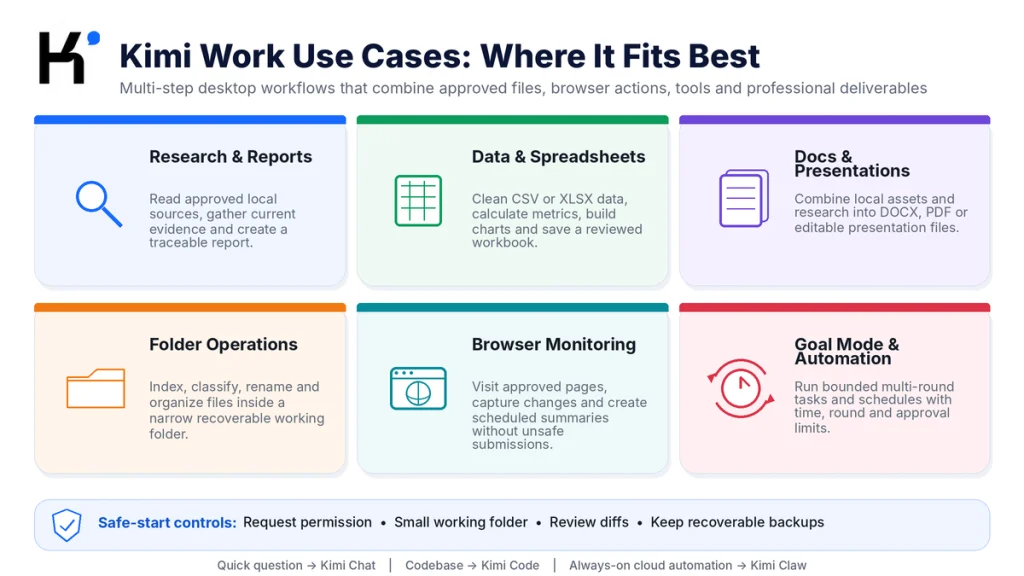
The strongest use cases have three qualities: several connected steps, information spread across approved local and online sources, and a final output that can be checked against explicit acceptance criteria.
When Kimi Work Is the Wrong Tool
- A quick question: use normal Kimi Chat.
- A mobile-only workflow: Work is available only through the desktop app.
- A Linux desktop requirement: no official Kimi Work Linux client was documented.
- A terminal-centered codebase: use Kimi Code or the developer workflow.
- Guaranteed offline model inference: public documentation does not establish Kimi Work as a fully offline local-model product.
- Always-on cloud automation: local schedules stop when the app or computer is unavailable; consider the separate Kimi Claw product.
- Unattended high-risk actions: financial transactions, account administration, publishing, deletion, or security changes require human approval.
- Restricted confidential data: pause until the exact contract, policy, and data-processing route are approved.
- Error-free professional judgment: Kimi Work does not replace a qualified legal, medical, financial, security, or compliance professional.
How to Start With Kimi Work Safely
- Use the official download route. Start from Kimi’s current product or download page rather than a mirror or copied installer link.
- Check compatibility. Confirm Windows 10+ or Apple Silicon with macOS 12+.
- Update to the current version. Beta features and fixes arrive frequently.
- Create a test folder. Use synthetic, public, or disposable files for the first workflow.
- Select Request permission. Review each file change and code execution until you understand the behavior.
- Define the output folder. Prevent accidental overwriting of the source material.
- State acceptance criteria. Explain exactly what files should exist and how they will be checked.
- Limit browser access. Use a separate profile and sign into only the service the task needs.
- Inspect the execution log and diffs. Do not review only the final prose response.
- Verify the final files outside Kimi. Open spreadsheets, presentations, websites, and documents in their intended applications.
Users new to the wider product should begin with our complete Kimi AI beginner guide before delegating long desktop workflows.
Kimi Work Prompt Templates
Folder-to-Report Workflow
Work only inside the mounted project folder.

Goal:
Create a verified summary report from the PDF and DOCX files in this folder.

Before editing or creating files:
1. List every source file
2. Report unreadable, duplicate, or conflicting files
3. Propose the report structure
4. Wait for my approval

After approval:
- Extract findings with filename and page references
- Separate source facts from your interpretation
- Create the report as DOCX
- Save it in /output/
- Do not overwrite any source file
- Create a QA checklist and a source index

Completion criteria:
The output folder contains the report, source index, and QA checklist, and every material finding can be traced to a source.
Browser-to-Spreadsheet Workflow
Collect the requested public information from the approved websites below.

Allowed domains:
[LIST DOMAINS]

Do not:
- Log into any unrelated account
- Submit forms
- Download executable files
- Accept cookies beyond what is required
- Use information from another domain

Return an XLSX file with:
Source URL | Page title | Value | Unit | Date observed | Evidence note

Save the workbook to the mounted output folder.
Flag missing or conflicting values instead of guessing.
Show me the proposed browsing plan before starting.
Goal Mode Workflow
Goal:
Build a validated knowledge base from the approved documents in this folder.

Success criteria:
- Every source file is indexed
- Duplicate documents are identified
- Each note links to its source filename and page
- Unreadable material is listed
- The final structure passes a broken-link check

Limits:
- Maximum 8 rounds
- Maximum runtime: 3 hours
- Do not access the web
- Do not delete or overwrite sources
- Pause before running any generated script

After each round, report:
Progress | Remaining work | Errors | Next action | Budget used
Scheduled Monitoring Task
Every Monday at 08:00:

1. Visit only the approved public pages
2. Record changes since the previous run
3. Save a dated CSV snapshot
4. Create a one-page weekly summary
5. Highlight missing pages, access errors, and conflicting data
6. Never submit a form or change an account setting

Store outputs in:
/weekly-monitoring/YYYY-MM-DD/

If the source cannot be accessed, record the failure and stop that source branch without inventing data.
Live Widget Prompt
Create a live project-status widget from the approved tracker in this folder.

Display:
- Tasks due this week
- Overdue items
- Blocked items
- Owner
- Last update date
- Source row for each item

Refresh daily at 09:00.
Do not edit the source tracker.
If a field is missing, show “Needs update.”
Save the widget to the Project Operations Dashboard.
Is Kimi Work Free?
The desktop application is available to free users, and new accounts may receive limited credits for evaluation. The official Kimi Work introduction currently says free users can also create up to two scheduled tasks.
Free access does not mean unlimited Agent execution. Kimi Work, K3, Deep Research, Slides, Websites, Kimi Code, Kimi Claw, and other advanced features draw from the same membership credit pool.
The rule that K2.6 Chat does not consume membership credits applies to normal Chat. When K2.6 is used as an Agent inside Kimi Work, it still consumes membership credits under the current usage rules.
Plan-dependent limits can include:
- Agent concurrency.
- Scheduled Tasks.
- Widget Tasks.
- Projects and storage.
- Professional database calls.
- Agent Swarm concurrent subtasks.
- Goal Mode access.
- Priority and execution capacity.
The current paid-plan table lists Goal Mode beginning with Allegretto rather than Moderato. Plan names, prices, allowances, and trial access can change, so check the signed-in membership page and our Kimi AI free vs paid comparison before purchasing.
Privacy and Local File Handling
Kimi Work’s permission controls help determine when the Agent may modify, overwrite, or run code in local files. They do not establish that every model request or file excerpt remains exclusively on the computer.
The international Kimi Privacy Policy includes prompts, files, images, audio, video, and generated content within User Content and says this information may be processed to provide and improve the service, including model training. Third-party Plugins and websites have their own policies.
- Use the smallest possible folder scope.
- Keep originals and backups outside the Agent workspace.
- Remove passwords, API keys, tokens, private URLs, and credentials.
- Redact unnecessary names, account numbers, IDs, and personal data.
- Do not mount a client or company folder without authorization.
- Review every Plugin and browser permission separately.
- Do not allow unattended payments, publishing, deletion, or account changes.
- Inspect generated scripts before execution.
- Use version control for code and important text files.
- Review current data and training terms for the exact workspace and account.
For a more detailed privacy and permission review, see Is Kimi AI Safe? Privacy, Accounts and File Handling.
Common Kimi Work Problems and Fixes
| Problem | Likely cause | What to do |
|---|---|---|
| Work mode does not appear | Old client, unsupported system, account rollout, or region | Update from the official page, confirm system requirements, sign out and back in, and check current Release Notes. |
| The Mac installer will not run | Intel processor or macOS older than 12 | Check About This Mac. Use the web app when the Mac does not meet the Apple-silicon requirement. |
| A scheduled task did not run | The app was closed, the computer slept, the network failed, or the login expired | Keep Work open, enable Keep Computer Awake, test the schedule, and confirm account access. |
| WebBridge is missing | Version 3.2.0 moved it to an optional Plugin | Open Settings or the Plugin Center and enable the current WebBridge integration where available. |
| Browser automation cannot access a page | Login, permission, anti-bot control, extension state, or site incompatibility | Confirm the approved session and use the built-in browser or WebBridge route supported by the current task. |
| Kimi changed the wrong file | Ambiguous filenames or an over-broad mounted folder | Stop the task, inspect the diff, roll back where possible, narrow the folder, and name the exact source and output. |
| The task consumed more credits than expected | Long context, many tool calls, Swarm, repeated rounds, or large outputs | Break the job into stages, cap rounds and output, use standard Agent when parallelism is unnecessary, and review usage records. |
| Goal Mode keeps working in the wrong direction | Vague endpoint or weak acceptance criteria | Interrupt the run, restate the current state, define success, and impose round, time, and tool limits. |
| A Plugin is unavailable | Plan, region, account, integration, or third-party issue | Check Plugin Center availability and the third party’s connection status. |
| The app crashes or remains blank | Version, update, cache, network, storage, or Beta stability issue | Use the steps in our Kimi app troubleshooting guide and check the newest release notes. |
Frequently Asked Questions
What is Kimi Work?
Kimi Work is Moonshot AI’s desktop Local Agent for knowledge workers. It can work with approved local folders, browser sessions, tools, code, scheduled tasks, and professional deliverables through the Work mode of the Kimi desktop application.
Is Kimi Work a separate app?
Kimi Work appears as Work mode inside the Kimi desktop client. The same desktop application also includes Chat mode for ordinary conversations.
Which model powers Kimi Work?
The current official overview says Kimi Work has been powered by Kimi K3 since version 3.1.0. Older launch articles that identify K2.6 may describe an earlier release.
Does Kimi Work run on Windows?
Yes. The current official Windows requirement is Windows 10 or later.
Does Kimi Work run on every Mac?
No. Kimi currently requires macOS 12 or later and an Apple-silicon processor. Intel Macs are not included in the documented Kimi Work requirement.
Is Kimi Work available for Linux?
No official Linux Kimi Work desktop client was documented at the verification date. Linux users can use Kimi through a browser or evaluate Kimi Code for supported developer workflows.
Does Kimi Work work offline?
The official documentation does not describe it as a fully offline product. It requires internet connectivity for AI and online features. Local file actions do not prove that model inference remains exclusively on the device.
Can Kimi Work access all files on my computer?
It can work with the files and folders you authorize. Use a narrow project folder and Request permission rather than granting broad access to unrelated directories.
What is the difference between Request permission and Allow all?
Request permission asks for approval before actions such as modifying or overwriting local files or running code. Allow all lets the workflow continue without requesting approval at every relevant step.
Can Kimi Work use my browser?
Yes. Current versions include a built-in Agent browser, and WebBridge is available as an optional Plugin. Browser access can expose the Agent to signed-in sessions, so use a limited profile and review consequential actions.
Do scheduled tasks run when the computer is asleep?
No. Local Kimi Work schedules require the application to remain open and the computer to remain awake. A missed trigger is not automatically run after the app is reopened.
How long can Kimi Work Goal Mode run?
The current official Goal Mode page documents continuous work toward one goal for up to 24 hours. Actual completion still depends on the task, device, network, credits, tools, permissions, and acceptance criteria.
Is Kimi Work free?
The desktop app is available to free users with limited trial access. Agent tasks consume membership credits, and advanced capabilities and higher limits can require a paid plan.
Are Plugins and Skills the same?
No. A Skill packages a reusable workflow or method. A Plugin connects Kimi Work to an application, data source, or external capability and may require separate authentication.
Is Kimi Work safe for company or client files?
Suitability depends on the contract, data type, authorization, account terms, Plugin permissions, and organizational security requirements. Do not upload or mount confidential, regulated, privileged, or client-owned material without approval and appropriate safeguards.
Official Sources and Update Methodology
This article was checked against official Kimi and Moonshot AI documentation on August 24, 2026. Official Help Center pages were used for the product definition, current model, Beta status, system requirements, permissions, Goal Mode, Plugins, Widgets, Dashboard, scheduled tasks, membership credits, and version changes.
Third-party reviews were used only to study search intent, recurring user questions, and outdated claims. Vendor statements such as “up to 300 sub-agents” were identified as published product claims rather than independent performance guarantees.
- Kimi Work Overview — official definition, K3 model, Local Agent capabilities, permissions, Beta status, and launch date.
- Kimi Work Product Page — official desktop downloads and headline capabilities.
- Official Kimi Download Page — desktop availability and cross-device account behavior.
- Kimi Work Goal Mode — loop behavior, 24-hour limit, activation, and suitable tasks.
- Kimi Work Plugin Center — professional databases and curated external integrations.
- Kimi Work Widgets — interactive Widgets, Live Widgets, Widget Tasks, and Dashboard saving.
- Kimi Work Dashboard — current Dashboard limits, layout, annotations, task history, and deletion behavior.
- Kimi Work Use Cases — official finance, research, data-processing, and office examples.
- Kimi Work FAQ — web comparison, permissions, browser automation, and local scheduled-task requirements.
- Kimi Work Release Notes — versions 3.2.1, 3.2.0, file-editing controls, browser changes, Launcher, and stability fixes.
- Kimi Work for Windows — Windows 10 requirement and permissions.
- Kimi Work for Mac — Apple Silicon, macOS 12, account, storage, and internet requirements.
- Kimi Product Comparison — differences between Kimi, Kimi Work, Kimi Code, and Kimi Claw.
- Kimi Membership Overview — shared credits, plan-dependent tasks, Plugins, Swarm, and Goal Mode.
- Kimi Credit Usage Rules — Kimi Work consumption and the K2.6 Chat distinction.
- Kimi International Privacy Policy — User Content, files, service improvement, third parties, retention, and international processing.
Kimi Work is changing rapidly. Recheck the current Release Notes, membership table, product page, and signed-in permission settings before documenting a production workflow, granting access to sensitive folders, or relying on a scheduled task.
Last verified: August 24, 2026.