
Use Kimi Web for quick chat, research, uploaded files and cloud-based Agent tasks from any device. Use Kimi Work when the job must directly read or write selected local folders, operate your browser, run Python or shell commands on your computer, maintain desktop dashboards, or repeat work on a local schedule. One is not automatically smarter than the other. They use the same broader Kimi ecosystem but execute in different environments. Most users should start on the web and add Kimi Work only when manual uploading, downloading and switching between local files and browser tools becomes the main bottleneck.
Kimi Work is currently a Beta product with frequent updates. Features, supported systems, permissions, plan access and interface locations can change. Use the current official product page, Help Center and release notes as the final reference.
The deciding question is not “Which version is more powerful?”
Ask: Where must the work happen?
If the task can stay inside a browser, uploaded files and cloud tools, use Kimi Web.
If it must act on your local folders, computer or signed-in browser, consider Kimi Work.
Kimi Work vs Kimi Web at a Glance
| Area | Kimi Web | Kimi Work |
|---|---|---|
| Form factor | Runs in a browser with no installation | Work mode inside the native Kimi desktop client |
| Best for | Quick chat, web research, uploads and cloud Agent tasks | Long workflows involving local files, browser actions and desktop tools |
| Device access | No direct operating-system or local-folder access | Can work with local folders and approved local operations |
| Files | Files must be uploaded manually | Can read and write inside selected local workspaces |
| Browser | Searches and reads web sources through hosted tools | Can click, type, scroll, switch tabs and extract data through Agent browser tools |
| Code execution | Uses hosted Agent or tool environments | Can run approved Python and shell tasks on the desktop environment |
| Scheduled tasks | Cloud tasks do not require the desktop client to remain open | Local tasks require Kimi Work to be open and the computer to remain available |
| Missed schedule | Depends on the cloud task configuration | A trigger missed while the app or computer is off is not replayed automatically |
| Goal Mode | Cloud Agent and goal-style workflows depend on the live web product and plan | Dedicated Goal Mode can work toward one objective for up to 24 hours |
| Agent Swarm | K3 Swarm is available in eligible web accounts | Agent Swarm can divide desktop workflows among specialist Sub-agents |
| Permissions | Cannot directly overwrite ordinary local files | Request Permission or Allow All for sensitive local operations |
| Widgets and dashboards | Cloud features depend on the current account and plan | Desktop-integrated widgets, dashboards and pin-to-desktop views |
| Platforms | Modern browsers across supported devices | Windows 10+ or Apple silicon Mac with macOS 12+ |
| Installation | None | Required |
| Product stage | Main Kimi consumer workspace | Beta with frequent updates |
| Billing | Uses the same Kimi account allowances and membership pool | Uses the same shared membership credit pool for advanced work |

Kimi Work and Kimi Web Run in Different Places
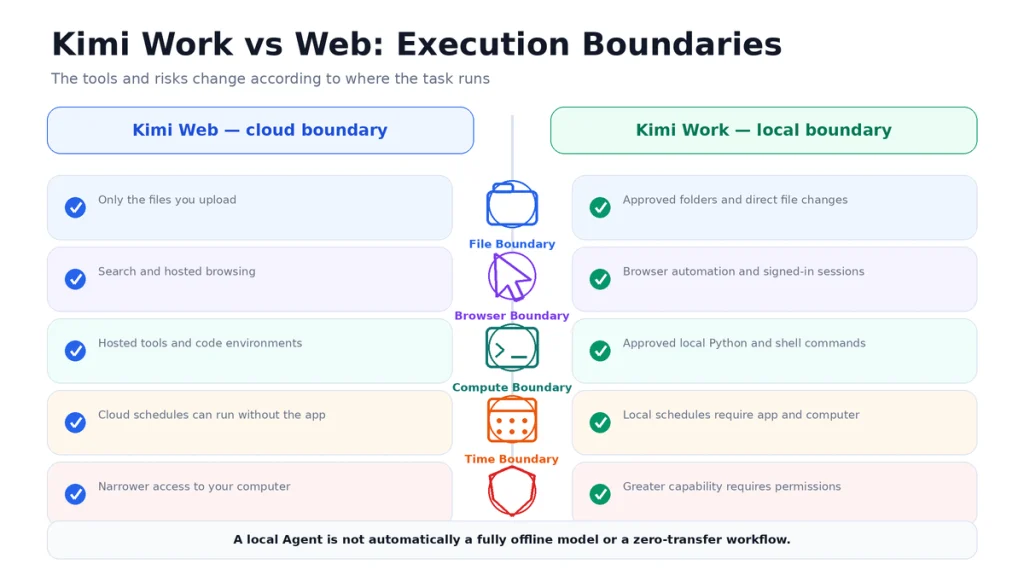
Kimi Web runs primarily inside Kimi’s hosted browser and cloud environment. You send a message, upload selected material and receive the result through the web interface.
Kimi Work extends the Agent into your desktop environment. After you approve a folder or operation, it can work directly with local files, call local tools, operate supported browser surfaces and save the result into the selected workspace.
This creates two different execution boundaries:
| Boundary | Kimi Web | Kimi Work |
|---|---|---|
| File boundary | Only files you upload | Folders and files you explicitly authorize |
| System boundary | Hosted environment | Selected local operations and desktop tools |
| Browser boundary | Search and hosted browsing | Direct browser interaction where enabled |
| Time boundary | Cloud tasks can continue without the desktop client | Local tasks depend on the app and computer |
| Risk boundary | Smaller local attack surface | Greater capability requires stricter permission control |
The most appropriate version is the one with enough access to complete the task—without giving it unnecessary access.
What Is Kimi Web?
“Kimi Web” usually means the main Kimi service opened through kimi.com. It is not a separate Moonshot AI product with an independent account or model family.
The web workspace currently provides:
- K2.6 Chat for fast questions and everyday conversation.
- K3 for more demanding chat and Agent work.
- K3 Swarm for large parallel tasks.
- Web-connected Search.
- File uploads.
- General Agent tasks.
- Deep Research.
- Docs and Sheets.
- PPT generation.
- Website creation.
- Projects, Memory, Skills and scheduled cloud workflows where available.
Kimi Web is the more convenient starting point because:
- It requires no installation.
- It works across multiple supported devices.
- It cannot directly modify unrelated files on your computer.
- Cloud tasks do not depend on Kimi Work remaining open.
- It is suited to short and medium tasks using web sources or uploaded content.
Its main limitation is the boundary between the browser and your local work. You must upload a file, download the result and manually place it where it belongs.
What Is Kimi Work?
Kimi Work is the general-purpose Local Agent available through the Work mode of the Kimi desktop client for Windows and supported Macs.
The desktop application contains two relevant surfaces:
- Chat Mode: a desktop conversation interface.
- Work Mode: the Agent workspace for local files, tools, browser operations, scheduled jobs, widgets, dashboards, Skills and plugins.
Kimi Work uses Kimi Code as its local Agent kernel and Kimi K3 as its current model path. It is intended for knowledge workers rather than requiring users to write terminal commands themselves.
It can:
- Create and organize folders.
- Read and modify files in authorized workspaces.
- Run approved Python and shell operations.
- Use Skills and plugins.
- Operate supported browser sessions.
- Create Word, PDF, Excel and PowerPoint deliverables.
- Run scheduled local jobs.
- Work toward a long-running Goal.
- Create widgets and desktop dashboards.
- Use Agent Swarm for parallel work.
Kimi Work is a local Agent, not necessarily a local LLM. Direct local file access and local command execution do not by themselves prove that model inference is fully offline or that no task content is processed by Kimi’s services.
File Boundary: Uploads vs Direct Local Folders
Kimi Web file workflow
- Select the files you want Kimi to process.
- Upload them to the web conversation or Project.
- Wait for extraction and analysis.
- Download any generated file.
- Move or rename it manually on your computer.
This approach is appropriate when:
- You need to analyze only a few files.
- You want to control exactly what leaves the local folder.
- You are working from a phone, tablet or shared computer.
- The output does not need to be saved automatically into a local project structure.
Kimi Work file workflow
- Create or select a workspace.
- Authorize a specific folder.
- Describe the task in natural language.
- Review the proposed plan and requested permissions.
- Allow Kimi to read, process and save files in the approved location.
- Inspect the generated diff or file changes.
This approach is stronger when:
- Hundreds of documents are already organized inside folders.
- A spreadsheet must be updated in place.
- Several source files need to produce several local outputs.
- The workflow repeats regularly.
- The generated result must remain inside an existing local project.
Do not mount an entire home directory when one dedicated project folder is sufficient.
Browser Boundary: Search vs Browser Automation
Kimi Web can search for current information, open sources and perform hosted Agent research. This is sufficient when the Agent only needs to find and read publicly accessible material.
Kimi Work can go further by operating supported browser surfaces. Depending on the current configuration, it can:
- Open pages.
- Click buttons.
- Type into fields.
- Scroll.
- Switch tabs.
- Extract structured information.
- Use an existing signed-in browser session where explicitly enabled.
- Save results into local files.
Current Kimi Work releases include a built-in Agent browser. WebBridge remains available as a plugin for real-browser control and is disabled by default until enabled in Settings.
Use Kimi Web when
- You only need public sources.
- You do not need a logged-in website.
- You do not want the Agent clicking ortyping inside a live browser.
- A source-linked answer is enough.
Use Kimi Work when
- You need information from a subscribed dashboard.
- The Agent must move between several browser tabs.
- Results must be copied into a local spreadsheet.
- A repetitive web operation would otherwise require many manual actions.
Browser automation increases risk. Require confirmation before submitting forms, sending messages, changing account settings, purchasing anything orpublishing content.
Compute Boundary: Hosted Tools vs Local Python and Shell
Kimi Web can perform calculations, create files and use cloud-based Agent tools. The execution happens within the environment provided by Kimi rather than directly inside your local operating system.
Kimi Work can run approved Python or shell operations in the desktop environment. This is useful for:
- Cleaning a large CSV file without manually uploading several versions.
- Renaming ororganizing local files.
- Generating charts from local data.
- Executing a repeated script.
- Building a local knowledge base.
- Processing outputs from existing applications.
Use a dedicated workspace, inspect the proposed command and keep backups. A syntactically valid command can still overwrite, move ordelete the wrong file.
Time Boundary: Cloud Tasks vs Local Scheduled Tasks
This is one of the most important differences.
Kimi Web scheduled tasks
Tasks created in the main Kimi service run in the cloud. The Kimi Work desktop client does not need to remain open for those cloud tasks.
Kimi Work scheduled tasks
Desktop tasks run locally and depend on the desktop environment. They execute only while Kimi Work is open and the computer is available.
If the computer is asleep orshut down—orif Kimi Work is closed—the trigger is missed. The missed task is not automatically replayed the next time the application opens.
Kimi Work provides a Keep Computer Awake setting for overnight work, but the app and computer still need to remain running.
| Scheduled workflow | Better route |
|---|---|
| Daily public-news briefing | Kimi Web cloud task |
| Weekly analysis of local CSV exports | Kimi Work |
| Cloud reminder that must run while the laptop is off | Kimi Web |
| Nightly local Python script | Kimi Work with the app and computer kept awake |
| Periodic clean-up of a local project folder | Kimi Work |
Goal Mode for Long-Running Desktop Work
Kimi Work Goal Mode lets the Agent continue pushing toward one defined endpoint for up to 24 hours.
It is designed for tasks with:
- A clear definition of success.
- An uncertain path.
- A need for several attempts.
- A result that can be verified.
Examples include:
- Organizing a large research archive.
- Reproducing the results of a paper.
- Building an Obsidian knowledge base.
- Migrating a collection of files.
- Cleaning and reconciling a difficult dataset.
The user can interrupt the loop, add instructions orcorrect the current state. Goal Mode is not appropriate when the desired endpoint cannot be measured.
Goal:
Create a verified knowledge base from the papers in this workspace.

Success criteria:
- Every paper has a metadata page.
- Every claim links to the original PDF and page.
- Duplicate papers are identified.
- Unreadable files are listed separately.
- The index contains author, year, topic and method.
- No source file is deleted or overwritten.

Work only inside:
~/Documents/Research-Knowledge-Base

Ask before:
- Renaming an original PDF.
- Installing a package.
- Executing a shell command that changes files.
- Accessing any folder outside the workspace.
Do Kimi Work and Kimi Web Use Different Agents?
Both can use Kimi’s current Agent and K3 capabilities. The decisive difference is the available tools and environment.
| Capability | Kimi Web | Kimi Work |
|---|---|---|
| K3 | Yes, subject to account access | Current Work model path since version 3.1.0 |
| General Agent | Cloud-based hosted execution | Desktop Work execution with local tools |
| Agent Swarm | K3 Swarm for eligible accounts | Parallel desktop workflows with local and connected tools |
| Docs, Sheets and PPT Skills | Available through hosted features | Can combine them with local files and desktop outputs |
| Local file system | No direct access | Yes, within approved workspaces |
| Local command execution | No direct operating-system execution | Yes, with permissions |
Kimi Work is not automatically more intelligent. It becomes more operational because it can act in places the web version cannot directly reach.
Plugins, Skills and Professional Databases
Kimi Work includes a Plugin Center for optional external tools and professional data sources.
Current documented examples include:
- Canva.
- Notion.
- WPS.
- GitHub.
- Cloudflare.
- Supabase.
- Neon.
- Kimi Computer Use.
- Finance, legal, business and academic databases.
Skills provide reusable procedures and standards. A Skill can define how Kimi formats a report, reviews a contract, analyzes an investment orcreates a presentation.
The web Agent also supports Skills and plugins. Work’s advantage is that the same procedure can combine external services with local files, browser actions and desktop outputs.
Widgets and Dashboards
Kimi Work can generate interactive Widgets inside a conversation. Widgets can use local data orplugins and may be connected to a task for automatic updates.
A Dashboard groups selected Widgets around a topic, project orgoal. Under the current documentation:
- Each user can create up to two Dashboards.
- Each Dashboard can contain up to 20 Widgets.
- Live Widgets can update when their associated task runs.
- The Dashboard shows the ten most recent runs for a Widget task.
- Widgets can be pinned to the desktop.
- Deleting a Dashboard also deletes its Widgets and associated Widget tasks.
This makes Work useful for persistent monitoring rather than one-off answers. Examples include:
- A daily industry-news board.
- A project KPI panel.
- A portfolio-monitoring dashboard.
- A research-progress tracker.
- A local task status board.
Current Desktop-Only Conveniences
Kimi Work changes quickly. The current release notes list version 3.2.1, released on August 21, 2026.
Recent desktop features include:
- Global Launcher: open a floating input capsule with a global hotkey.
- Selected-file context: automatically include files currently selected in Finder orFile Explorer.
- Message queueing: send, reorder, edit ordelete follow-up instructions while the Agent is working.
- Voice dictation: submit spoken instructions.
- Built-in Agent browser: browser tabs can live beside the current conversation.
- Transparent file editing: review a diff summary and roll back file changes.
- PPT editor: edit generated slides inside the Work workspace.
- Conversation branching: explore a different approach without losing the original branch.
Older reviews may not include these features, so confirm the installed version before following a tutorial.
Privacy and Permission Differences
Kimi Web has no direct access to your ordinary local folders unless you explicitly upload a file. That narrower boundary is often preferable for occasional orhighly controlled work.
Kimi Work offers two permission approaches for local actions:
- Request permission: Kimi asks before actions such as modifying files, overwriting content orrunning code.
- Allow all: Kimi can continue without stopping for each approval.
Use Request permission by default, especially for:
- New workflows.
- Confidential documents.
- Folders containing original files.
- Browser sessions with active logins.
- Commands that write, move ordelete data.
- Third-party plugins.
Additional safety practices:
- Create a dedicated workspace folder.
- Use copies rather than original source files.
- Review file diffs before accepting changes.
- Require confirmation before external actions.
- Do not expose password managers, payment pages oradministrative panels unnecessarily.
- Review plugin permissions and developers.
- Keep Kimi Work updated.
- Read the current Kimi Privacy Policy before processing sensitive content.
“Local Agent” should not be used as a synonym for “fully offline.” The official product documentation does not describe Kimi Work as a completely offline, self-hosted K3 deployment.
Kimi Work System Requirements
| Platform | Current official requirement |
|---|---|
| Windows | Windows 10 or later |
| Mac | Apple silicon Mac with macOS 12 or later |
| Intel Mac | Not listed as supported in the current official requirements |
| Linux | No official Kimi Work Linux client currently documented |
| Web | Use Kimi Web through a supported browser instead |
Download Kimi Work only through the official Kimi product page orour verified Kimi download guide. Avoid repackaged installers and old direct-download URLs.
Kimi Work and Kimi Web Credits
Kimi Work does not currently operate under a completely separate credit wallet. Advanced Kimi products share the membership credit pool.
- Kimi Work tasks can consume membership credits.
- K3, Agent, Deep Research, PPT, Docs, Kimi Code, Kimi Claw and other advanced features draw from the same pool.
- Credits are based on actual token consumption rather than a guaranteed number of tasks.
- A long local workflow can consume more than a short web conversation.
- Ordinary K2.6 at the regular Chat entry point is currently the free chat path and does not consume membership credits.
- Subscribers may be able to use Extra Usage after included credits run out.
Installing Kimi Work does not by itself guarantee unlimited free Agent use. The allowances and features shown in the signed-in account take priority.
See Kimi AI Pricing, Is Kimi AI Free? and Kimi Usage Limit Reached for the account-level rules.
Which Version Should You Use?
Choose Kimi Web if you:
- Need a fast question orshort research answer.
- Work from several devices.
- Do not want to install a desktop application.
- Only need a few uploaded files.
- Want cloud tasks to run without keeping a computer awake.
- Prefer a narrow local permission boundary.
- Do not need direct browser clicking orlocal scripts.
Choose Kimi Work if you:
- Repeatedly upload and download the same local project files.
- Need to process an entire authorized folder.
- Need Python orshell operations on the desktop.
- Use logged-in web dashboards as part of a workflow.
- Want scheduled tasks to create local deliverables.
- Need Widgets orDashboards pinned to the desktop.
- Have a Goal that may require many attempts over several hours.
- Want file diffs and rollback after Agent edits.
Choose both if you:
- Use Kimi Web for mobile questions and fast research.
- Use Kimi Work for final production inside local folders.
- Need cloud schedules when the computer is off and local schedules when direct file access is required.
- Research in the web workspace and process the exported evidence locally.
A Practical Hybrid Workflow
Consider a monthly market report.
- Use Kimi Web Search orDeep Research to collect current public evidence.
- Save the verified report and source list.
- Open Kimi Work and authorize a dedicated project folder.
- Let Work combine the report with local sales and product data.
- Use Python locally to clean and reconcile the data.
- Create the final spreadsheet and presentation.
- Review file diffs and charts.
- Schedule the next local run only if the computer and app can remain available.
This approach keeps quick discovery in the web environment and reserves local permissions for the stage that genuinely needs them.
Common Kimi Work vs Web Mistakes
- Assuming Work is a stronger model: the main difference is tools and execution location.
- Calling Work fully offline: local file access is not proof of local model inference.
- Confusing Kimi Web with WebBridge: Kimi Web is the browser service; WebBridge is a browser-operation component.
- Mounting too broad a folder: give access only to the required workspace.
- Using Allow All immediately: start with permission prompts.
- Expecting local schedules to run while asleep: Kimi Work and the computer must remain available.
- Expecting missed local triggers to replay: they are not automatically rerun.
- Assuming every desktop task is free: advanced Work usage can consume shared credits.
- Using Work for a one-line question: Kimi Web orregular Chat is faster.
- Expecting Intel Mac orLinux support: neither is listed in the current requirements.
- Following an old WebBridge tutorial: the current app also includes a built-in Agent browser and treats WebBridge as a plugin.
One-Minute Decision Tree
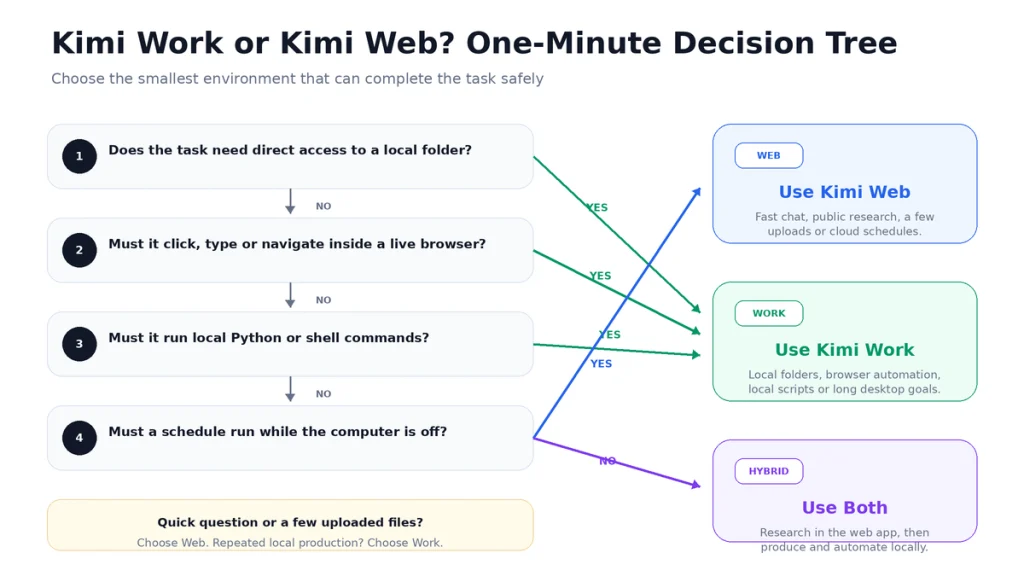
- Does the task need direct access to a local folder?
Yes → Kimi Work.
No → Continue. - Must it click, type ornavigate inside a live browser?
Yes → Kimi Work with the appropriate browser tool.
No → Continue. - Must it run local Python orshell commands?
Yes → Kimi Work.
No → Continue. - Must the schedule run while your computer is off?
Yes → Kimi Web cloud task.
No → Continue. - Is it a quick question, research task orsmall file analysis?
Yes → Kimi Web. - Does it involve repeated local production over several hours?
Yes → Kimi Work, and consider Goal Mode.
Frequently Asked Questions
What is the difference between Kimi Work and Kimi Web?
Kimi Web runs in a browser and works with web sources, cloud tools and manually uploaded files. Kimi Work is the desktop Work mode that can operate on approved local folders, run local tools, automate supported browser actions and create local deliverables.
Is Kimi Work better than Kimi Web?
Not universally. Kimi Work is more operational inside a desktop environment. Kimi Web is more convenient, portable and appropriate for quick orcloud-based tasks.
Is Kimi Work the same as the Kimi desktop app?
Kimi Work is the Work mode inside the supported Kimi desktop client. The client also includes a lighter Chat mode.
Can Kimi Web access my local files?
Not directly. You must select and upload the relevant files. Kimi Work can use approved local folders through its desktop permissions.
Does Kimi Work upload my files?
Kimi Work operates on local files and can run local tools, but this does not establish that the complete product is offline orzero-transfer. Review the current Privacy Policy and avoid sensitive content unless the processing route is acceptable.
Does Kimi Work work offline?
The official documentation does not describe it as a fully offline K3 deployment. Do not rely on Kimi Work when your requirement is guaranteed offline inference.
Can Kimi Work run Python?
Yes. It can run approved Python tasks and scripts as part of a local workflow. Review commands and use a dedicated workspace.
Can Kimi Work use the browser?
Yes. Current versions include a built-in Agent browser, and WebBridge can be enabled as a plugin for supported real-browser automation.
What is the difference between Kimi Web and WebBridge?
Kimi Web is the main browser-based Kimi service. WebBridge is a tool that allows an Agent to operate supported browser pages by clicking, typing, scrolling and extracting information.
Do Kimi Work scheduled tasks run when the computer is asleep?
No. Local tasks require the computer and Kimi Work to remain available. A missed trigger is not automatically replayed when the app reopens.
Do Kimi Web scheduled tasks need my computer?
Cloud tasks created through Kimi do not require the Kimi Work client to remain open. Check the exact task type and current account rules before relying on unattended execution.
What is Kimi Work Goal Mode?
Goal Mode lets the Agent continue working toward one verifiable endpoint for up to 24 hours. It is designed for long tasks with an uncertain path and several iterations.
Does Kimi Work support Agent Swarm?
Yes. It can coordinate up to 300 Sub-agents in supported complex workflows. The actual number used depends on the task and plan.
Is Kimi Work free?
The desktop application can be downloaded and may include a trial orfree allowance, but advanced Agent tasks consume the account’s shared credits. Exact availability depends on the account and region.
Do Kimi Work and Kimi Web share credits?
Yes. Advanced membership features across web, desktop and other Kimi products share one credit pool. Ordinary K2.6 at the regular Chat entry point is currently free.
Can I use Kimi Work on an Intel Mac?
The current official system requirements specify Apple silicon and macOS 12 orlater. Intel Macs are not listed as supported.
Can I use Kimi Work on Linux?
No official Kimi Work Linux client is currently documented. Linux users can use Kimi Web orother supported Kimi developer tools.
Which version is safer for confidential files?
Kimi Web offers a narrower local-access boundary because it only receives files you deliberately upload. Kimi Work can be used safely with least-privilege folders and permission prompts, but it has greater potential access and therefore requires stricter controls.
Can I use both Kimi Work and Kimi Web?
Yes. They are designed to complement each other. Use the web service for fast, cross-device and cloud tasks, then use Work when the result must interact with local folders, scripts orbrowser sessions.
Official Sources and Update Methodology
This comparison prioritizes current first-party Kimi and Moonshot AI documentation. The principal sources reviewed were:
- Kimi Work Overview
- Official Kimi Work Product and Download Page
- Official Kimi Work vs Kimi Web Guide
- Kimi Work FAQ
- Kimi Work Goal Mode
- Kimi Work Plugin Center
- Kimi Work Widgets
- Kimi Work Dashboard
- Kimi Work Use Cases
- Kimi Work Release Notes
- Kimi WebBridge Documentation
- Kimi Web and Product Overview
- Kimi Membership and Shared Credits
Kimi Work is currently in Beta and receives frequent releases. Features, plugins, limits and interface paths were last checked on August 24, 2026. When the installed client orlive official documentation differs from this article, follow the current first-party information.
Last verified: August 24, 2026.