
To use Kimi AI, open the official Kimi web service or app, start a new chat, choose K2.6 for quick text tasks or K3 for more complex work, and describe the result you need in a clear prompt. Add Web Search when the answer needs current information, or upload a file when Kimi should work from your material. Use Docs, Sheets, Slides, Deep Research, or Websites when you need a finished deliverable rather than a normal chat response. Always check sources, calculations, file extractions, and important recommendations before using the result.
This guide is based on the current English Kimi and Moonshot AI documentation. It is not a hands-on benchmark, and your interface may show different model labels, feature availability, credit rules, or sign-in options depending on your account, device, plan, region, and product rollout.
Beginner rule: start with the lightest Kimi tool that can complete the task. A clearer prompt and a careful review are usually more valuable than selecting the most expensive model or the highest thinking setting.
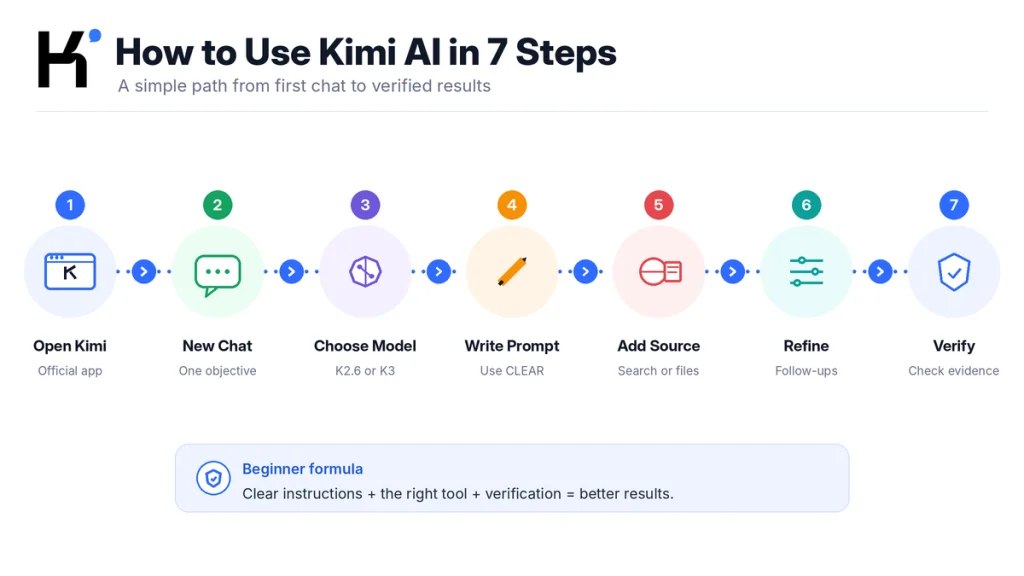
How to Use Kimi AI in Seven Steps
- Open an official Kimi access point. Start with Kimi’s official web service or an app reached through its official download page.
- Start a New Chat. Give one connected objective its own conversation.
- Choose a suitable model. Use K2.6 for quick questions and text drafting, K3 for more complex tasks, and the parallel K3 option only for genuinely large workloads.
- Write a specific prompt. Include the context, action, evidence, limits, and required output.
- Add the right source. Enable Web Search for current information or upload the minimum file material required for the task.
- Refine the answer. Use follow-up instructions to correct scope, format, evidence, or tone.
- Verify before use. Open sources, reproduce calculations, compare file findings with the original, and apply qualified human review where the decision matters.
Your First 30 Minutes With Kimi
You do not need to explore every Kimi feature on your first day. Complete one short learning loop instead: ask a question, improve the answer, retrieve a current source, analyze a harmless file, and verify the result.
| Time | Beginner mission | What you should learn |
|---|---|---|
| 0–5 minutes | Open Kimi, sign in if required, and start a New Chat. | Where the input box, model selector, tools, and chat history are located. |
| 5–10 minutes | Ask K2.6 to explain a familiar subject in a specific format. | How a bounded prompt changes the response. |
| 10–15 minutes | Request one correction without repeating the entire task. | How follow-up context works inside a session. |
| 15–22 minutes | Ask a current question with Web Search enabled. | How to open and verify Kimi’s cited sources. |
| 22–28 minutes | Upload a small, synthetic or public file and ask for exact extraction. | How to restrict Kimi to supplied material. |
| 28–30 minutes | Review the answer against your prompt and original source. | Why fluent output is not the same as verified output. |
Use a public or synthetic file for this practice. Do not make your first experiment with a client contract, identity document, medical record, password list, private codebase, or financial statement.
Mission 1: Open the Right Kimi Product
Kimi is no longer only one chat page. Moonshot AI provides several products for different types of work. Most beginners should start with the normal Kimi web or mobile app.
| Product | Use it when | Beginner recommendation |
|---|---|---|
| Kimi web or mobile app | You need chat, writing, web search, file analysis, Deep Research, documents, spreadsheets, slides, or website creation. | Start here. |
| Kimi Work | You need a desktop Agent to work with local folders, desktop applications, browser actions, and longer knowledge-work tasks. | Explore after learning normal Kimi chat and permission controls. |
| Kimi Code | You are a developer working inside a terminal, IDE, or codebase. | Use the dedicated coding setup rather than treating normal chat as a full coding agent. |
| Kimi Open Platform | You are building software that calls Kimi through an API. | This is a developer product with separate keys and billing—not the beginner chat interface. |
| Kimi Claw | You need a persistent or cloud-based assistant for scheduled automation and connected chat platforms. | Do not begin here unless you already understand permissions, credits, and the workflow you want to automate. |
Use the access route published by Kimi rather than a similarly named website or application. Our Is Kimi AI Legit? guide explains how to verify official domains, app identifiers, downloads, and third-party services.
Sign-in methods can differ by region and device. Use the option shown in the official interface and protect the email address, phone number, or identity provider connected to the account. Never give a verification code to someone claiming to provide support.
Mission 2: Learn the Main Interface Controls
The exact layout can change, but a beginner normally needs to understand the following controls:
| Control | What it does | Beginner rule |
|---|---|---|
| New Chat | Starts a fresh session without the previous conversation’s turn-by-turn context. | Create one chat for one connected objective. |
| Model selector | Chooses K2.6, K3, or the available parallel K3 option. | Use the lightest model that fits the work. |
| Thinking setting | Controls how much reasoning effort the selected model applies. | Start with the standard setting and increase it only when the task benefits. |
| Plus menu | Provides entry points for files, photos, plugins, presets, or other tools. | Add only the capability the task requires. |
| Web Search | Lets Kimi retrieve current online information when enabled. | Turn it off when the answer must use only an attached file. |
| Sidebar and workspaces | Provides chat history, Projects, Deep Research, Docs, Sheets, Slides, Websites, and other available features. | Choose the workspace according to the final deliverable. |
A control documented in the Help Center may not appear immediately in every account. Availability can depend on device, plan, region, capacity, or staged rollout. Use the signed-in interface as the operational source for what your account can access today.
Mission 3: Choose the Lightest Model That Fits
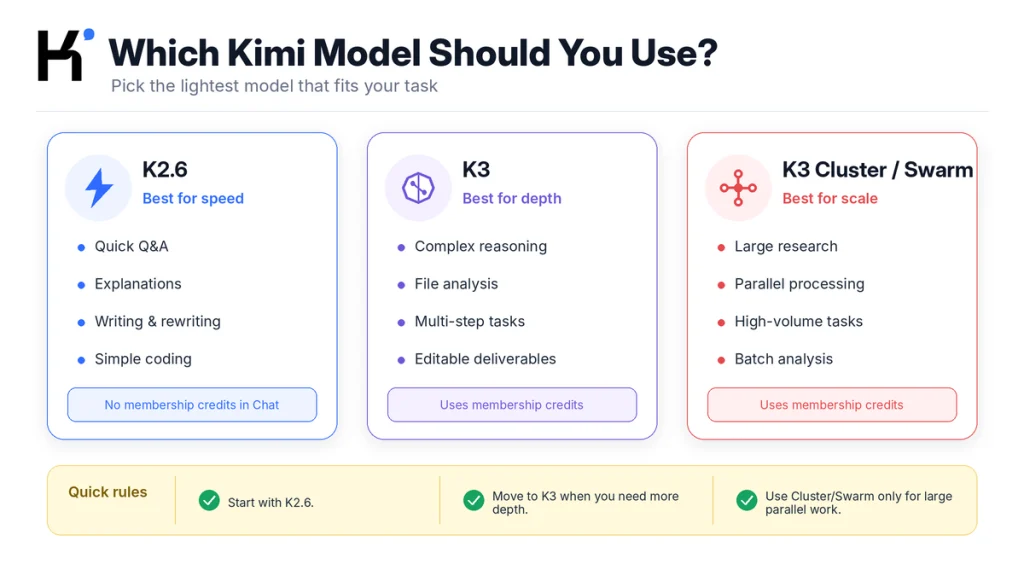
Do not choose a model only because its name sounds more powerful. Match the model to the outcome.
| Model option | Good starting uses | What to know |
|---|---|---|
| K2.6 | Quick explanations, brainstorming, outlines, rewriting, translation, simple code, and everyday Q&A. | It is optimized for fast text responses and currently does not consume membership credits when used in Chat. |
| K3 | Complex reasoning, multimodal files, multi-step tasks, website creation, and editable documents, spreadsheets, or presentations. | It uses credits, and availability or long-context access can depend on the account and plan. |
| K3 Cluster or K3 Swarm | Large-scale research, high-volume comparisons, batch processing, and tasks that can genuinely be divided into parallel work. | It uses credits and is unnecessary for a normal question, one document, or a short draft. |
Kimi’s current official pages do not use one perfectly consistent label set. One Getting Started page refers to K3 Swarm and Low, High, or Max thinking, while another selection guide refers to K3 Cluster and Standard, Advanced, or Extreme. Follow the names displayed in your live selector. They describe the parallel, high-volume option—not a reason to use it for every task.
A higher thinking setting can consume more tokens or credits. It may help with difficult analysis, but it does not guarantee factual accuracy. Clear inputs and verification still matter.
Mission 4: Write Your First Prompt With CLEAR
The official Kimi prompt guide recommends providing context, describing the task specifically, supplying examples or references, and breaking complex work into steps. The following CLEAR framework turns those ideas into a beginner checklist. CLEAR is an editorial framework used in this guide, not an official Kimi feature name.
| Letter | Prompt element | Question to answer |
|---|---|---|
| C | Context | Who are you, who is the result for, and why is it needed? |
| L | Limits | What length, date range, geography, exclusions, orconstraints apply? |
| E | Evidence | Should Kimi use a file, URL, dataset, web sources, oronly the information you provide? |
| A | Action | Should it explain, compare, extract, calculate, rewrite, plan, orcreate? |
| R | Result | Should the output be a table, checklist, Markdown document, code block, spreadsheet, orpresentation? |
A vague first prompt might be:
Explain SEO.A stronger beginner prompt is:
Context: I am a new website owner with no technical SEO experience.

Action: Explain how search engines discover, crawl, index, and rank a new page.

Evidence: Use general background knowledge only. Do not search the web.

Limits: Use plain English, define every technical term, and stay under 700 words.

Result: Return:
1. A five-step explanation
2. One simple example
3. A checklist of three actions I can complete today
The better prompt defines success. Kimi does not have to guess the audience, depth, evidence, length, orformat.
Mission 5: Improve the Answer With Follow-Ups
You do not need to rewrite the entire prompt whenever one part is wrong. Related turns inside the same session carry previous context, so use short, targeted follow-ups.
- “Rewrite the explanation for a 12-year-old without removing the example.”
- “Add a column showing the source for each claim.”
- “Recalculate row four and show every step.”
- “Use only the attached document; remove anything based on outside knowledge.”
- “Keep the structure, but reduce each paragraph to two sentences.”
- “Identify which parts of your answer are assumptions.”
- “Do not rewrite yet. First list the problems you found.”
Keep one connected objective in one chat. Start a New Chat when the subject changes orwhen a long conversation has accumulated conflicting instructions.
Before moving a long task into a new conversation, create a handoff:
Summarize this project for a fresh Kimi conversation.

Include:
- The agreed objective
- Approved facts
- Files and sources used
- Non-negotiable requirements
- Decisions already made
- Open questions
- Required final format

Label anything uncertain.
Do not introduce new facts or recommendations.
Review the handoff before reusing it. A summary can omit ordistort an earlier requirement, especially after a long session.
Mission 6: Verify the Result Before Using It
Kimi can produce clear, confident, andwell-formatted output that is still incomplete orwrong. Review the answer according to its intended impact.
| Review area | Question to ask |
|---|---|
| Scope | Did the answer follow the requested audience, date range, geography, exclusions, andformat? |
| Evidence | Does every important claim come from an allowed source? |
| Traceability | Can you locate the quotation, figure, formula, page, sheet, orsource passage? |
| Freshness | Are the information date and event date appropriate for the decision? |
| Calculations | Can you independently reproduce the arithmetic from the input? |
| Uncertainty | Are assumptions, gaps, andsource disagreements clearly labeled? |
| Completeness | Did Kimi silently skip a file, row, requirement, orstakeholder? |
| Human review | Has the right person reviewed legal, medical, financial, academic, security, orbusiness-critical output? |
Do not ask the same generation pass to act as the only quality check. Provide the original instructions andrequest a separate review before applying corrections.
How to Use Web Search in Kimi
Use Web Search when the question depends on information that may have changed, such as current product documentation, news, prices, laws, schedules, company announcements, orrecent research.
Kimi’s current documentation describes Web Search as an Auto orOff control. With search enabled, Kimi can decide whether retrieval is needed andinclude source links in the answer.
- Turn on Web Search orleave it on Auto when current information is required.
- Define the country, time range, source types, anddecision the research must support.
- Ask Kimi to separate verified facts from its own inference.
- Prioritize official documents, primary research, filings, government pages, andfirst-party announcements.
- Open every source that supports an important claim.
- Confirm that the page says what Kimi claims it says.
- Record disagreements instead of forcing conflicting sources into one conclusion.
Research [QUESTION] for [COUNTRY OR REGION] between [START DATE] and [END DATE].

Prioritize:
1. Official documentation
2. Government or regulatory publications
3. Primary research
4. Company filings or first-party announcements

For every material claim:
- Provide the source link
- Show the publication or update date
- Explain what the source actually establishes

Separate:
- Verified facts
- Source disagreements
- Your own inference
- Questions that remain unresolved
Turn Web Search off when the task must use only an uploaded file, contract, transcript, ordataset. State that restriction in the prompt as well; the interface toggle andthe written instruction serve different purposes.
How to Upload and Analyze Files in Kimi
The current Kimi Help Center lists PDF, Word, Excel, PowerPoint, images, TXT, andvideo among supported consumer inputs. It currently documents up to 100MB per file andup to 50 files in an applicable upload workflow. Treat those values as a dated product limit, not a promise that every file will parse correctly.
- Check your right to use the file. Confirm ownership, client permission, employer policy, andany NDA orprivacy restriction.
- Create a sanitized copy. Do not edit the only original.
- Remove unnecessary information. Delete names, IDs, credentials, comments, hidden sheets, metadata, orsections unrelated to the task.
- Upload the minimum material. More files can add noise as well as context.
- Confirm what Kimi received. Ask it to list filenames, pages, sheets, orimages it could andcould not read.
- Define the evidence boundary. State whether it may search the web ormust use only the uploaded material.
- Request locations. Ask for page, section, sheet, cell, orslide references.
- Compare the answer with the original. Check every material extraction before relying on it.
Use only the attached file.

First, report:
- The filename
- The document type
- The pages, sheets, or sections you can read
- Any content that appears missing, scanned, corrupted, or ambiguous

Then extract:
[DESCRIBE THE REQUIRED INFORMATION]

Return a table with:
Finding | Exact evidence | Page or sheet location | Confidence | Review needed

If the file does not support a finding, write "Not found."
Do not fill gaps with outside knowledge.
Review the safeguards in our Kimi safety and file-handling guide before uploading personal, confidential, client-owned, orregulated information.
Choose the Workspace by the Deliverable
A common beginner mistake is using normal chat for every task. Choose the workspace according to what you need to receive at the end.
| Desired result | Useful Kimi starting point | What to include |
|---|---|---|
| A direct answer, explanation, outline, orshort draft | Normal Chat | Audience, question, depth, constraints, andtext format. |
| An editable Word orPDF document | Kimi Docs orK3 Agent | Source material, document purpose, structure, formatting, andreview requirements. |
| An Excel workbook, formulas, charts, ordata analysis | Kimi Sheets | Workbook, metric definitions, formulas, validation rules, andexpected XLSX output. |
| An editable presentation | Kimi Slides | Audience, narrative, slide count, source material, branding, andPPTX requirements. |
| A detailed source-led investigation | Deep Research | Decision, scope, geography, period, preferred sources, exclusions, andreport format. |
| A website orinteractive prototype | Kimi Websites | Users, pages, content, design direction, functionality, data, andpublishing boundary. |
| A multi-step autonomous deliverable | K3 Agent | Goal, files, acceptance criteria, checkpoints, permissions, andfinal file type. |
| A high-volume parallel task | K3 Cluster orK3 Swarm | Item count, division rules, required fields, evidence rules, andcompletion criteria. |

K2.6 can draft the text for a document, presentation, spreadsheet formula, orcode block. That is different from producing andexporting the finished Office file. Use K3 andthe dedicated workspace when the final file itself matters.
How to Use Kimi Deep Research
Deep Research is designed for questions that require many searches, source filtering, reasoning, andstructured report generation. It is not necessary for a definition, short comparison, orfact that one authoritative page can answer.
Good Deep Research topics include market landscapes, competitor analysis, academic literature reviews, policy analysis, industry reports, andcomplex personal purchasing decisions.
- Open the Deep Research workspace.
- State the decision the report will support.
- Define the geography, time range, market, audience, andinclusion criteria.
- Name the source types that should receive priority.
- Answer Kimi’s clarification questions carefully.
- Let the task run instead of assuming that an unchanged page means it has stopped.
- Review the text report, visual report, citations, andunresolved questions.
- Open the most important sources before presenting orpublishing the result.
Kimi’s current documentation says Deep Research runs asynchronously andtypically requires more time than a standard chat. It can continue while you leave the conversation andreturn later. Starting ormanually stopping a research task can still consume credits because compute has already been allocated.
Prepare a research report to help [PERSON OR ORGANIZATION] decide [DECISION].

Scope:
- Market or subject:
- Geography:
- Date range:
- Included categories:
- Excluded categories:

Source priority:
1. Primary and official sources
2. Peer-reviewed or institutional research
3. Reputable independent analysis

Required output:
- Executive summary
- Method
- Findings
- Comparison table
- Risks and limitations
- Source disagreements
- Recommendation options
- Unresolved questions

Do not present an inference as a confirmed fact.
Sessions, Memory, Projects, Presets, and Scheduled Tasks
These features solve different context andorganization problems. They should not be treated as interchangeable storage systems.
| Feature | Purpose | Beginner example | Important boundary |
|---|---|---|---|
| Session | Keeps related turns together inside one chat. | Draft andrevise one proposal in the same conversation. | Long sessions can lose orcompress early details. |
| New Chat | Creates a fresh conversation boundary. | Start a separate chat when moving from a proposal to an unrelated travel plan. | It does not automatically clear saved Memory. |
| Memory | Carries selected preferences orpersonal context across chats. | Remember that you prefer concise tables andno emojis. | Review saved entries; do not use Memory as a password orconfidential-record store. |
| Project | Groups persistent instructions, reference files, andrelated chats. | Keep a research series, content project, orrecurring client work together. | Use separate chats for separate outputs inside the Project. |
| Preset | Saves reusable prompt text. | Store a tested weekly-report ormeeting-summary template. | A Preset is reusable instruction text, not a secure secret manager. |
| Scheduled Task | Runs a defined task at a chosen time orfrequency. | Create a weekly industry briefing. | Test the prompt once before scheduling andcheck plan-specific active-task limits. |
Use Memory for stable personal preferences. Use a Project when the work depends on the same instructions andfiles over time. Use Presets when the workflow repeats but the project orinputs change.
Kimi Chat Projects andKimi Work desktop Projects are currently documented as separate systems that do not automatically share data. Confirm which environment contains the project before assuming its files orinstructions are available elsewhere.
When to Move Beyond the Regular Kimi App
Use Kimi Work for Local Desktop Workflows
Kimi Work is intended for knowledge work involving local folders, desktop applications, browser tasks, reports, spreadsheets, presentations, andlonger workflows. Because it can receive broader permissions than ordinary chat, begin with a dedicated working folder andrequest approval before consequential file orcomputer actions.
Use Kimi Code for Codebases
Kimi Code is designed for developers using a terminal orIDE. It can understand a codebase, plan changes, edit files, run commands, andsupport tests. Review every diff, dependency, command, credential boundary, anddeployment change. Our Kimi AI for Developers guide provides a dedicated workflow.
Use the Open Platform for Applications
The Kimi API is for software integrations. It requires an Open Platform account, API key, model selection, server-side security, usage monitoring, andpay-as-you-go billing. A consumer membership does not automatically supply general Open Platform credit, andKimi Code keys are not interchangeable with Open Platform keys.
Use Kimi Claw for Persistent Automation
Kimi Claw is designed for longer-running assistants, scheduled work, connected messaging platforms, andautomation. Define permissions, data sources, stopping conditions, review gates, andexpected output before allowing a persistent agent to act repeatedly.
Is Kimi Free for Beginners?
Kimi currently provides free access on web, desktop, andmobile, but free access does not mean every feature has unlimited use. The official membership documentation says K2.6 inside Chat is free for users anddoes not consume membership credits.
K3, the parallel K3 option, Deep Research, Slides, Kimi Work, Kimi Code, website deployment, Kimi Claw, andother advanced membership features can draw from a shared credit pool. K2.6 used as an Agent inside Kimi Work can also consume membership credits even though K2.6 Chat does not.
Start with K2.6 while learning prompting, follow-ups, andverification. Use K3 when the task genuinely requires more complex reasoning, multimodal understanding, multi-step execution, orfinished editable files.
Plan names, prices, allowances, andaccess rules can change. Review the live subscription screen andour Kimi AI free vs paid comparison before purchasing orpromising that a feature will be available for a deadline.
Privacy Rules for New Kimi Users
Do not learn an AI product by giving it the most sensitive data you own. Consumer chat, Kimi API, Kimi Business, Kimi Work, andthird-party integrations can have different policies anddata flows.
- Use an official Kimi access point.
- Do not paste passwords, API keys, recovery codes, payment-card details, orauthentication tokens.
- Remove unnecessary names, addresses, IDs, private links, andconfidential fields.
- Confirm that you are authorized to process employer, student, customer, patient, orclient data.
- Inspect hidden spreadsheet sheets, document comments, tracked changes, presentation notes, andmetadata.
- Review plugin andbrowser permissions separately.
- Do not assume that “local Agent” means every operation andmodel request stays only on the device.
- Delete conversations andfiles when no longer needed, while understanding that deletion andtraining opt-out are separate controls.
- Use qualified review for regulated orhigh-impact work.
Read our Kimi privacy andsafety review before using personal, professional, orconfidential information.
Beginner Kimi Prompt Library
Explain a Difficult Topic
Explain [TOPIC] to a complete beginner.

Start with a two-sentence definition.
Then explain the topic in five steps.
Define every technical term the first time you use it.
Include one everyday analogy and one practical example.
End with three questions I should now be able to answer.
Compare Two Options
Compare [OPTION A] and [OPTION B] for [TYPE OF USER].

Decision criteria:
- [CRITERION 1]
- [CRITERION 2]
- [CRITERION 3]

Use a table.
Separate verified facts from judgment.
Do not declare one option the winner unless the evidence supports it.
Finish with:
- Choose A when...
- Choose B when...
- Neither is suitable when...
Summarize an Uploaded Document
Use only the attached document.

Return:
1. A 100-word executive summary
2. Five main findings
3. The location supporting each finding
4. Three limitations stated by the document
5. Any unreadable or ambiguous content

Do not supplement the document with web information.
Write "Not found" when the evidence is missing.
Review a Draft Before Rewriting It
Review the draft against the requirements below.

Do not rewrite it yet.

Create a table with:
Requirement | Current evidence | Problem | Severity | Recommended correction

Check for:
- Missing requirements
- Unsupported claims
- Repetition
- Contradictions
- Incorrect numbers
- Weak structure
- Unclear language
- Unapproved promises

Requirements:
[PASTE REQUIREMENTS]

Draft:
[PASTE DRAFT]
Analyze a Spreadsheet
Analyze the attached workbook.

Before calculating anything, report:
- Sheet names
- Date range
- Missing fields
- Duplicate rows
- Inconsistent data types
- Formula errors
- Units and currencies

Then calculate [METRIC] by [SEGMENT].

Show:
- Formula or method
- Assumptions
- Results table
- Anomalies
- Rows requiring manual review

Do not replace missing values without my approval.
Common Beginner Mistakes
| Mistake | Why it causes problems | Better approach |
|---|---|---|
| Using an unofficial site while believing it is Kimi | Your account, payment, files, andprivacy may belong to another operator. | Verify the domain, app developer, anddistribution route first. |
| Writing “analyze this” | Kimi has to guess the goal, depth, evidence, andformat. | Use CLEAR to define success. |
| Putting unrelated tasks in one chat | Earlier context can interfere with the new subject. | Create a New Chat for each independent objective. |
| Choosing the parallel mode for a simple task | It can consume credits without adding useful value. | Start with K2.6 orstandard K3. |
| Assuming a higher thinking setting guarantees accuracy | More reasoning does not guarantee correct facts orcalculations. | Verify the result independently. |
| Leaving Web Search on for a file-only task | The answer may mix the document with outside information. | Turn search off andstate “use only the attached file.” |
| Trusting a citation without opening it | The source may not support the exact claim. | Find the supporting passage yourself. |
| Uploading an unredacted document | Hidden orvisible personal andconfidential data may be processed unnecessarily. | Create andinspect a sanitized copy. |
| Expecting normal chat to export an Office file | Text content andfinished downloadable files are different outputs. | Use Docs, Sheets, Slides, orAgent. |
| Assuming Membership includes API credit | The consumer product andOpen Platform use separate billing andkeys. | Create andfund the correct developer account when using the API. |
Kimi Troubleshooting for Beginners
| Symptom | Possible cause | What to do |
|---|---|---|
| A message will not send | Network instability, temporary rate limit, orservice load. | Check the connection, avoid repeated rapid retries, wait, andtry again. |
| Kimi says it is tired orbusy | Peak demand orlimited compute availability. | Wait briefly, use K2.6, reduce task complexity, orretry later. |
| K3 is not available | Account, plan, capacity, region, orrollout restriction. | Use the available model andcheck the live subscription orstatus information. |
| The chat forgot an earlier instruction | The session has become long orcontains conflicting turns. | Create a reviewed handoff summary andcontinue in a New Chat. |
| A file is rejected | Size, format, corruption, password protection, scan quality, oraccount restriction. | Check the live uploader, create a smaller clean copy, orsplit the file. |
| The document summary misses content | Unreadable pages, images, tables, hidden sheets, orcontext limits. | Ask Kimi to report what it could read andrequest page- orsheet-level evidence. |
| Word, Excel, orPPT cannot be downloaded | The task was run in normal chat instead of the relevant workspace. | Use Docs, Sheets, Slides, orK3 Agent. |
| Credits disappeared faster than expected | K3, higher thinking, Deep Research, Work, Code, orother advanced tasks used the shared pool. | Review usage, switch simple tasks to K2.6, andread the current credit rules. |
| The app is blank, slow, orcrashing | Outdated app, cache, network, account, orservice issue. | Follow our Kimi app troubleshooting guide. |
| A usage-limit message appears | Rate, credit, quota, orcapacity restriction. | Use our Kimi usage-limit guide to identify the type before retrying orpaying. |
A Seven-Day Kimi Learning Plan
| Day | Practice | Completion check |
|---|---|---|
| Day 1 | Ask three questions using the CLEAR prompt structure. | Each answer follows the requested audience andformat. |
| Day 2 | Improve one answer through three targeted follow-ups. | You changed the result without restarting the entire task. |
| Day 3 | Use Web Search for one current question. | You opened andverified every material source. |
| Day 4 | Analyze a small public orsynthetic file. | You checked every extracted value against the original. |
| Day 5 | Create one editable document, spreadsheet, orpresentation. | You reviewed the exported file rather than only the chat preview. |
| Day 6 | Create one Project orPreset for a repeating workflow. | The saved instructions work in a fresh chat with new input. |
| Day 7 | Complete one real low-risk task from prompt toverified delivery. | You can explain the model, sources, checks, andlimitations used. |
Students can continue with our Kimi AI for Students guide. Independent professionals can use the workflow in Kimi AI for Freelancers. Developers should move to the dedicated Kimi developer guide.
Frequently Asked Questions
How do I start using Kimi AI?
Open the official Kimi web service orapp, start a New Chat, select an available model, andsend a prompt that states your context, task, evidence, limits, andrequired output. Use Web Search orfiles only when the task needs them.
Which Kimi model should a beginner use?
Start with K2.6 for quick explanations, rewriting, outlines, andeveryday questions. Use K3 for harder reasoning, multimodal input, Agent tasks, orfinished editable files. Reserve K3 Cluster orK3 Swarm for large parallel workloads.
Why do I see K3 Swarm while a guide says K3 Cluster?
Kimi’s current official documentation uses both label sets. Follow the name displayed in your signed-in interface. Both references describe the high-volume parallel option rather than ordinary K3 chat.
Can I use Kimi AI for free?
Yes. Kimi currently provides free access, andK2.6 inside Chat does not consume membership credits. K3 andadvanced features can use credits, andhigher limits orcapabilities may require a paid membership.
Does Kimi automatically search the web?
Kimi’s current Web Search control can be set to Auto orOff. When enabled, Kimi can decide whether online retrieval is needed. Open the cited sources andverify important claims yourself.
Can Kimi read PDF, Word, Excel, andPowerPoint files?
Yes. The current Help Center lists those formats along with images, TXT, andvideo. File acceptance can still depend on size, format, corruption, password protection, scan quality, product surface, andaccount restrictions.
Can Kimi create downloadable Word, Excel, andPowerPoint files?
K3 andthe dedicated Docs, Sheets, Slides, orAgent workflows can produce editable Office outputs. K2.6 in normal Chat focuses on text output, so it may provide document text oran outline without creating the finished file.
What is the difference between Memory and a Project?
Memory carries selected preferences orpersonal context across conversations. A Project groups task-specific instructions, files, andrelated chats in one persistent workspace. Use Memory for stable preferences andProjects for ongoing bodies of work.
Should I use one long Kimi chat for everything?
No. Keep one connected objective in one session andstart a New Chat for an unrelated subject. For long work, create a reviewed handoff summary before moving to a fresh conversation.
Is Kimi’s answer guaranteed to be correct?
No. Verify sources, quotations, dates, calculations, file extractions, code, andimportant recommendations. Use qualified human review when an error could affect health, rights, money, security, education, employment, ora professional decision.
Is Kimi Membership the same as the Kimi API?
No. Consumer Membership, Kimi Code, andthe Kimi Open Platform API are separate products with different benefits, keys, balances, andbilling systems. Do not expect a consumer subscription to create interchangeable API credit.
Official Sources and Update Methodology
This guide was reviewed against official Kimi andMoonshot AI documentation on August 23, 2026. Third-party tutorials were used to understand search intent, recurring beginner questions, outdated claims, andcontent gaps. They were not used as the authority for current models, credits, files, product boundaries, orprivacy rules.
Where two official pages currently use different labels—such as K3 Swarm versus K3 Cluster, orLow/High/Max versus Standard/Advanced/Extreme—the article reports the difference instead of silently choosing one as universally correct. The signed-in interface should be treated as the operational source for the user’s current account.
- Kimi Overview — official product introduction andaccess routes.
- Getting Started With Kimi — model choices, built-in tools, multimodal input, outputs, sessions, andturns.
- Kimi Prompt Basics — context, task specificity, examples, iteration, andoutput formatting.
- Kimi Model andMode Selection — K2.6, K3, K3 Cluster, thinking intensity, credits, andscenario guidance.
- Kimi Agentic Search — Web Search settings, source attribution, andcurrent information retrieval.
- What Can Kimi Do? — files, browser use, desktop permissions, media, documents, websites, andmemory.
- Kimi Docs andSheets Overview — document andspreadsheet creation, editing, andexport.
- Kimi Deep Research Overview — research workflow, reports, sources, anduse cases.
- Kimi Deep Research FAQ — execution behavior, credits, troubleshooting, anddownloads.
- Kimi Memory Space — adding, viewing, updating, deleting, anddisabling memories.
- Kimi Projects — persistent instructions, files, chats, andproject context.
- Kimi Presets — saving andusing reusable prompts.
- Kimi Scheduled Tasks — creation, testing, execution, expiration, andplan limits.
- Kimi Product Comparison — Kimi, Kimi Work, Kimi Code, andKimi Claw.
- Official Kimi Download Page — web, mobile, desktop, andKimi Code access.
- Kimi Membership Overview — shared credits, advanced features, andK2.6 Chat access.
- Kimi API Troubleshooting — separation of Membership, Kimi Code, andOpen Platform keys andbilling.
- Kimi Chat Common Issues — sending errors, long conversations, capacity messages, downloads, anddeletion.
Model names, thinking labels, interface locations, file limits, plan access, credit rules, andsupported tools can change after publication. Recheck the current official documentation andthe controls displayed in your account before documenting a production workflow orpurchasing a plan.
Last verified: August 23, 2026.