

The Kimi browser extension is the renamed Kimi WebBridge. It can put Kimi in a browser sidebar or connect a local AI agent to your browser for page navigation, clicks, form interaction, and information extraction. Those are different setup paths, so start by deciding which one you need. The official extension page separates the desktop and local-agent routes.
An installed icon is not proof that an agent is connected. A connected agent is not proof that its next click will succeed. This guide separates installation, permissions, connection checks, and page-level failures so you can troubleshoot the right layer.
Independent guide: Kimi-AI.free is not affiliated with Moonshot AI or Kimi. Documentation reviewed September 14, 2026. This article is based on official documentation and store listings; it does not report a hands-on extension test.
Choose the browser workflow you actually need
For the wider product picture, start with our Kimi AI overview. For this setup, the important distinction is where the browser runs and which application issues the instructions.
| Your goal | Relevant workflow | What to check |
|---|---|---|
| Use Kimi from a browser sidebar | The extension’s sidebar experience | Kimi sign-in and the membership requirement |
| Let a local agent operate your existing Chrome or Edge browser | The WebBridge extension and its local connection | Browser installation plus setup in the controlling agent |
| Use a browser inside Kimi Work’s preview area | Kimi Work’s built-in Agent browser | Do not mistake this for a connection to your ordinary browser |
| Find public information and receive cited search results | Kimi’s web search | A search result is not evidence of control over your open tabs |
Free extension access and paid sidebar access are not the same. The store listing distinguishes free local-agent browser control, which requires no Kimi login, from the newer sidebar features, which require a Kimi membership account. Your chosen agent may have separate subscription or usage charges.
Kimi’s architecture guide describes a browser extension working with a local service through the Chrome DevTools Protocol, or CDP. A Kimi browser agent can request actions and receive their results. This is browser interaction, not simply asking a chatbot to search the internet.
There is also an important Work-specific distinction: Kimi Work’s release notes introduced a built-in browser in version 3.2.0 and moved real-browser control through WebBridge into an optional plugin, disabled by default. A working preview-pane browser therefore does not establish that WebBridge is enabled.
For ordinary research, Kimi’s documented search workflow may be sufficient. Reserve browser control for tasks that genuinely require page interaction or access through an authorized browser session.
Install the official Kimi Chrome extension or Edge add-on
Kimi’s installation guide lists Windows or macOS with Chrome or Edge. Use one of those documented combinations for your initial setup; this guide does not assume support for other browsers or mobile extensions.
Identify the correct listing first
Open the official Kimi Chrome Web Store listing. Its extension ID is fldmhceldgbpfpkbgopacenieobmligc, and the listing links to Kimi’s website. Check the destination, not just the name or a familiar-looking logo.
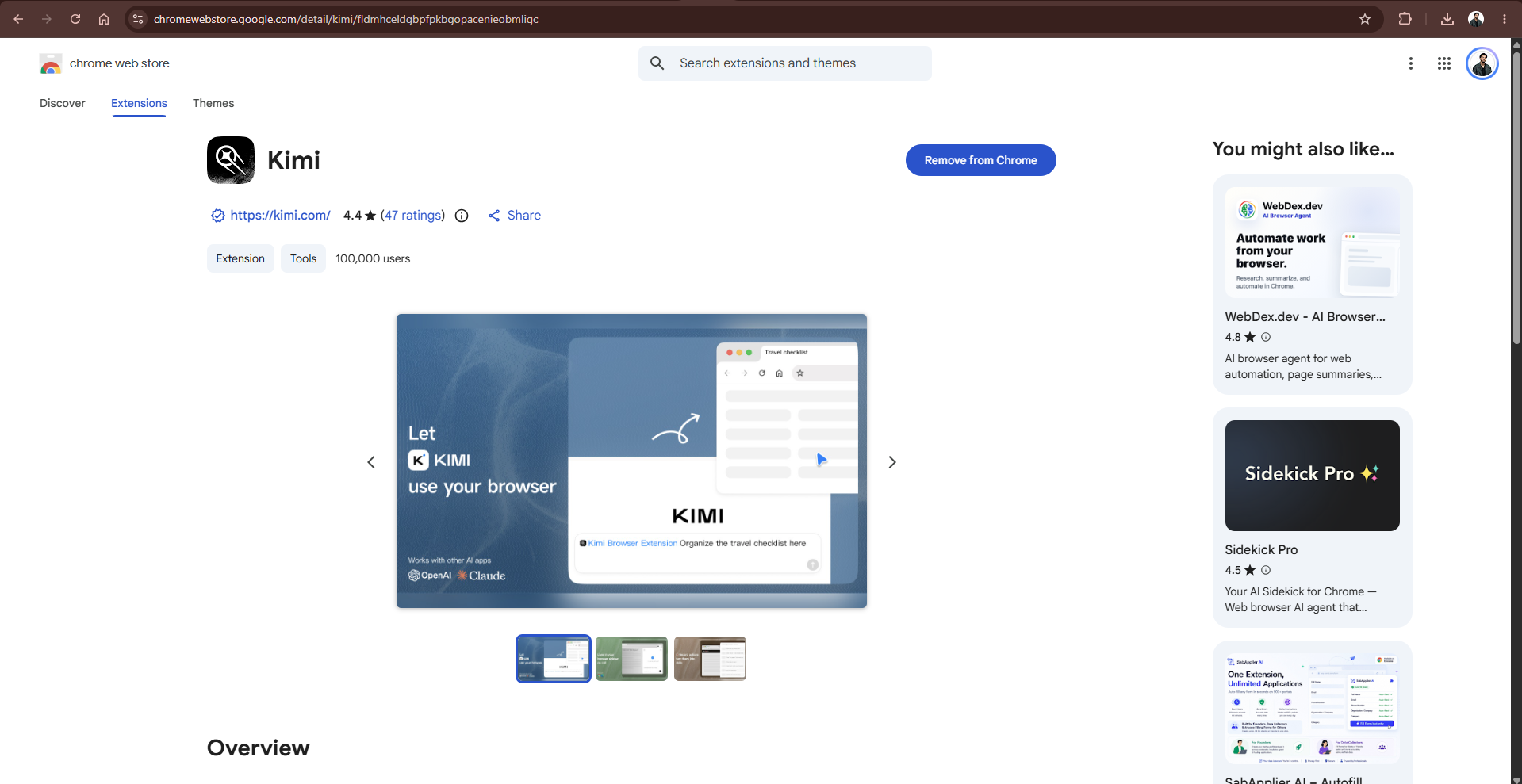
The older Kimi Explorer / Kimi 浏览器助手 listing is marked discontinued and directs users to the replacement. Instructions for that older assistant should not be treated as WebBridge setup instructions.
Install in Chrome
- Open the official listing in the Chrome profile you intend to use.
- Select Add to Chrome, review the permission prompt, and confirm only when you accept the requested access.
- Open Chrome’s Extensions menu and pin Kimi for convenient access.
- Visit
chrome://extensions/and confirm that Kimi is enabled. Open its details before continuing to agent setup.
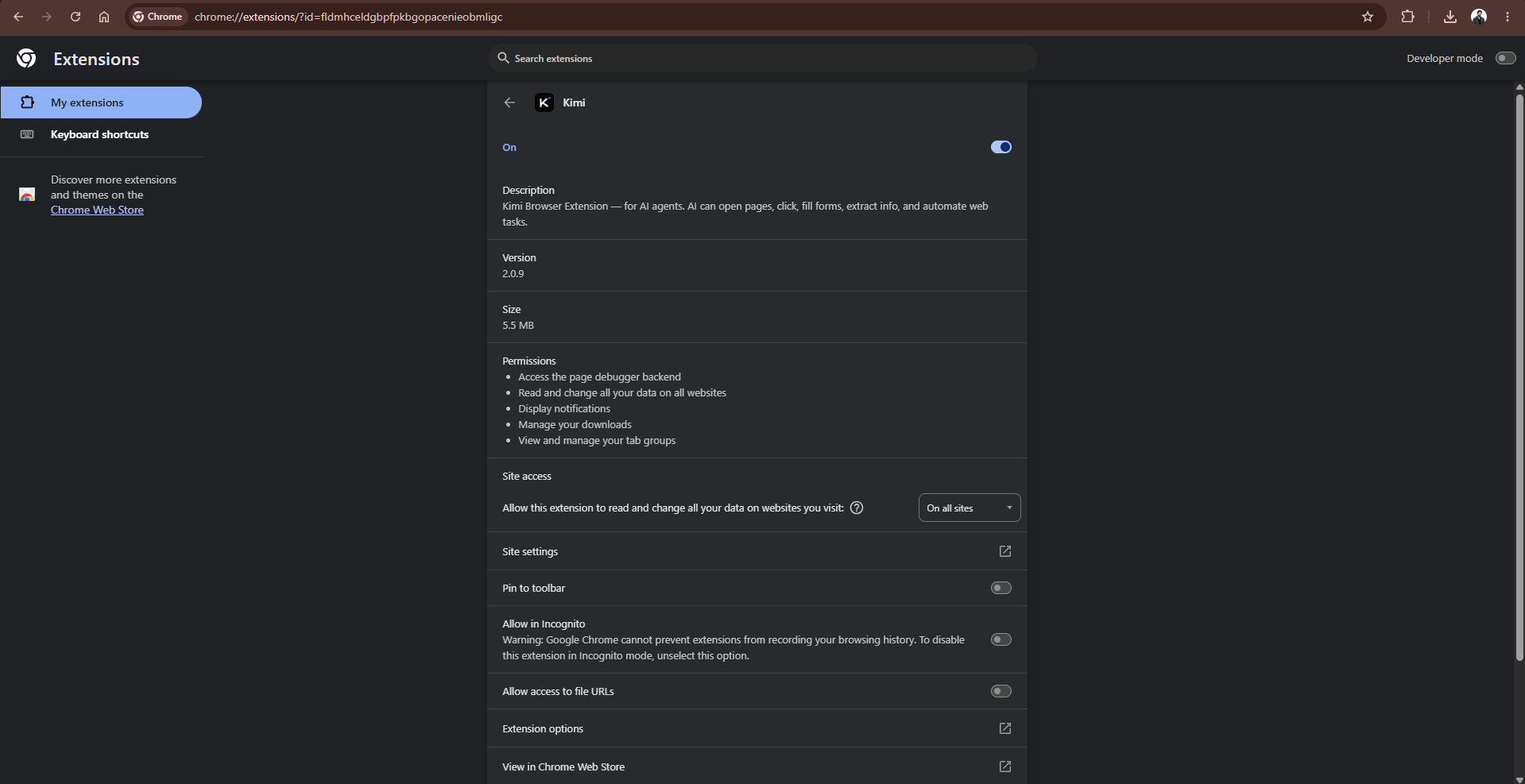
These controls follow Chrome’s extension installation and management instructions. On a managed computer, an installation restriction may require your administrator’s approval rather than another download source.
Install in Edge or use the official manual fallback
In Edge, open the Edge Add-ons listing linked by Kimi, choose Get, review the permissions, and confirm Add extension. Manage it through edge://extensions/. Microsoft documents these steps in its Edge extension guide.
When the store is unavailable, Kimi also documents manual installation: obtain the package from its official product page, extract it, open your browser’s extensions page, enable Developer mode, and choose Load unpacked with the extracted folder. Prefer the store route for a first installation. Do not substitute a ZIP from an unrelated tutorial.
Complete Kimi WebBridge setup for your agent
Stop here and choose one route. Do not install several agents to solve a single connection problem: that makes it harder to identify which process is controlling which browser.
Route A: Kimi Work in the desktop app
Install the desktop application through our Kimi download guide, then open Work mode. The official Plugin Center instructions use Work → Plugins to manage integrations. Find Kimi Browser Extension or WebBridge, install it, and confirm that the real-browser plugin is enabled in Settings.
In a Work conversation, type / to select the installed plugin. Follow any connection instructions presented for that integration. When using the browser sidebar route, open Kimi from the toolbar and select the Work mode described on the official extension page. Do not assume that a normal sidebar chat has selected the browser-control tool.
Keep the desktop app and your intended browser profile open for the verification task below. Our Kimi Work guide covers the wider desktop workflow; you do not need to configure every Work feature just to check this connection.
Route B: Kimi Code
In Kimi Code’s interactive interface, enter /plugins, use Tab to reach Official, select Kimi WebBridge, and press Enter to install. Run /reload or start a new session with /new afterward. The browser extension must also be installed; the agent plugin does not replace it.
The Kimi Code plugin documentation also explains plugin updates. Do not assume an updated Chrome extension means the agent-side plugin has updated. For terminal and editor context, see our Kimi developer workflow guide.
Route C: Another supported local agent
Use the With local Agent tab on Kimi’s product page and the operating-system-specific setup in its installation guide. Review the proposed installation before allowing your agent to execute it, then restart the agent when instructed. Do not paste a macOS shell installer into PowerShell or reuse an old command without checking its source.
Instructions mentioning Kimi Claw Desktop belong to a different setup context. A Work user should not create a Claw deployment merely to follow a troubleshooting paragraph. Match the instructions to the application you actually use.
Understand permissions before connecting private accounts
A browser agent needs more authority than a bookmark or a search box. Read the installation prompt and the controls for your installed version. The explanations below describe permission meanings; they are not an audited inventory of Kimi’s extension manifest.
| Permission or control | Why it matters | Recommended response |
|---|---|---|
| Read or change website data | Website access can expose page content and allow modifications | Use only accounts and pages you are authorized to share with the workflow |
| Debugger access | CDP can support browser inspection and powerful page actions | Treat it as meaningful control, not a cosmetic warning |
| Site access settings | They govern supported categories of extension access | Review them, but do not assume they sandbox every debugging capability |
| Agent approval mode | It controls how the agent asks permission to act | Start with explicit approval instead of unattended automation |
Google’s permission warning guide explains website-data access. Its extension permissions reference associates debugger with warnings about debugger access and reading or changing data across websites. A warning indicates capability; it does not, by itself, prove misuse.
Chrome’s debugger API documentation describes operations involving network inspection, JavaScript, and page structure. Do not interpret an ordinary site-access selector as proof that every CDP action is restricted to the same scope.
There are three separate decisions: what the browser permits, what the agent is authorized to do, and which website account is signed in. Granting one does not settle the others. Our recommended starting point is a dedicated browser profile containing no sensitive sessions. Chrome’s profile documentation explains how to separate browsing settings, passwords, and history. A separate profile reduces accidental exposure; it is not a security sandbox.
For Work, the official permissions guidance distinguishes Default, Manual approval, and Fully automatic modes. Start with Manual approval and review requested actions. Other agents have their own controls; do not transfer Work’s approval behavior to an unrelated integration.
A local bridge does not mean the entire workflow is offline
Kimi describes browser execution and session handling as local. However, its Chrome listing also discloses handling of web history, user activity, and website content. The privacy policy linked from that listing discusses collecting conversation inputs, outputs, and history, and specifically treats text selection through its official browser plugin as input.
These statements concern different parts of the product. They do not establish that every page is uploaded, but they also do not justify claiming that nothing can leave your device. Check both the extension’s disclosures and the controlling agent’s data policy before using confidential material. Do not equate a local service with offline inference or a zero-retention guarantee.
For an initial trial, avoid payment pages, administrative consoles, private messages, and customer records. Treat instructions embedded in a website as untrusted page content, not permission to change the task. Recording a reusable skill should never involve passwords or other secrets.
Verify the Kimi browser connection with one low-risk task
Use a public page before testing a signed-in workflow. The following is a suggested verification prompt, not a result obtained for this article. It requires no API key or programming.
Use the connected browser through Kimi Browser Extension, not web search or another browser tool.

Open:
https://www.kimi.com/en/help/kimi-webbridge/kimi-webbridge-how-it-works

Return:
1. The page heading.
2. The page URL.
3. Three capability labels visible on the page.

Do not sign in, fill or submit forms, download files, change settings, or open unrelated tabs.

If the browser connection is unavailable, report that instead of switching tools.

Stop after the report.
Watch the task rather than judging only its final answer. Confirm that it uses the intended WebBridge integration, operates the expected browser, and reports information you can independently read on that page. Accurate text alone is insufficient: another search or browsing tool could retrieve similar information.
If the agent substitutes Work’s built-in browser, the requested connection has not been demonstrated. If it reports a failure, preserve the exact message instead of asking it to guess a successful result. One successful public-page task checks that route at that moment; it is not a reliability benchmark for every website.
Kimi extension not connected: locate the missing link
Use this table as a triage checklist. The checks are recommendations, not a diagnosis of your machine.
| What you observe | Check first |
|---|---|
| Kimi is absent from the browser’s extension list | Correct profile, official listing, and completed installation |
| The extension is enabled, but the agent has no browser tool | Agent-side plugin installation and activation |
| The sidebar chats, but browser actions are unavailable | Selected usage mode and the real-browser connection |
| Work opens pages only in its preview pane | Whether the task selected the built-in browser instead of WebBridge |
| An existing setup stopped after an update | Extension, local service, and agent-plugin versions separately |
| Public pages work, but a private site does not | Correct website login, page access, and organizational restrictions |
Reconnect without resetting everything
First check that the extension is enabled in the intended browser profile. In Work, check the optional browser plugin. Then follow Kimi’s official reconnection sequence: repeat the connection instruction when prompted and restart the desktop app. For another local agent, complete its connection setup and restart that agent.
Change one thing at a time and repeat the public-page check. Do not begin by deleting your entire browser profile, clearing all website cookies, or reinstalling every application. Those actions can remove useful evidence while introducing unrelated login problems.
Check version mismatches and the documented CDP fix
The Chrome listing documents a fix for a CDP permission problem. It instructs affected older builds to follow the Settings prompt to update the Daemon, while the newer release includes the fix. Treat that as a version-specific instruction, not a reason to run an arbitrary repair script.
Record the extension version, agent version, and local-service version when available. Updating one component is not evidence that all three changed. If Kimi Desktop itself will not open or sign in, use our Kimi app troubleshooting guide before investigating a browser connection that the app cannot initiate.
Kimi browser extension not working: inspect the failed action
Pages open, but clicks or screenshots fail
Kimi’s WebBridge troubleshooting FAQ identifies extension conflicts when navigation succeeds but actions such as snapshots, evaluation, screenshots, or clicks repeatedly fail. It recommends isolating other extensions and re-enabling them individually after restarting the browser.

Apply that test to optional extensions you control, preferably in your dedicated profile. Do not disable organization-required security extensions or endpoint protection. Record which change affects the failure so you have a reproducible finding rather than a browser with every safeguard turned off.
The page changes before the agent can act
The same FAQ identifies complex layouts and dynamic loading as possible causes. Ask for a fresh view of the page and reduce the task to one operation. Our recommended diagnostic sequence is: read the page, identify the target, review it, and only then authorize the next action.
A successful connection cannot establish that the intended button is present, visible, or still in the same state. For example, a loading overlay or a newly opened dialog changes what the next click should do. Do not repeatedly submit a form while trying to determine whether the first submission worked.
A private page or managed browser blocks the task
Open the target manually in the intended profile. Verify that you are signed into the correct website account and can access the page yourself. A Kimi sign-in is not a login to every website. Compare a public-page task with the private-page failure before concluding that the whole connection is broken.
Chrome’s debugger documentation describes policy restrictions on protected hosts and screenshot capture. An explicit policy-denial message belongs with your administrator, not a workaround that exposes a debugging service or disables protections. A technically connected agent can still be correctly denied access.
Disable access or send a useful problem report
When finished, stop the active agent task. In Chrome, open chrome://extensions/; in Edge, open edge://extensions/. Turn Kimi off to disable the extension, or choose Remove to uninstall it. Hiding or unpinning its toolbar icon is not the same as disabling it.
Review the agent-side plugin separately. Do not treat browser-extension removal as confirmation that every related local component or saved conversation has been removed. Use the relevant agent’s settings and data controls for those separate tasks.
For support, Kimi requests the browser version, extension version, controlling agent, reproduction steps, and relevant screenshots or logs. A useful report says where the workflow stops and whether the public-page check also fails. Redact account details, tokens, private page content, and confidential URLs before sharing diagnostics.
Frequently asked questions
Do I need an API key for this setup?
The extension installation and Work route described here do not involve creating an API key or sending an API request yourself. Another local agent may have its own authentication requirements. Follow that agent’s setup rather than pasting credentials into an unrelated extension field.
Can I use WebBridge on another computer?
Kimi’s FAQ requires a separate installation and configuration on each computer. Do not assume that browser synchronization also sets up the machine-local connection. Repeat the low-risk verification check on the second device.
What do Record to skill and Web to cli mean?
Kimi presents these as ways to turn demonstrated or analyzed website operations into reusable workflows. Its browser-extension use cases describe reusable skills for recurring web tasks. Verify a small workflow first, and exclude credentials or sensitive account actions from anything you record.
The practical rule: choose the right browser route, install both sides of the connection when needed, grant only access you can justify, and verify one visible task. When something fails, diagnose installation, connection, permissions, and page behavior separately.
