
Kimi Docs is Moonshot AI’s AI document agent for creating, editing, reviewing, translating, converting and visually formatting professional documents. It can generate Word and PDF files from a prompt, add comments and suggested edits to an existing Word document, compare document versions, translate files into single-language or bilingual formats, and transform content between Word, PDF, PowerPoint and Excel workflows. Kimi Docs is more than a text generator, but it is not a substitute for factual review, Microsoft Word’s full collaboration system, or a regulated document-management platform.
Document features, model routing, file limits, credit rules and supported formats can change. Use the current Kimi Docs interface and official Help Center as the final reference.
The best way to understand Kimi Docs: it can build the document, review the document, transform the document and prepare the document for delivery. You still decide whether the facts, revisions, formatting and final file are acceptable.
Kimi Docs at a Glance
| Developer | Moonshot AI |
|---|---|
| Product type | AI document-generation, editing and transformation agent |
| Dedicated web address | https://www.kimi.com/docs |
| Main outputs | Word and PDF documents, with related Excel and PowerPoint transformation workflows |
| Create from scratch | Reports, white papers, proposals, contracts, resumes, lesson plans and other structured documents |
| Edit existing Word files | Comments, suggested edits, rewriting, restructuring and formatting review |
| Version comparison | Compare two document versions and explain changes |
| Translation | Single-language or line-by-line bilingual Word and PDF output |
| Rich content | Tables, LaTeX formulas, citations, code blocks, checklists and clickable tables of contents |
| Visual design | Cover pages, image-text layouts, captions, charts and publication-style PDFs |
| Published long-document capability | Up to approximately 10,000 words per generated Word or PDF document on the current feature page |
| General Kimi file limits | Up to 100MB per file and up to 50 files in one supported upload workflow |
| Mobile access | Available through the Docs tool in the official Kimi app |
| Billing | Uses free allowances or the shared membership credit pool according to actual token consumption |
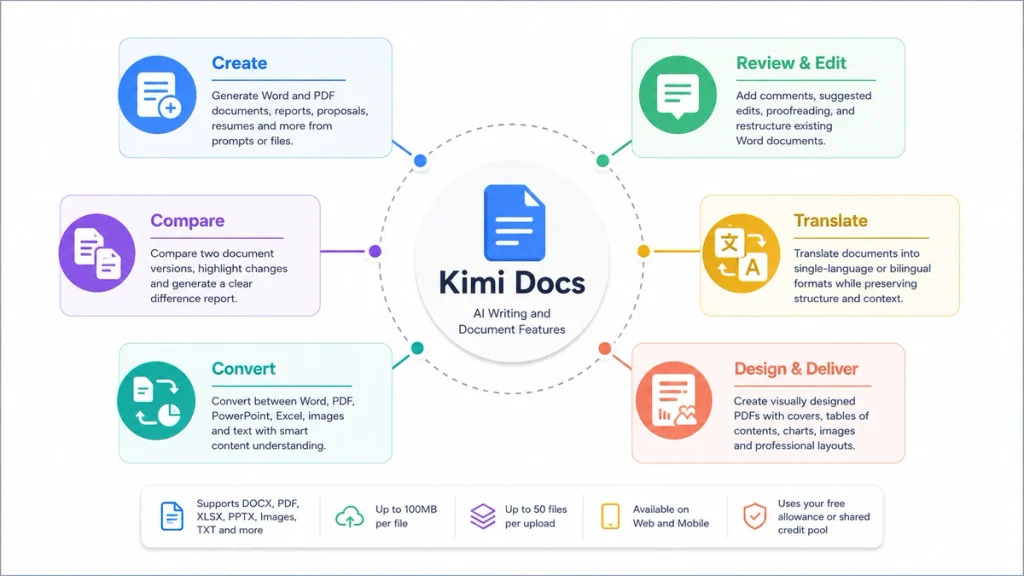
What Kimi Docs Is — and What It Is Not
Kimi Docs is an agentic document-production tool. You provide a goal, source material and formatting requirements; Kimi interprets the content and returns an editable file rather than only displaying text in a chat message.
It combines several jobs:
- Writing and structuring content.
- Reading source files.
- Editing and commenting on Word documents.
- Converting information across file formats.
- Translating documents.
- Designing visually formatted PDFs.
- Extracting information from long files.
- Comparing multiple versions.
Kimi Docs should not automatically be treated as:
- A replacement for every Microsoft Word feature.
- A guaranteed preservation layer for all document metadata.
- A real-time collaborative workspace equivalent to every Google Docs workflow.
- A legal, academic or compliance authority.
- A citation database.
- A records-management or document-retention system.
- A guarantee that accepted files were read completely and correctly.
The official product emphasizes creation, review, conversion and download. Organizations that require formal approval trails, access control, retention schedules, digital signatures or audit logs should verify those requirements separately.
The Four Main Jobs of Kimi Docs
1. Create
Kimi can generate a new document from a short description, a detailed brief, uploaded files or a featured template. Potential outputs include:
- Business reports.
- White papers.
- Proposals.
- Resumes.
- Contracts and templates.
- Research summaries.
- Lesson plans.
- Meeting reports.
- Policy documents.
- Project plans.
The current Kimi Docs feature page advertises Word and PDF generation of up to approximately 10,000 words, along with bulk generation of many shorter documents. Treat this as a published capability rather than a promise that every 10,000-word output will be coherent, factually correct or visually perfect.
2. Review
You can upload an existing Word document and ask Kimi to:
- Insert comments beside relevant passages.
- Suggest revisions.
- Identify unclear or unsupported claims.
- Review a contract for specified risks.
- Check terminology and consistency.
- Provide academic or educational feedback.
- Improve headings, spacing, citations and lists.
Kimi’s dedicated Docs page currently advertises Track Changes and comments. For professional review, test the exported DOCX to confirm that the exact revision metadata, comments and formatting required by your workflow survive the round trip.
3. Transform
Kimi Docs can reinterpret information rather than merely changing a file extension. Examples include:
- Turn Excel data into a Word or PDF analysis report.
- Convert PowerPoint slides into a structured lesson document.
- Convert a report into an executive summary.
- Turn screenshots or scanned pages into editable Word content.
- Translate a PDF while preserving formulas and code.
- Generate multiple shorter documents from one spreadsheet.
Content-aware transformation is useful, but it creates more opportunities for interpretation errors than a simple file conversion. Compare the result with the original data and document structure.
4. Design and deliver
Kimi can combine text, images, charts and layout instructions to produce visually designed PDFs containing:
- A cover page.
- A table of contents.
- Section styling.
- Captions.
- Charts and data visualization.
- Image-text layouts.
- References and footnotes.
The exported file should be treated as a professional draft. Open it in Word, a PDF viewer or the relevant Office application and inspect every page before distribution.
How to Access Kimi Docs
Use the dedicated web page
- Open a supported browser.
- Visit the official Kimi Docs page.
- Sign in to the intended Kimi account.
- Enter a new document request, upload an existing file or choose a featured example.
- Select a template or continue through the conversational Docs interface.
- Preview the result.
- Download the file and continue editing it locally if needed.
Use the mobile app
- Open the latest official Kimi app.
- Open the toolbar above or near the input area.
- Select Docs.
- Describe the document or upload a supported source file.
- Review and download the result.
Use General Agent mode
You can also select K3 in the official Kimi interface and request a document. General Agent can call document-reading, writing and execution tools when the task requires them.
Use the dedicated Docs mode when the primary goal is a document. Use General Agent when the document is one deliverable inside a broader task that also involves web research, data analysis, code or other tools.
Create a Document from Scratch
A weak request says, “Write a report.” A document-ready request defines the audience, purpose, evidence, structure and file format.
- Define the reader. State who will use the document and what they already know.
- Define the decision. Explain what the document should help the reader understand or decide.
- Provide sources. Upload the approved material or define the web-source policy.
- Specify the structure. List required sections and their purpose.
- Set style rules. Define language, tone, terminology and visual style.
- Request the file. State whether the output should be DOCX or PDF.
- Require verification. Tell Kimi how to mark missing evidence and uncertain claims.
Create a professional Word report.

Audience:
Senior managers with no technical background.

Purpose:
Explain the current problem, compare three options and recommend one action.

Use only:
- The uploaded research files.
- Current official sources.
- Data that can be linked to its original source.

Structure:
1. Executive summary.
2. Background.
3. Current evidence.
4. Options.
5. Risk comparison.
6. Recommendation.
7. Implementation plan.
8. Sources and unresolved questions.

Formatting:
- DOCX output.
- Clear heading hierarchy.
- One table of contents.
- Short paragraphs.
- Tables for comparisons.
- Captions below charts.
- American English.

Do not invent a statistic, quotation or citation.
Use [VERIFY] wherever evidence is incomplete.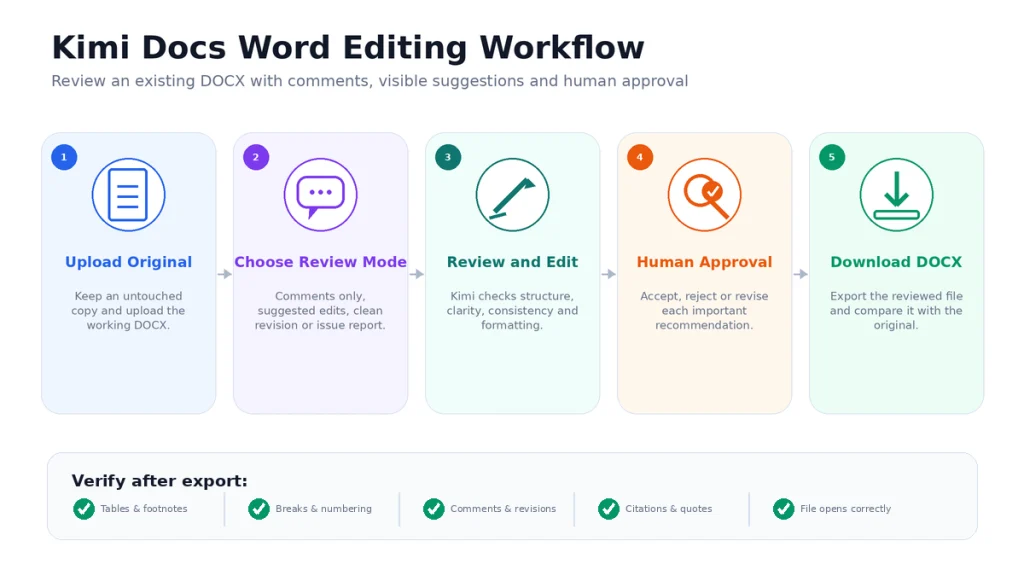
Edit an Existing Word Document
Start by deciding whether you want comments, visible changes or a clean rewritten version. Those are different editorial outputs.
| Review mode | What to request | Best use |
|---|---|---|
| Comments only | Add comments without changing the body text | Author-controlled review |
| Suggested edits | Propose changes while making them visible for review | Line and copy editing |
| Clean revision | Create a fully revised copy | When a visible audit trail is not required |
| Issue report | List problems in a separate document | Legal, academic or compliance review |
Review the uploaded Word document.

Do not silently rewrite the full document.

Insert comments for:
- Unsupported claims.
- Ambiguous wording.
- Missing definitions.
- Repeated sections.
- Inconsistent terminology.
- Weak transitions.
- Formatting inconsistencies.

Use suggested edits only for:
- Grammar.
- Punctuation.
- Clear sentence-level errors.

Preserve:
- Existing headings.
- Tables.
- References.
- Footnotes.
- Numbering.
- Page breaks.
- Original quotations.

Return a DOCX file and a short review summary.
Mark every factual change that requires human approval.
Keep an untouched copy of the original. After downloading the edited file, compare it with the source in Microsoft Word or another compatible editor before accepting changes.
Compare Two Document Versions
Upload both versions and identify them clearly. Do not rely on file order alone.
Compare these two files:

Baseline:
contract-v1-approved.docx

Proposed version:
contract-v2-counterparty.docx

Create a comparison report containing:
- Added clauses.
- Deleted clauses.
- Modified wording.
- Changed dates, numbers and party names.
- Changes affecting payment, liability, termination, privacy or jurisdiction.
- Changes that appear editorial only.
- Items requiring legal review.

Quote the relevant wording from both versions.
Give the section or page location.
Do not provide legal advice or approve the contract.
Return the comparison as a Word document.
AI comparison can help locate differences, but it should not replace Word Compare, a formal redline process or professional legal review when document history has contractual importance.
Translate a Document with Kimi Docs
Kimi Docs supports single-language and line-by-line bilingual outputs. A translation prompt should define what remains untranslated.
Translate this PDF into English.

Output:
- A bilingual PDF.
- Original paragraph first.
- English translation immediately below it.

Preserve exactly:
- Company names.
- Product names.
- Model IDs.
- URLs.
- Numbers.
- Formulas.
- Code.
- Legal entity names.

Requirements:
- Keep the page and heading structure.
- Use one terminology translation consistently.
- Add [UNCLEAR] where the source is unreadable.
- Do not simplify legal or technical wording.
- Include a terminology glossary at the end.
Review names, negatives, exceptions, currencies, units and dates. A fluent translation can still reverse a condition ormisread a scanned character.
Convert Content Between Word, PDF, PowerPoint and Excel
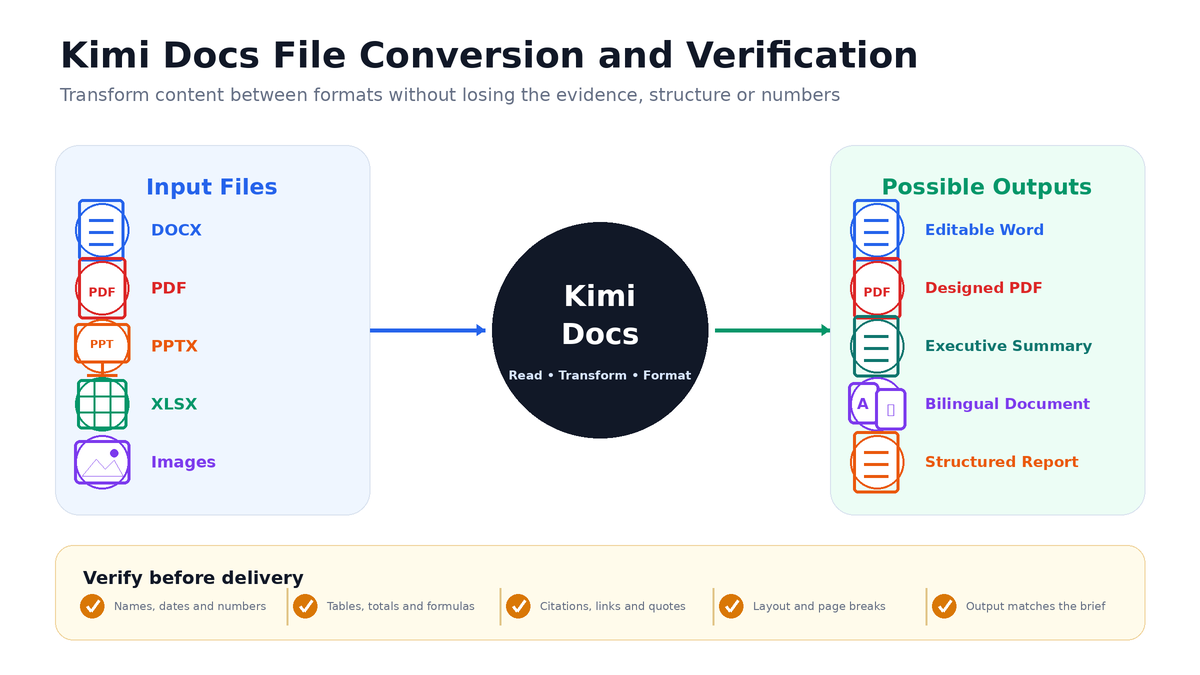
Kimi’s transformation workflow is useful when the destination requires a different information structure, not only a different extension.
| Input | Possible output | What needs interpretation |
|---|---|---|
| Excel workbook | Word or PDF management report | Which metrics matter and what they mean |
| PowerPoint slides | Lesson plan or detailed Word document | How slide bullets become a narrative |
| PDF report | Executive summary | Which evidence and limitations must remain |
| Images or scans | Editable Word document | OCR, table reconstruction and layout |
| Payroll spreadsheet | Multiple individual PDF documents | Row-to-file mapping and private-data handling |
Check that rows, columns, totals, charts, footnotes and source references survived the transformation. Content-aware conversion can improve the result, but it can also introduce interpretation that was not present in the source.
Design a Visual PDF Report
Kimi Docs can arrange text, generated visuals, uploaded images, tables and charts into a publication-style PDF. Define the visual purpose rather than asking only for a “professional design.”
Create a visual PDF report from the verified source material.

Audience:
Potential business partners.

Visual direction:
- Clean corporate design.
- White background.
- Restrained use of blue accents.
- No decorative stock photos.
- Use charts only when supported by data.

Include:
- Cover page.
- Table of contents.
- Executive summary.
- Five main sections.
- One comparison table.
- Three charts.
- Image captions.
- Source notes.
- Final limitations section.

Do not invent data for a chart.
Label every generated illustration.
Keep the original data file separate from the designed PDF.
Rich Content Supported by Kimi Docs
| Element | Potential use | What to verify |
|---|---|---|
| Heading hierarchy | Structured reports and navigation | Correct level and table-of-contents links |
| Tables | Comparisons and structured data | Rows, columns, merged cells and totals |
| LaTeX formulas | Academic and technical documents | Symbols, operators, numbering and rendering |
| Citations | Research and academic documents | Source existence, metadata and supporting passage |
| Code blocks | Technical guides and documentation | Indentation, syntax and copyability |
| Checklists | Procedures, SOPs and audit lists | Order and completeness |
| Clickable contents | Navigation through long documents | Broken or incorrect links |
| Images and charts | Visual reporting | Source, accuracy, captions and accessibility |
Kimi Docs File Types and Limits
Kimi’s current general file-processing documentation lists support for:
- PDF.
- Microsoft Word.
- Microsoft Excel.
- Microsoft PowerPoint.
- Images.
- TXT.
- Video.
The current general limits are:
- Maximum file size: 100MB per file.
- Maximum files: up to 50 files in one supported upload workflow.
These are upload limits, not guarantees of usable context or perfect extraction. Fifty large files can exceed the useful scope of one task even when each file uploads successfully.
For a large source collection:
- Ask Kimi to inventory the files.
- Identify unreadable or duplicate items.
- Divide the collection by topic.
- Create a source index.
- Generate the document in stages.
- Run a final consistency review.
A Document-Ready Prompt Framework
Document goal:
[What should the completed document achieve?]

Audience:
[Who will read it and what do they know?]

Source material:
[List files, URLs and approved data.]

Source rules:
- Preferred source types:
- Date range:
- Excluded sources:
- Citation requirements:

Required structure:
1.
2.
3.

Writing rules:
- Language:
- Tone:
- Terminology:
- Length:
- Reading level:

Formatting rules:
- Output format:
- Heading hierarchy:
- Tables:
- Charts:
- Images:
- References:
- Comments or suggested edits:

Verification:
- Mark unsupported claims with [VERIFY].
- Do not invent missing data.
- Preserve quotations exactly.
- Recalculate all totals.
- List unresolved issues.

Final deliverable:
[Exact file name and format.]
Practical Kimi Docs Prompt Examples
Executive summary
Condense the uploaded research report into a five-page executive summary.

Preserve:
- Core data.
- Main findings.
- Major limitations.
- Source references.

Remove:
- Repeated background.
- Detailed methodology that does not affect the decision.
- Decorative language.

Add:
- One-page executive overview.
- Key risks table.
- Recommended next actions.

Return an editable DOCX file.
Academic review
Review this paper as an academic editor.

Add comments for:
- Unsupported claims.
- Missing citations.
- Methodology gaps.
- Overstated conclusions.
- Inconsistent terminology.
- Tables that are not explained.
- References that do not appear in the text.

Do not change the author's argument.
Do not invent citations.
Return a commented Word file and a separate review memo.
Contract issue spotting
Review this contract for issue spotting only.

Add comments beside clauses related to:
- Payment.
- Renewal.
- Termination.
- Liability.
- Indemnity.
- Confidentiality.
- Data processing.
- Intellectual property.
- Governing law.

Do not provide legal advice.
Do not rewrite legal clauses.
Create a separate table of issues requiring qualified legal review.
Resume creation
Create a two-page professional resume from the uploaded career history.

Rules:
- Do not invent achievements.
- Preserve dates and job titles.
- Use measurable outcomes only when supplied.
- Use a clean ATS-friendly layout.
- Avoid icons, columns and decorative progress bars.
- Add [DETAIL NEEDED] where evidence is missing.

Return a DOCX and PDF version.
Kimi Docs vs Chat, Agent, Sheets, PPT and Work
| Product or mode | Best for | How it differs from Kimi Docs |
|---|---|---|
| K2.6 Chat | Questions, explanations and short text | Returns chat content rather than a full document-production workflow |
| Kimi Docs | Word and PDF creation, editing, review and transformation | Dedicated document-focused output |
| Kimi Agent | Multi-step tasks using several tools | A document can be one part of a broader mission |
| Kimi Sheets | Excel data, formulas, models and dashboards | Focuses on spreadsheet structure and calculations |
| Kimi PPT | Editable presentations and visual storytelling | Focuses on slide-level structure and design |
| Kimi Work | Desktop workflows and authorized local folders | Provides a wider desktop environment that can use document tools |
| Deep Research | Multi-source investigation | Creates the evidence report that can later be refined in Docs |
Is Kimi Docs Free?
Kimi Docs can be available through a free allowance, membership credits or Extra Usage according to the current account and region. It should not be confused with ordinary K2.6 Chat, which is currently free at the normal Chat entry point and does not consume membership credits.
Docs shares the membership credit pool with features such as:
- Kimi Agent.
- Deep Research.
- Kimi Sheets.
- Kimi PPT.
- Kimi Work.
- Kimi Code.
- Kimi Claw.
Credits are deducted according to actual token consumption. A long source document, large output, complex formatting task or several revision rounds can consume more than a short document.
If the shared pool is exhausted, other paid Kimi features can also be affected. Check the current usage through the Subscription area of your signed-in account.
See Is Kimi AI Free?, Kimi AI Pricing and Kimi Usage Limit Reached for the broader account rules.
Kimi Docs Quality and Limitations
Complex layouts can break
Independent testing has reported table duplication and layout loss in a complex 60-page document. Test the exact document types your organization uses rather than assuming that success on plain prose will transfer to manuals, forms or heavily designed reports.
Formatting quality is not factual accuracy
A professionally designed report can still contain an incorrect number, unsupported conclusion or invented reference.
Track Changes requires testing
Kimi advertises comments, suggested edits and Track Changes-related functionality. Workflows that depend on exact revision metadata, authorship history or compliance evidence should test import and export before adoption.
Long output can drift
A longer document can repeat arguments, change terminology, contradict an earlier section or lose the intended audience. Generate and approve an outline before producing a long draft.
Conversions can reinterpret content
Turning a spreadsheet into a report or slides into a lesson plan requires editorial decisions. Kimi may select the wrong metric, omit a caveat or change the emphasis.
OCR can be wrong
Scanned pages, handwriting, equations, tables, faint text and multi-column layouts can be misread. Check the extracted text against the image.
It is not a professional authority
Legal, medical, financial, academic and regulatory documents require qualified review. Kimi can organize issues and comments; it cannot accept professional responsibility for the result.
Privacy and Sensitive Documents
- Do not upload confidential client files without authorization.
- Remove passwords, API keys, banking information and identity documents that are not required.
- Do not upload unpublished research or participant data without approval.
- Check employment, publishing, legal and institutional policies.
- Keep an offline copy of the original document.
- Use a redacted version for testing.
- Review Kimi’s current Privacy Policy and the applicable regional Terms.
- Do not use a public sharing link for confidential output.
A supported file type establishes technical compatibility, not permission to process the contents.
Kimi Docs Verification Checklist
Before distributing a Kimi-generated or edited document, verify:
- Every required section is present.
- The file opens in the intended software.
- Headings and the table of contents are correct.
- Comments appear beside the intended text.
- Suggested edits are visible and reviewable.
- Tables retain the correct rows, columns and totals.
- Charts match the underlying data.
- Formulas and equations render correctly.
- Names, dates, prices, units and percentages match the sources.
- Every citation exists and supports the claim.
- Quotations are exact.
- Links work.
- No confidential information was added unintentionally.
- Generated images are labeled when necessary.
- The final file matches the original brief.
Who Should Use Kimi Docs?
| User | Strong use | Main caution |
|---|---|---|
| Writers and editors | Drafting, comments, structure and revision | Protect voice and verify facts |
| Researchers | Reports, summaries, references and visual PDFs | Check every citation and methodology claim |
| Students | Study guides, notes and document organization | Follow academic-integrity rules |
| Teachers | Lesson plans, tests and document comments | Review grading and feedback manually |
| Business teams | Proposals, reports and meeting documents | Check numbers and confidential data |
| Legal teams | Issue spotting, comments and version comparison | Not a substitute for legal review or formal redlining |
| Marketing teams | Brochures, reports and campaign documents | Check claims, branding and image rights |
| Operations teams | Templates, SOPs and bulk document creation | Test consistency before large-scale generation |
Frequently Asked Questions
What is Kimi Docs?
Kimi Docs is Moonshot AI’s AI document agent. It creates, edits, reviews, translates, converts and visually formats Word and PDF documents from prompts and uploaded source files.
What is the official Kimi Docs website?
The current dedicated address is https://www.kimi.com/docs. Sign in only through the official Kimi domain.
Can Kimi Docs create Word documents?
Yes. Kimi Docs can generate structured DOCX documents such as reports, white papers, proposals, resumes and summaries.
Can Kimi edit an existing Word document?
Yes. Upload the Word file and specify whether you want comments, suggested edits, restructuring, proofreading or a clean revised copy.
Does Kimi Docs support Track Changes?
Kimi’s current Docs page advertises Track Changes, comments and suggested revisions. Test the exported DOCX when exact revision metadata or professional auditability is required.
Does Kimi preserve Word formatting?
The official documentation states that comments and suggested edits can be inserted while preserving original formatting. Complex layouts, tables and metadata should still be checked after export.
Can Kimi compare two Word documents?
Yes. Kimi can compare versions, identify changes and create a side-by-side or structured difference report. Formal legal redlining should still use an approved review process.
Can Kimi Docs translate PDF files?
Yes. It can create a translated Word or PDF file and supports line-by-line bilingual output. Verify technical terms, names, formulas, numbers and quotations.
Can Kimi convert PDF to Word?
Kimi Docs supports document transformation and can turn readable PDF or image content into editable Word-style output. OCR and layout reconstruction may require correction.
Can Kimi convert Excel or PowerPoint content into Word?
Yes. Kimi’s current feature documentation describes turning Excel data into Word or PDF reports and PowerPoint slides into structured Word lesson plans.
How long can a Kimi Docs document be?
The current Kimi Docs feature page advertises long Word or PDF generation of up to approximately 10,000 words. Actual quality and completion depend on the task, source material and available credits.
What file formats does Kimi support?
Kimi’s current general file support includes PDF, Word, Excel, PowerPoint, images, TXT and video. The appropriate output depends on the selected tool and task.
What is the Kimi Docs file limit?
Kimi’s current general file-processing limit is 100MB per file and up to 50 files in one supported upload workflow. Upload capacity does not guarantee that every file fits usefully inside one task.
Can I use Kimi Docs on mobile?
Yes. Open the official Kimi app and select the Docs tool from the task toolbar. A desktop screen can be more practical for reviewing detailed layouts.
Is Kimi Docs free?
Docs can use a free allowance or shared membership credits depending on the account and region. It is separate from ordinary K2.6 Chat, which currently does not consume membership credits at the normal Chat entry point.
Does Kimi Docs use the same credits as other Kimi features?
Yes. Docs shares the membership credit pool with Agent, Deep Research, Sheets, PPT, Kimi Work, Kimi Code, Kimi Claw and other membership features.
Can Kimi Docs generate accurate academic citations?
It can format citations and references, but users must verify that each source exists, that its metadata is correct and that it supports the related claim.
Is Kimi Docs safe for confidential documents?
Review your authorization, contract, institutional rules and Kimi’s current Privacy Policy before uploading confidential material. Redact information that the task does not require.
Is Kimi Docs a replacement for Microsoft Word?
No. It can generate and edit Word files, but Microsoft Word or another compatible editor is still useful for final review, collaboration, exact layout control, approval history and professional document management.
Official Sources and Testing Notes
This article prioritizes current first-party Kimi and Moonshot AI documentation. The principal sources reviewed were:
- Kimi Docs and Sheets Overview
- Kimi Docs Use Cases and Prompt Library
- Kimi AI Document Agent Feature Page
- Kimi Docs Dedicated Product Page
- Kimi File Types and Upload Limits
- Kimi Shared Credit Pool and Usage Rules
- Kimi Membership Benefits
- Kimi Projects
An independent Kimi Word-editor test from editGPT was also reviewed because it reported practical issues with tables and complex layouts. Since editGPT is a competing document editor, its results are treated as a limitation signal rather than a neutral universal benchmark:
Features, limits and membership behavior were last checked on August 24, 2026. When the live Kimi Docs interface or signed-in account differs from this article, follow the current first-party information.
Last verified: August 24, 2026.